
There are many applications in Cydia which lets you change the name of any carrier. Have you ever wondered if you could change the name with the customized logo of your choice? Yes, we would tell you how to do it. The process is very simple provided that you have a JailBroken iPhone 4/4S and openSSH or afc2add installed from Cydia. Both of them would give you access to the root files of the device where we would replace the logo.
You can either use iPhoneBrowser or iExplorer on your PC/Mac. After installing openSSH, use Fugu on Mac and Winscp on Windows. Once you have done installing the softwares on your PC or Mac, you are all set to move ahead. Avoid if you have already installed them in the past. Just follow the steps below:
1) Connect your device to PC/Mac.
2) Open iExplorer or iPhoneBrowser.
3) Navigate to System/Library/CarrierBundles/iPhone.
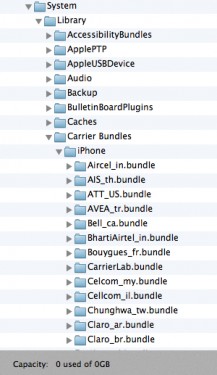
4) Lookout for the carrier bundle of your device. In my case, it is BhartiAirtel_in Bundle.
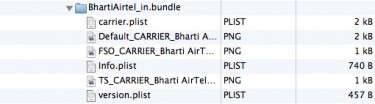
5) Here you would need to replace three files. One which starts from “Default”, another one from “FSO” and last one with “TS”.
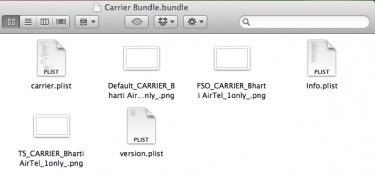 6) “Default” PNG file is the carrier logo which you see in the home screen, “FSO” which you see in the springboard and “TS” which you see in the notification center.
7) I prefer to use “white” as “FSO”, “Blue” as “Default” and “Black” as “TS”. However, it all depends on personal preference which could differ for everyone.
8) Rename all your PNG files that you want to use in place of the carrier logo. At the end of name, just add @2x. For example “Default….@2x.png” for “Default…png” file. Similarly, do the same for “FSO” and “TS”.
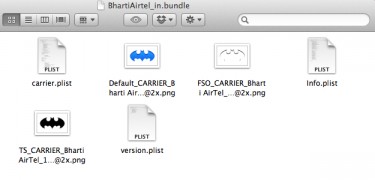 9) You can delete rest of .PNG files which are without “2x” after taking the backup. We wouldn’t require them anymore until you want to revert back to original.
10) Disconnect your iPhone 4/4S. Do a respiring using SBSettings or reboot.
11) Voila! you have a custom carrier logo. Enjoy 🙂
You can find many interesting carrier logos from here. This method has been tested by ourselves and works perfectly fine. Let’s know if you face any other issues or you have any other method better than this in the comment section.