
The bank app says the OTP has been sent. The timer is ticking down from 30 seconds, you’re staring at Messages, and nothing turns up. Is your iPhone not receiving OTP SMS at all, or just not showing them? Often it’s the second: the code did arrive, and your iPhone filed it somewhere you weren’t looking.
So start with where it went, not with resetting things. And if the app offers to send the OTP by call instead, take it while you look; it buys you time.
iPhone not receiving OTP SMS: the quick answer
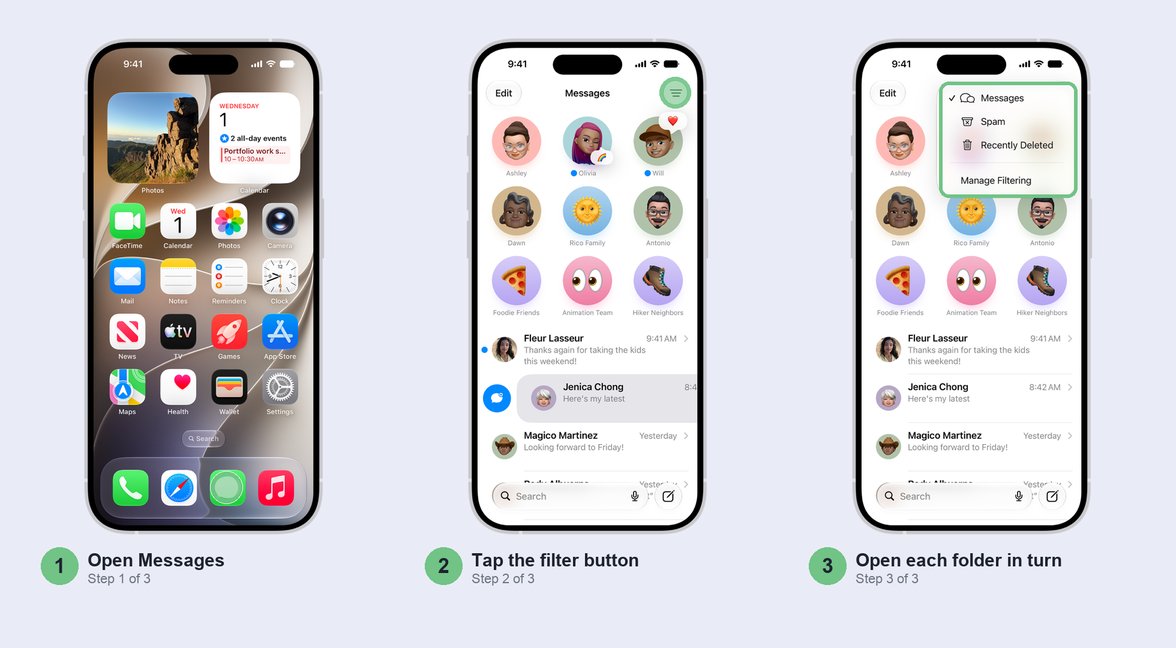
Open Messages, tap the filter button at the top right, and look in Transactions, Unknown Senders and Spam. Bank, UPI and delivery OTPs come from business senders that aren’t in your contacts, so a filter often sends them there without a notification. If the folder isn’t there either, check Recently Deleted: your iPhone can delete a code on its own once it has been filled in. If nothing arrived at all, it’s usually the SIM line, the signal or your carrier, in that order.
Part 1: The OTP arrived, you just can’t see it
These take a minute each and fix a lot of cases, so don’t skip ahead to resets.
Look in Transactions, Unknown Senders and Spam
In the Messages conversation list, tap the filter button in the top-right corner. If you see Transactions, Promotions or Unknown Senders in that menu, message filtering is on, and that’s very likely where your OTP is sitting. Indian banks, UPI apps and shopping sites send from business IDs, not saved numbers, so iOS treats them as unknown. Apple’s guide to screening and filtering texts covers the settings.
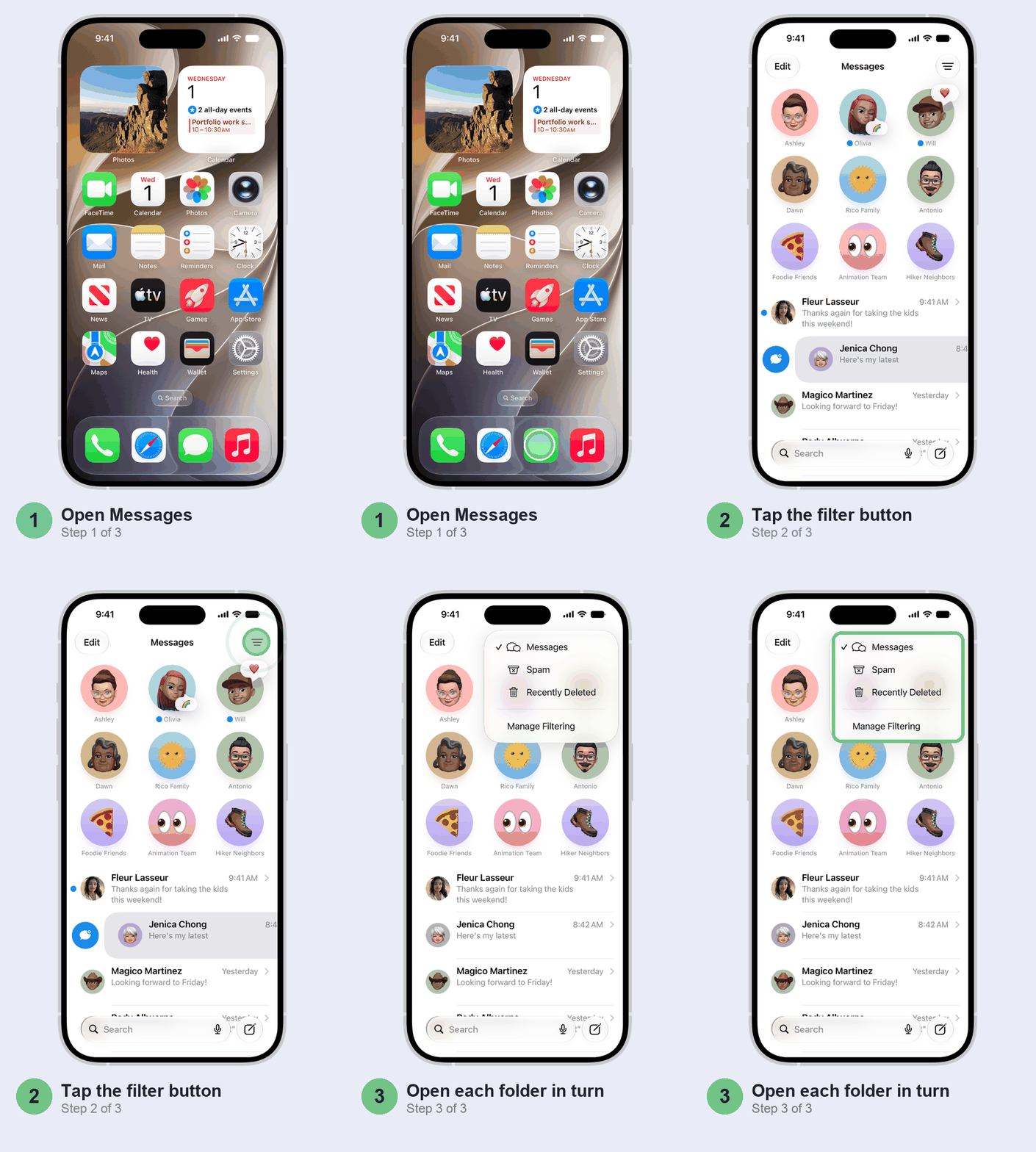
While you’re in that menu, open Spam too. Spam filtering is on by default, and now and then a genuine message gets caught. Tap the message, then Not Spam and Move to Messages.
Found it? Now stop it happening again. You don’t need to switch the filter off, because it does a good job on promotional junk. Instead:
- Tap Manage Filtering > Allow Notifications (the categories vary by region) and turn on Time Sensitive. OTPs stay filed away but you get the alert, which is all you need when the timer’s running.
- For your own bank, open its message under Unknown Senders and tap Mark as Known. Future texts from that sender land in your main list. Some banks use more than one sender name, so you may need to do this a couple of times.
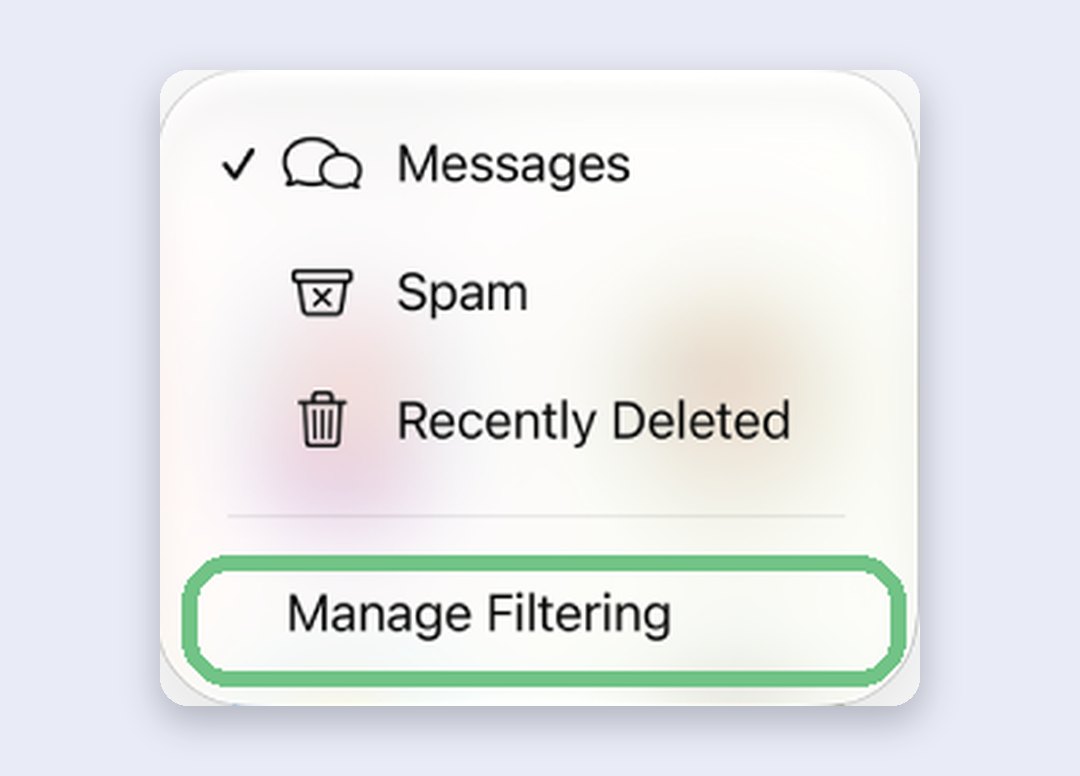
Installed a spam-blocking app at some point? It may be sorting your texts too. Its switch sits under Manage Filtering > Text Message Filter. Turn it off for a day and see whether the OTPs come back.
Check Recently Deleted
This catches a lot of people out. When you tap an OTP above the keyboard to fill it in, your iPhone can delete that message afterwards, so it’s gone when you go back for it. The setting is Delete After Use, under Settings > General > Autofill & Passwords, in the Verification Codes section.
It only removes codes you filled in with that tap, never ones you typed yourself. And nothing is lost: deleted texts stay in Recently Deleted (filter button again) for up to 30 days. Select the conversation and tap Recover.
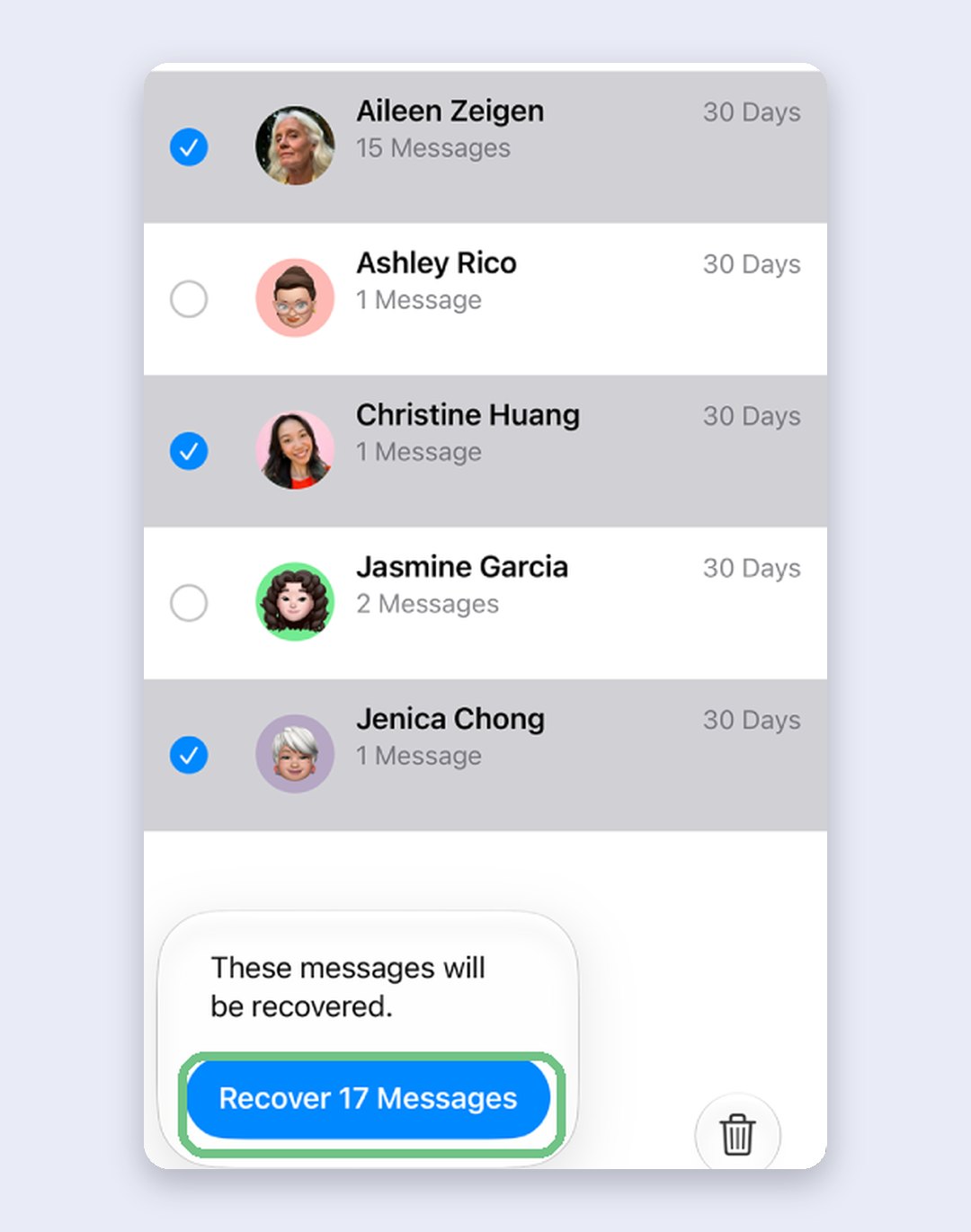
We’d leave Delete After Use on. It keeps Messages free of hundreds of old codes. Just know where they go.
Check Do Not Disturb or another Focus
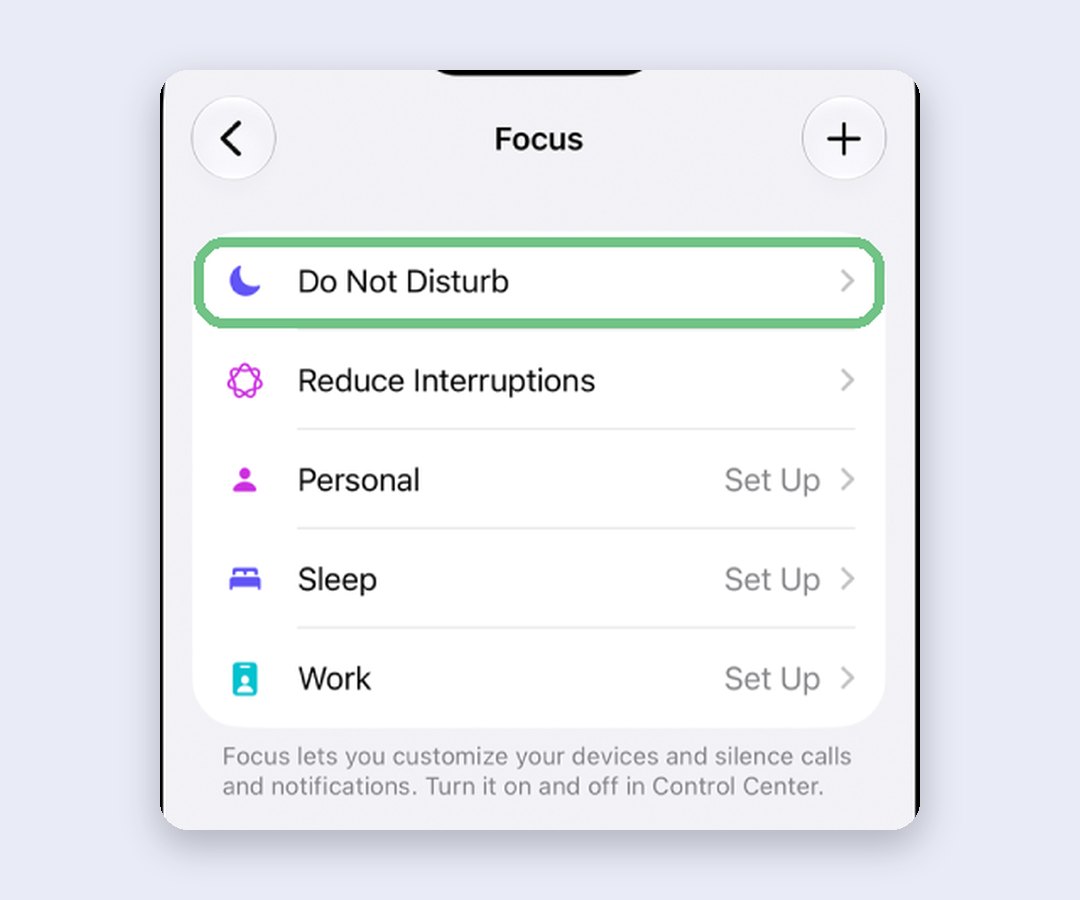
A Focus doesn’t stop a text arriving, it only keeps it quiet. If you’re on the login screen waiting for a banner that never comes, swipe down for Control Center and see whether Do Not Disturb, Sleep or Work is on. Then open Messages directly; the OTP may already be there.
On an iPhone 15 Pro or newer with Apple Intelligence (the same phones that get Siri AI), a Focus can also let iOS decide which notifications are important. To be safe, let Messages through: Settings > Focus, pick the Focus, then Apps > Allow Notifications From, and add Messages.
Part 2: Nothing arrived at all
No code in any folder? Then the text never reached your phone. Work down this list, quickest first.
Restart, then check for a carrier settings update
Restart the iPhone. It’s the quickest thing here, takes a minute and erases nothing. Then open Settings > General > About and wait a few seconds: if your carrier has an update, a prompt appears. It installs in under a minute, and it’s worth doing if you’ve just moved to a new SIM or eSIM.
Check the right SIM line is on
This is the big one for dual SIM users. Your OTP goes to the number registered with your bank or app, not to whichever SIM you’re using for data. If that line is switched off, nothing arrives and nothing tells you why.
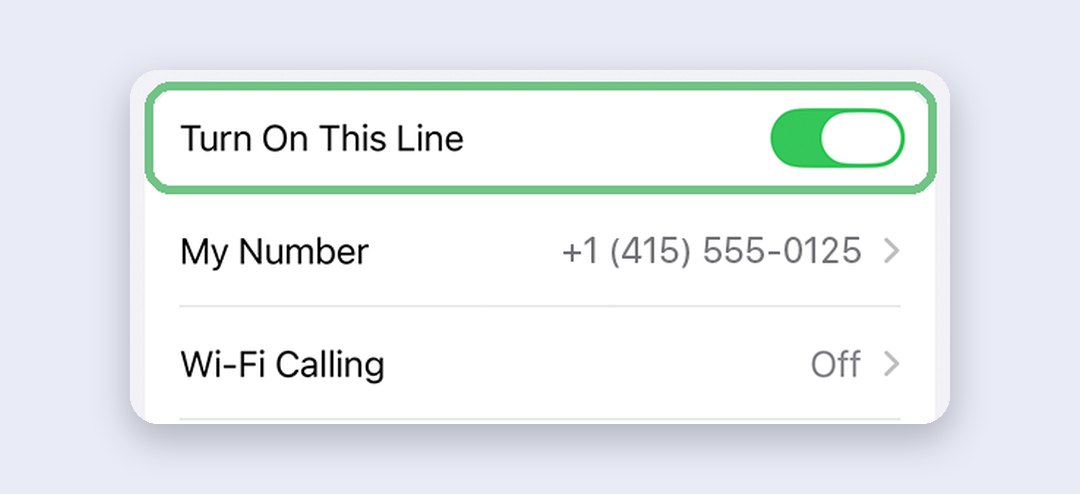
Go to Settings > Mobile Service. Under SIMs, tap the line with the number your bank has. If it’s off, you’ll see Turn On This Line; tap it. Not sure which number your bank has? Check the bank’s app or a recent statement before you spend more time on your phone.
While you’re there, check that line’s prepaid plan is still active. If the validity has run out, sort the recharge out before you try anything else here.
Just changed SIMs? Wait 24 hours
Swapped your SIM, replaced a lost one, or moved your number to an eSIM in the last day? In India, carriers block all SMS, incoming and outgoing, on the new SIM for 24 hours after a swap. It’s a Department of Telecommunications rule against SIM-swap fraud, so Jio, Airtel and Vi all have to follow it, and carriers treat an eSIM conversion as a swap. Everything else can look normal, which is why it’s confusing. Wait it out; there’s nothing to fix on the phone.
Get a signal, or use Wi-Fi Calling
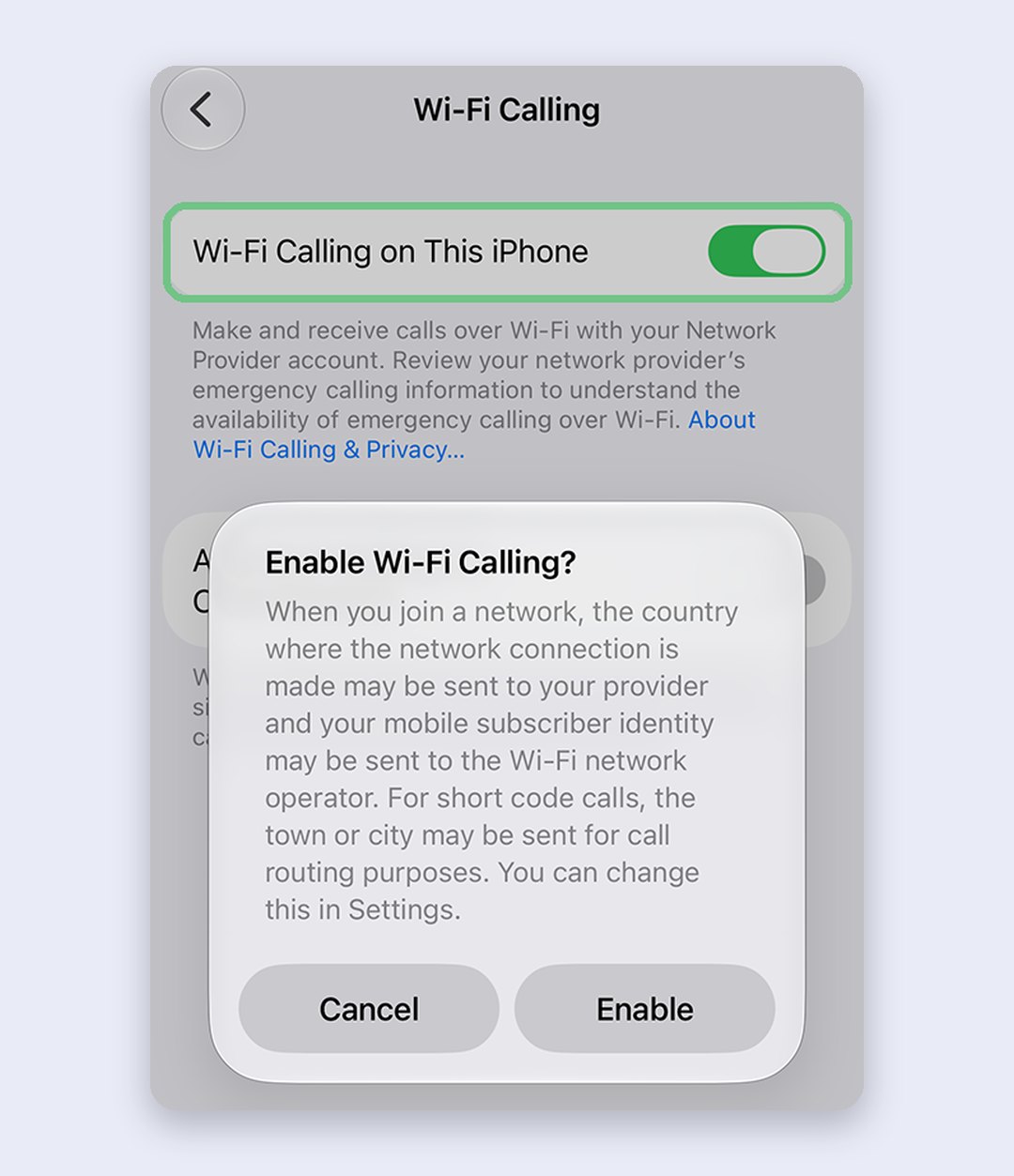
SMS needs a mobile network. In a basement, a lift lobby or a building with poor coverage, the code can’t reach you however long you wait. Step outside, or turn on Wi-Fi Calling for that line. On carriers that support it, texts can travel over Wi-Fi, so the code may get through where the signal doesn’t. In Settings > Mobile Service, tap the line and look for the Wi-Fi Calling row.
Check you haven’t blocked the sender
Blocked numbers’ messages aren’t delivered at all, and the sender is never told. Block a bank’s sender ID by accident while clearing spam, and every OTP from it vanishes silently. Open Settings > Privacy & Security > Blocked Contacts and look for anything that looks like a bank, an app or a short code. Swipe left on it and tap Unblock.
Last resort: reset network settings
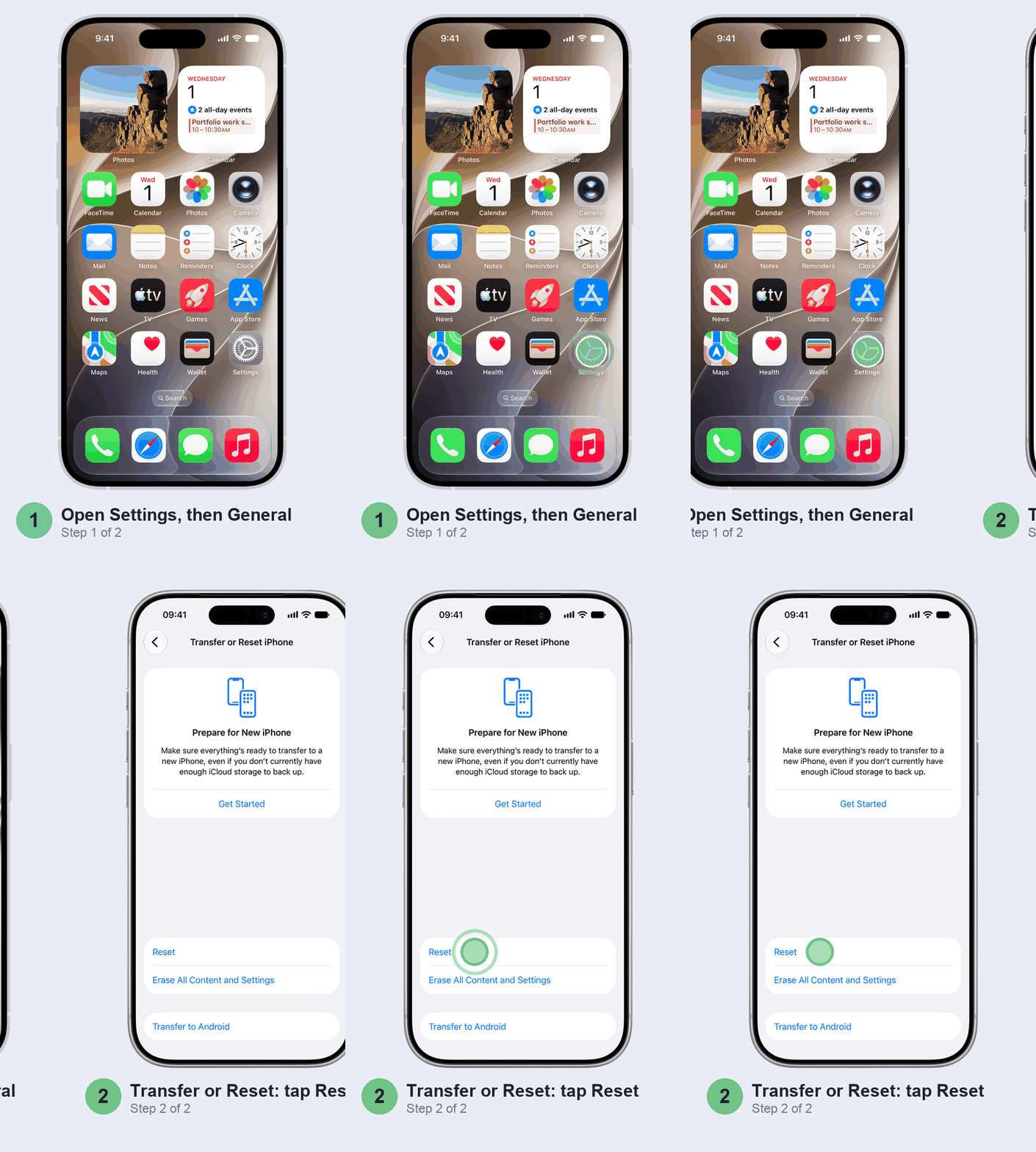
Before you do this, know what you lose: every saved Wi-Fi network and password, any VPN settings you set up yourself, and your iPhone’s name, which goes back to “iPhone”. Your photos, chats and apps are untouched. The same screen also offers Erase All Content and Settings, which wipes the phone, and Delete All eSIMs, which would mean a new eSIM and another 24 hours without SMS. Tap neither. Open Settings > General > Transfer or Reset iPhone > Reset, then tap Reset Network Settings.
Don’t bother with these
- Turning iMessage off and on. Several YouTube fixes start here, but bank and UPI OTPs are plain SMS. iMessage only handles chats between Apple devices. It’s worth trying only right after you’ve moved to a new iPhone.
- Cancelling your DND registration. Registering on DND (1909) blocks promotional texts. OTPs are transactional messages and are delivered whatever your DND setting.
- Tapping Resend every 30 seconds. If a filter, a switched-off line or a block is the cause, every new code goes to the same place. Find the cause first, then ask for one more.
- Erasing your iPhone. Nothing on this list needs it.
When it’s not your iPhone
If none of the above helps and other people’s texts reach you fine, the problem is between the sender and your carrier. Call Jio, Airtel or Vi and say you aren’t getting SMS from business senders; ask them to check that the number is active and SMS is enabled. If only one bank’s codes are missing, check with the bank that they have your current number, and use their app’s or email’s alternative while you sort it out.
Quick questions
Why is my iPhone not receiving OTP SMS?
Usually it is receiving them. A Messages filter has moved them into Transactions, Unknown Senders or Spam, or Delete After Use removed the code once it was filled in. If the code isn’t in any folder, check that the SIM line your bank has is switched on and has signal.
Why am I not receiving SMS verification codes on iPhone?
Check the filter folders in Messages first, then whether the line with that number is switched on in Settings > Mobile Service and has signal. On an eSIM converted in the last 24 hours, expect SMS to be blocked for a day, since Indian carriers treat the conversion as a SIM swap.
How do I fix SMS OTP not received?
Look in Messages’ filter folders and Recently Deleted first. Then check the SIM line, signal or Wi-Fi Calling, and Blocked Contacts. Restart and look for a carrier settings update. Reset network settings only as a last resort.
Why am I not getting the OTP from Apple?
Apple shows its Apple Account sign-in code on your other Apple devices first, as a notification. If you don’t have one handy, tap “Didn’t get a code?” to get it by text or phone call to your trusted number. If you use Unknown Senders filtering, look there for Apple’s text.
Does Do Not Disturb stop OTP messages?
No. A Focus only silences the alert. The message still arrives, so open Messages and look.
Which one was it for you: a filter folder, a switched-off line or something else? Tell us in the comments with your carrier, and we’ll add anything new to this guide.
Last updated: October 2026