You pick up your iPhone, glance at it, and it asks for your passcode. Again. Or your banking app skips Face ID and wants its PIN, or a message says Face ID is not available. Before you try anything, work out whether Face ID just isn’t recognising you or is telling you it’s not available, because those have very different fixes.
Quick answer: Face ID not working?
- No error on screen: it’s almost always something you can fix in a few minutes. Wipe the top of the screen, take off a privacy screen protector or a thick case, and check Settings > Face ID & Passcode. Still failing? Restart, update iOS, then reset Face ID.
- “Not available” or “has been disabled”: that almost always means a hardware fault. Update once, then book a repair.
Face ID not working? Clear the TrueDepth camera and your face first
Your iPhone reads your face with a set of sensors hidden in the dark strip or Dynamic Island at the top of the screen. Apple calls them the TrueDepth camera. Anything that blocks them, even slightly, gets you the passcode screen instead. Start with this list: it costs nothing and it’s the most common cause.
- Wipe the top of the screen. A fingerprint smudge or a bit of dust over the sensors is enough.
- Check the screen protector. A privacy screen protector (the kind that looks black from the side) can block the sensors, and so can a cheap tempered glass that’s cracked or lifting near the top. If Face ID stopped working the day you fitted a new one, that’s your answer.
- Check the case. A thick lip or a flip cover can sit over the sensors.
- Show your face. By default Face ID needs to see your eyes, nose and mouth. A mask, a helmet visor or a dupatta pulled over your nose will stop it, unless you’ve set up Face ID with a Mask (more on that below). Some sunglasses block the infrared light Face ID uses, so try without them.
- Hold it like you’re taking a selfie. Apple puts the sweet spot at about 25 to 50 cm from your face. On iPhone 13 and later, Face ID also works in landscape; on older models, turn the phone upright.
Got an iPhone 18 Pro or Pro Max? Its TrueDepth camera sits towards the top left corner, so in landscape your palm can cover it without you noticing.
Check Face ID is switched on for what you’re doing
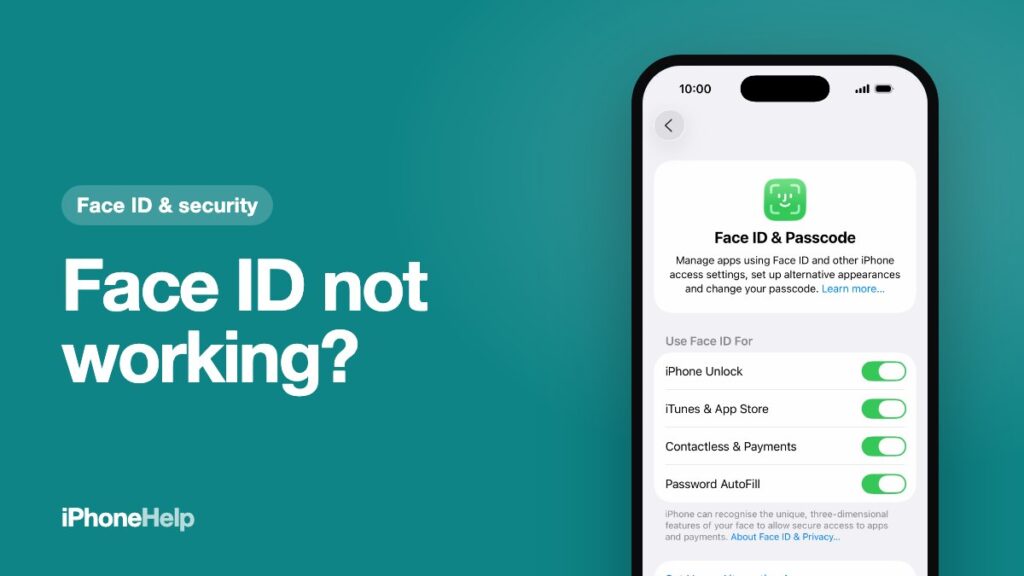
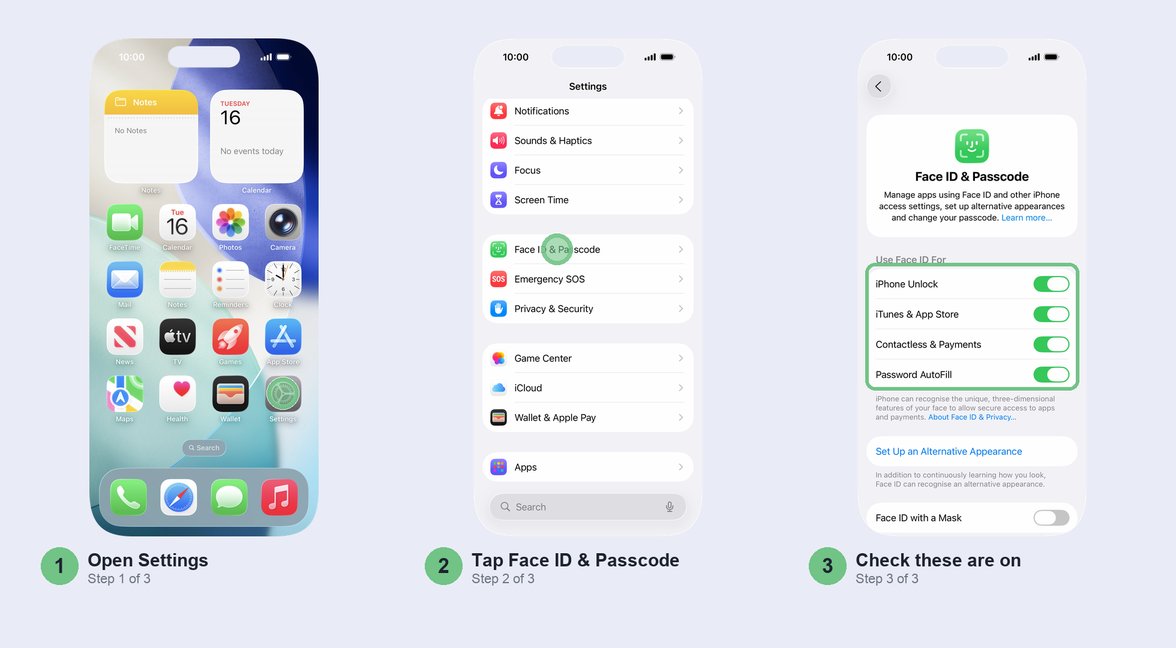
Face ID unlocks the phone but won’t approve App Store downloads, or works for unlocking and not for a payment? Then it’s switched off for that one thing. This is the quickest fix on the list when only one app or task is affected. Open Settings > Face ID & Passcode, enter your passcode, and look at the switches under Use Face ID For.
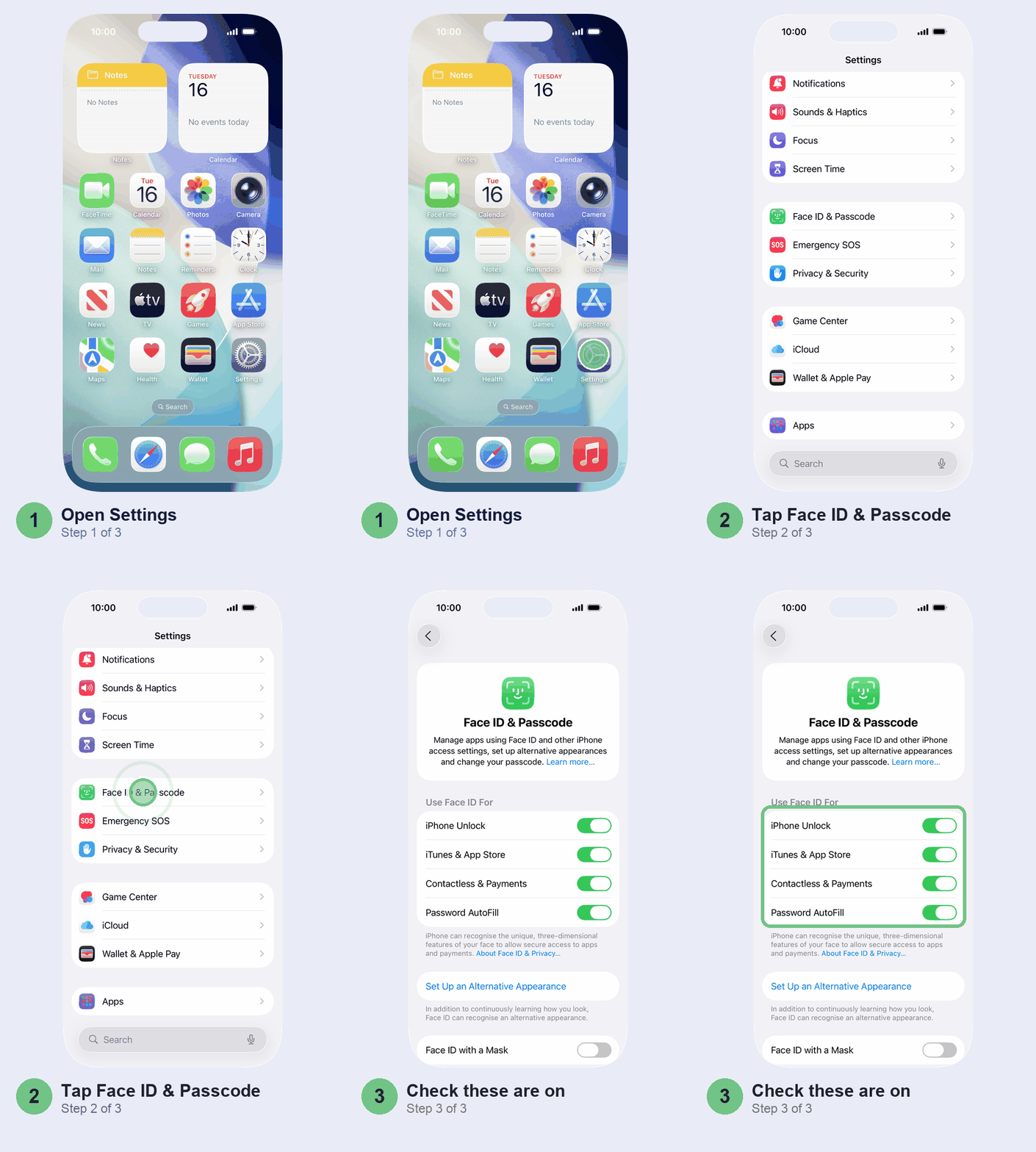
- iPhone Unlock for the Lock Screen.
- iTunes & App Store for downloads and in-app purchases.
- Contactless & Payments for paying with your iPhone.
- Password AutoFill for saved passwords in Safari and apps.
- Other Apps lists the apps that sign you in with Face ID. If your banking or UPI app is switched off here, it can’t use Face ID at all and falls back to its PIN.
Turned the app on and it still asks for the PIN? Many banking apps also have their own biometric switch, usually under the app’s settings or security menu, and some only offer Face ID after you’ve logged in once with your password. UPI app misbehaving in other ways too? Our UPI app fixes for GPay, PhonePe and Paytm go through the rest.
No face saved at all? You’ll see Set Up Face ID where Reset Face ID should be. Skip to the reset section below.
Restart, then update iOS
This is the boring step that fixes more than you’d think, and it’s near the top of Apple’s own Face ID checklist. Hold the side button and a volume button together until you see the power-off slider, then slide it. Give the phone half a minute to shut down, then hold the side button until the Apple logo appears. It’ll ask for your passcode once, which is normal after every restart. Lock it and try Face ID again.
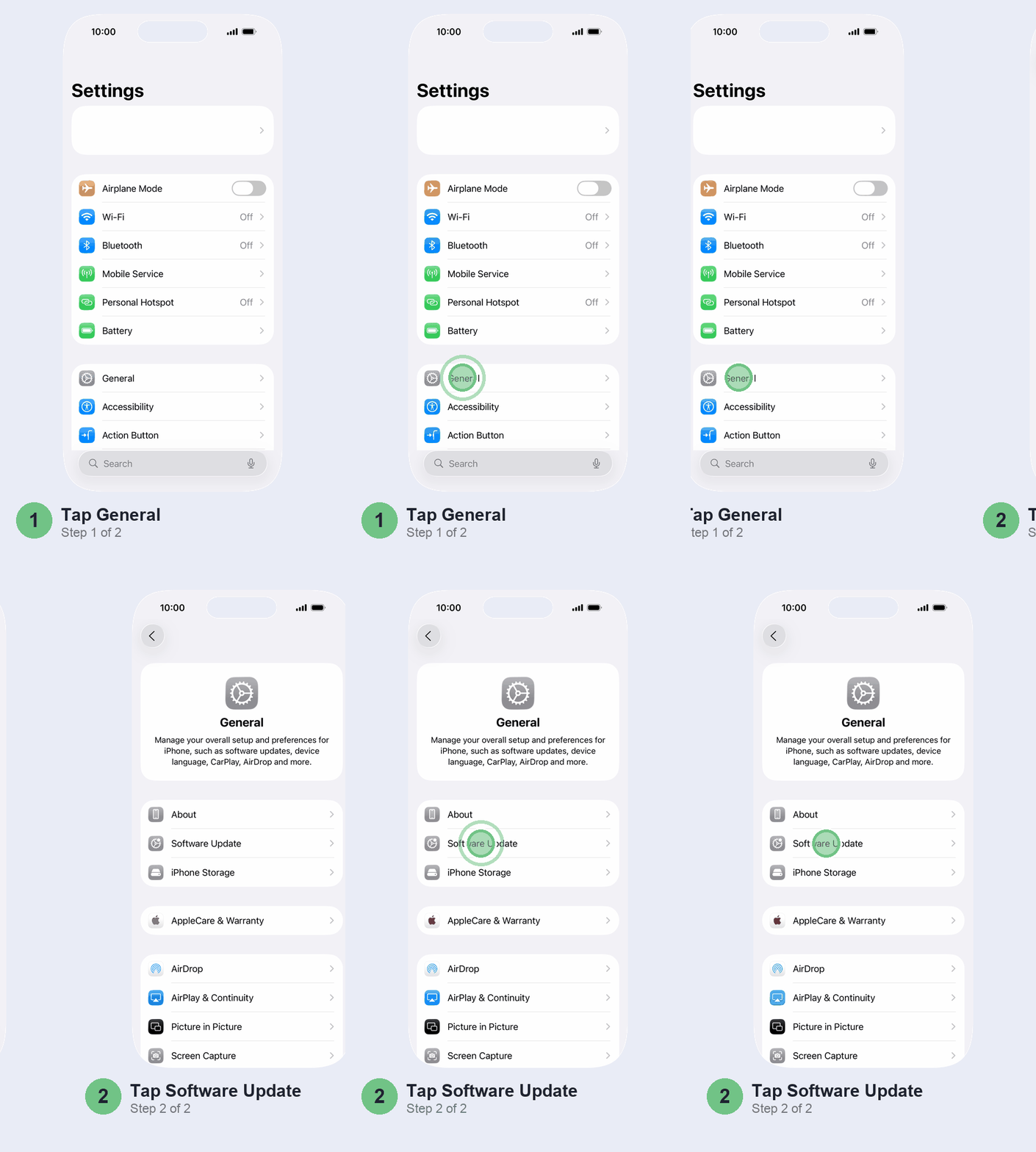
Then check for an update in Settings > General > Software Update and install anything waiting.
Face ID not working after an update? This one comes up after nearly every big iOS release, including iOS 26 and iOS 27. When a bug is to blame, the fix usually arrives in a point update, so keep checking Software Update for a week or two. In the meantime, a restart and then resetting Face ID (below) is worth a try before you assume the worst. If the update was followed by a “Face ID issue detected” alert, though, skip ahead to the hardware section: that alert means iOS has found a fault.
Glasses, a beard or a mask? Add an alternative appearance
Face ID keeps learning as your face changes, so a haircut or a few days’ stubble won’t usually trip it up. A big change will: heavy make-up for a wedding, a full beard you grow every winter, or glasses you wear only some of the time. For that, iOS lets you save a second look. Open Settings > Face ID & Passcode and tap Set Up an Alternative Appearance, then scan your face the way you look when Face ID fails. Wear the glasses, or the make-up, while you do it.
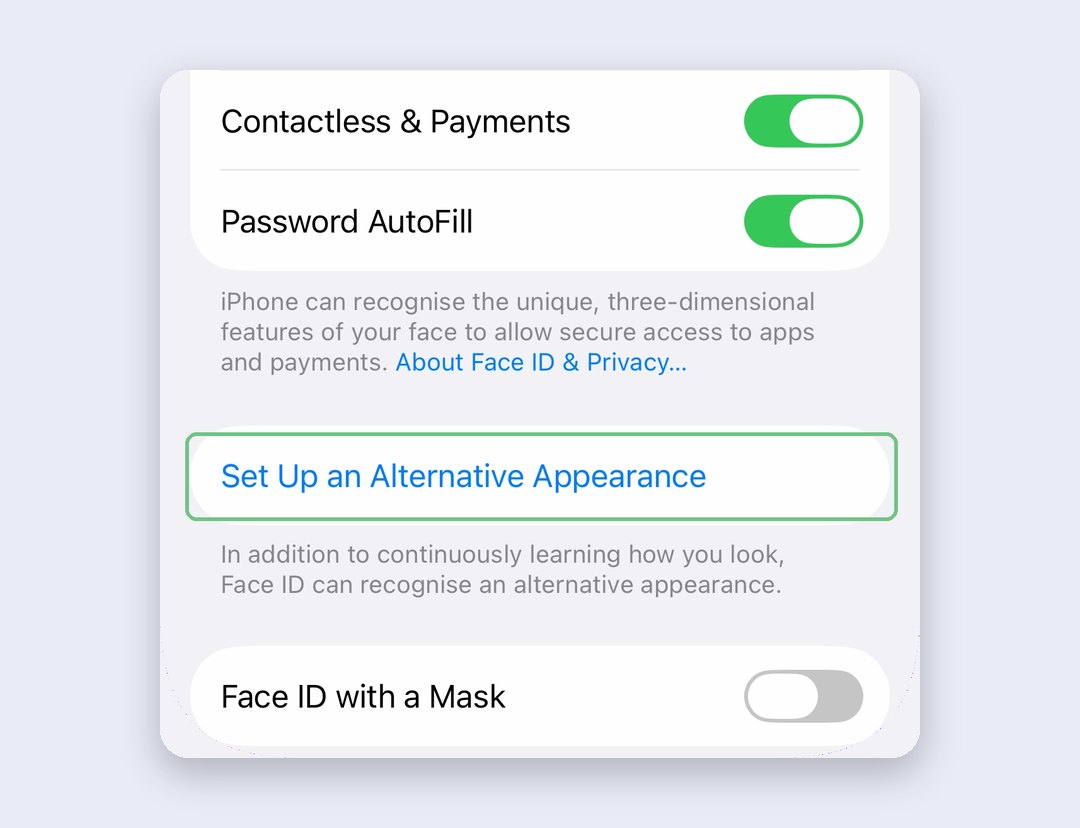
Face ID not working with a mask? From iPhone 12 onwards, Face ID can work with a mask, but you have to turn it on. One thing first: Face ID is most accurate when it reads your whole face, so we’d turn this on only if you actually wear a mask often. On the same screen, switch on Face ID with a Mask and follow the scan. Wear glasses most days? Wear them for this scan too, and use Add Glasses to add a second pair. Two limits to know: it only works with the phone upright, and it isn’t designed to work with sunglasses. If you also own an Apple Watch, it can unlock your iPhone while you’re masked, on any Face ID model.
Can’t look straight at the screen? Check attention
Normally the phone unlocks only when your eyes are open and you’re looking at the screen. That’s what stops someone holding your phone up to your face while you sleep. It’s also why Face ID can fail for people who can’t look straight at the screen, because of a squint or a vision condition.
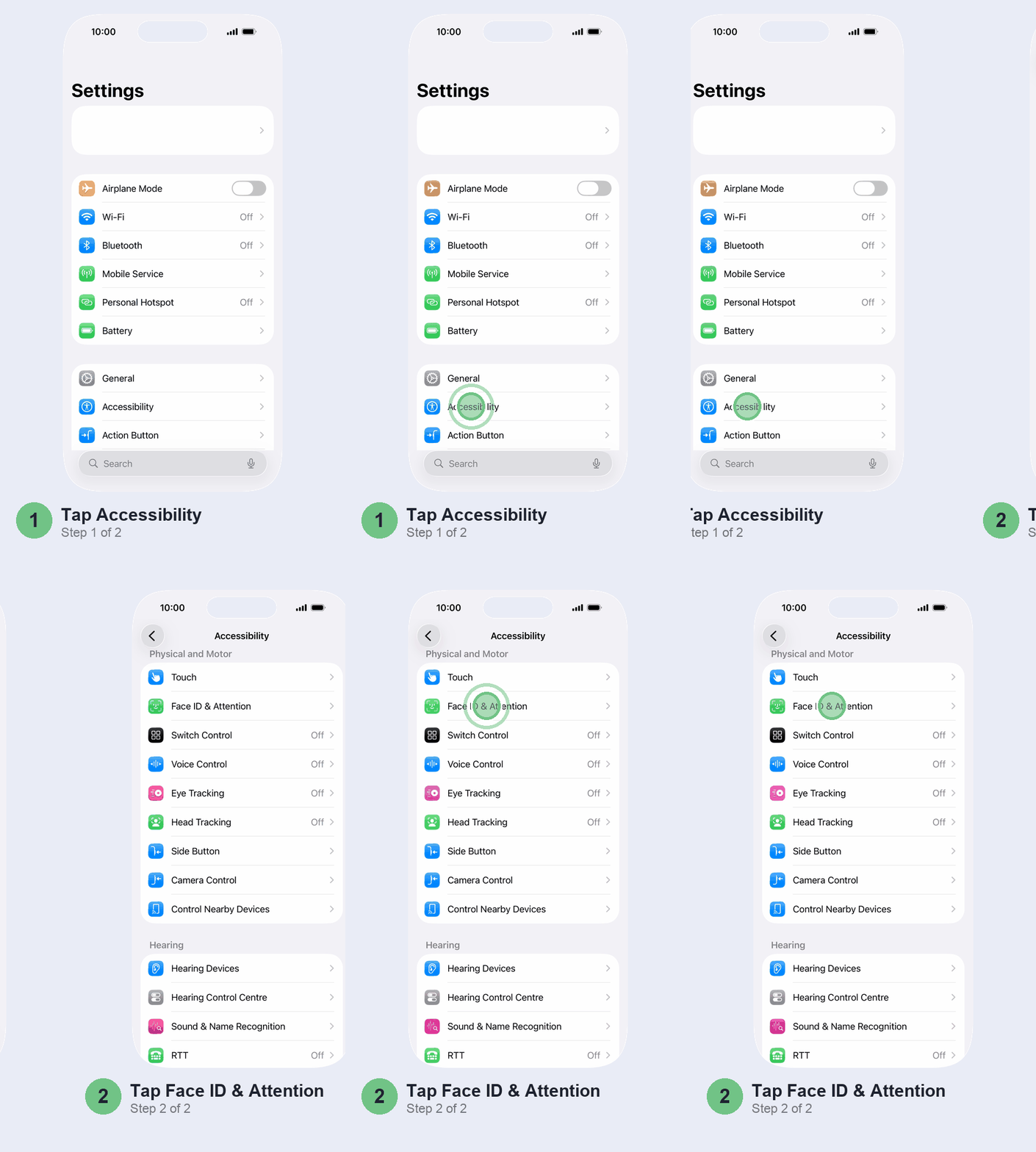
Turning the check off makes Face ID less secure, so we’d leave it on unless that’s you. If it is, go to Settings > Accessibility > Face ID & Attention and turn off Require Attention for Face ID.
Reset Face ID and set it up again
When the camera’s clean, the settings are right and a restart didn’t help, start over. It’s the best fix when Face ID has got slowly worse rather than stopping in one go, and it takes about two minutes.
Before you start: resetting deletes your saved face, your alternative appearance and your mask setup. Some banking and UPI apps notice the change and switch their Face ID login off until you sign in again with your password or MPIN, so keep those handy.
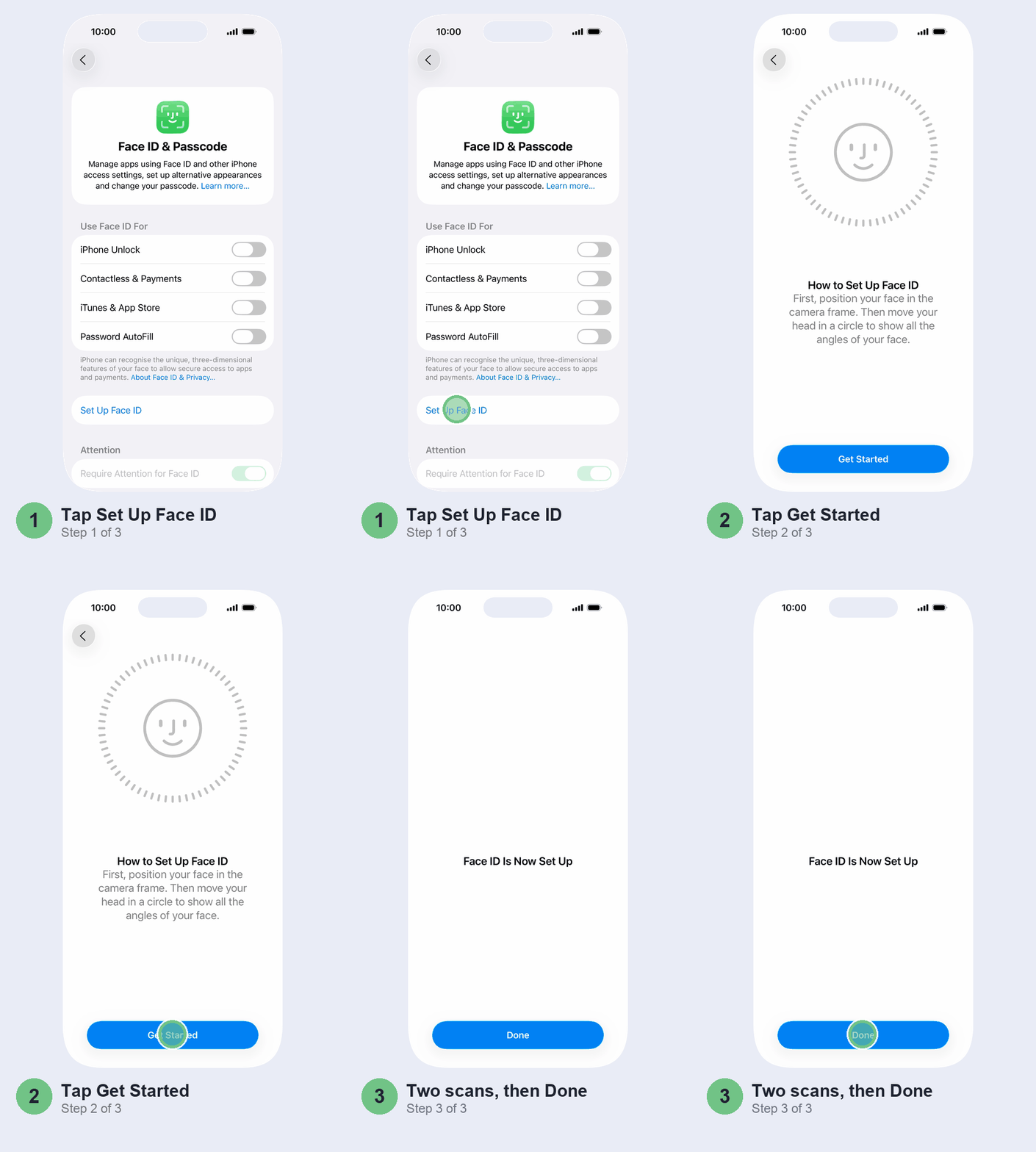
- Go to Settings > Face ID & Passcode and tap Reset Face ID.
- Find good light. Sit facing a window or a lamp, not with the light behind you.
- Tap Set Up Face ID, hold the phone upright, then tap Get Started.
- Move your head slowly in a circle until the ring fills, tap Continue, and do it once more. Can’t move your head easily? Tap Accessibility Options during the scan.
- Tap Done, then check the switches under Use Face ID For.
Scan never completes? If it keeps telling you to move your iPhone lower or higher, or to bring your face into the frame, and won’t move on, stop retrying. Same if the front camera doesn’t work either. That’s a hardware sign, covered next.
And if the reset worked for a day and Face ID is failing again with no message at all, don’t keep resetting. It’s time for a check-up at Apple, below.
“Face ID is not available” or “has been disabled”? Get it checked
These messages are different from Face ID simply not recognising you. You might see:
- Face ID is not available. Try setting up Face ID later when you open Face ID & Passcode or try to set it up.
- Face ID issue detected as an alert, or a message that a problem was found with the TrueDepth camera, ending Face ID has been disabled.
The “disabled” and “issue detected” messages mean iOS’s own check of the TrueDepth camera failed. Apple doesn’t explain “not available”, but it almost always points the same way. There are tiny lasers inside the TrueDepth camera, so when iOS suspects damage it simply switches them off. The rest of the phone works fine; you lose Face ID, Animoji and Memoji, and some front-camera tricks. A drop, water or a recent repair are the obvious suspects.
Do two things, in this order. Install any iOS update waiting, because Face ID may come back once the phone is updated. Then restart and try to set up Face ID once more. If the message is still there, don’t keep trying: nothing you do at home will fix it, no reset, no restore, no app. Book a repair.
Face ID not working after a screen or back glass replacement
Usually it’s a cracked screen or back fixed at a local shop: Face ID worked before the repair and doesn’t after. There are three likely reasons, and your iPhone can point you to the first two.
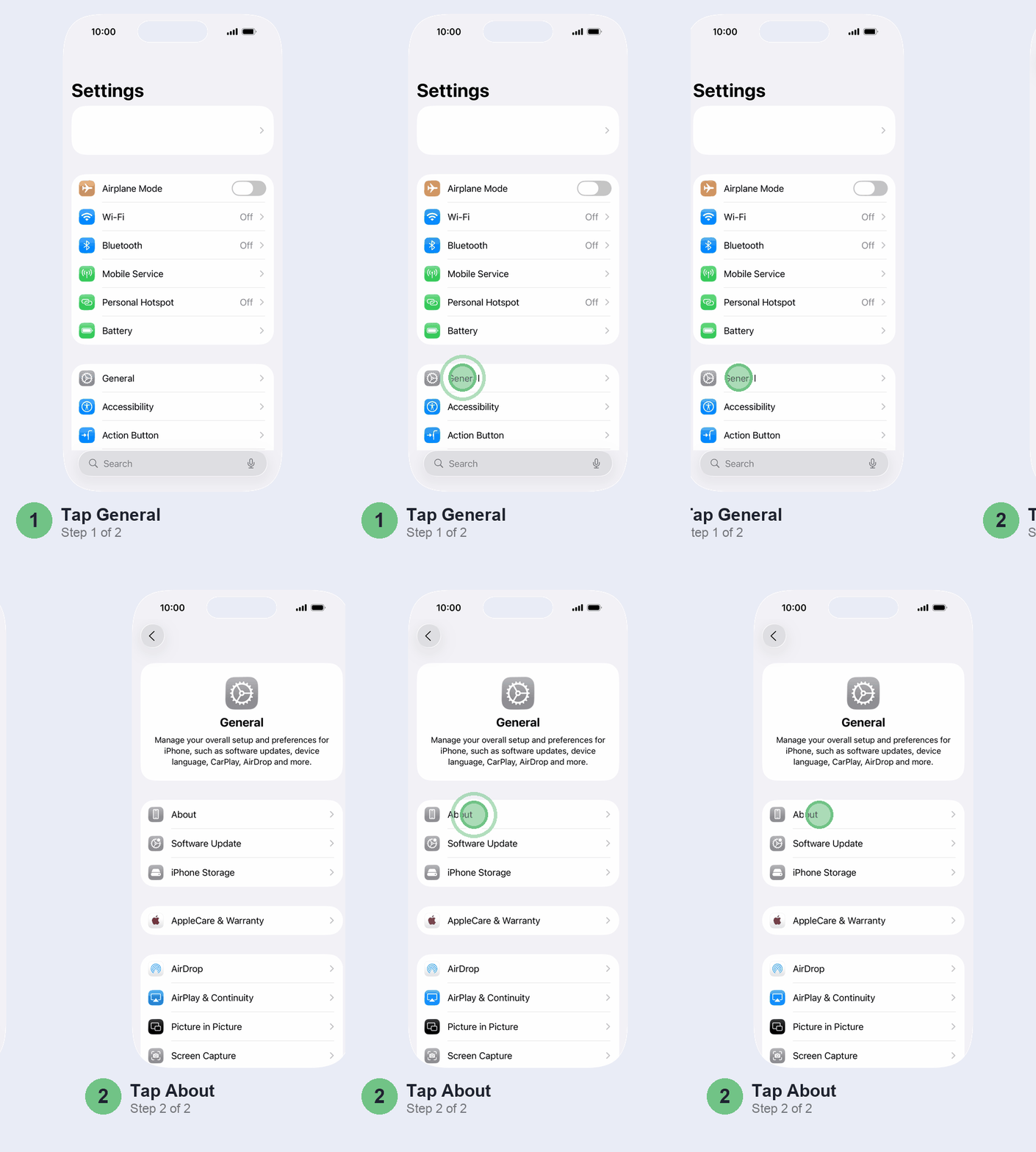
- The repair isn’t finished. Genuine parts need a final software step after they’re fitted, and until it’s done, Face ID stays off. Go to Settings > General > About > Parts and Service History. If you see Finish Repair next to a part, tap Restart & Finish Repair. You need Wi-Fi, more than 20% battery and the latest iOS.
- A non-genuine part. On the same screen, Unknown next to a part means it may not be genuine, or isn’t working as expected.
- Something went wrong in the repair. First, look closely at the sensor holes at the top of the new screen: a scrap of protective film left over them is enough to block Face ID. Beyond that, repairers on iFixit’s forums say the usual cause is a torn cable to the dot projector or infrared camera, two TrueDepth parts that are paired to the phone’s logic board. That may not show up anywhere in Settings: Face ID just stops.
If the shop used genuine parts and Repair Assistant won’t finish, go back to them: a part someone else installed can be protected by Activation Lock, so the person who fitted it has to finish the job. If it was a cheap replacement screen, the honest answer is that Face ID may not come back until the job is redone with a genuine part, by someone who has Apple’s calibration process.
Don’t bother
- Repair apps from the App Store or “iOS repair tools” for your computer. No app can bring back a TrueDepth camera that iOS has switched off. Skip them.
- Erasing your iPhone. A full restore takes an evening and won’t touch a hardware fault. Reset Face ID instead; it’s the only reset that matters here.
- Reset All Settings. Some videos suggest it. It resets your network settings, location and privacy settings and Apple Pay cards, and it isn’t on Apple’s list of Face ID fixes.
- A roadside “Face ID repair”. Apple says only a trained technician should work on the TrueDepth camera, because a wrong repair can stop its laser safety features from working. Ask an Apple Authorised Service Provider first.
When it’s not you: getting it repaired in India
Camera clean, reset done, still no luck? Or seen one of the hardware messages? Then it’s a job for Apple or an Apple Authorised Service Provider. Book through the Apple Support app or support.apple.com/en-in, or walk into an Apple Store. Apple inspects the phone to work out the final fee, so get that figure before you agree to the repair. Booking works the same way as for a battery swap, which our iPhone battery replacement price guide walks through.
What it costs depends on why it failed. In its first year, a fault you didn’t cause is covered by Apple’s warranty. A drop or water damage isn’t, so if you have AppleCare+, check what your plan covers before you pay. Had the phone opened at a local shop before? Damage from an outside repair isn’t covered by the warranty or AppleCare, so expect the full out-of-warranty fee. Out of warranty, weigh the quote against what the phone’s worth: some owners decide to live with the passcode.
Before you hand the phone over, back it up to iCloud.
Quick questions
Why is my iPhone suddenly not letting me use Face ID?
Usually something new in the way: a screen protector, a case, a mask or dirt on the sensors. If nothing changed, restart and update, then reset Face ID. A sudden stop right after a drop points to hardware.
Why does my iPhone say Face ID is not available and to try setting it up later?
It almost always means a problem with the TrueDepth camera. Install any update and restart; if the message stays, the phone needs a repair.
Why is Face ID not working after an update?
Sometimes a bug that a later point update fixes. Restart, then reset Face ID and set it up again. A “Face ID issue detected” alert after the update means a hardware fault, not a bug.
Does Face ID work with a mask?
Yes, from iPhone 12 onwards, but only after you switch it on: look for the mask option in Face ID & Passcode settings. It only works with the phone upright, and not with sunglasses.
Can a screen replacement affect Face ID?
Yes. A non-genuine screen, an unfinished repair or cables damaged during the job can all stop it. Check Parts and Service History under General, then About, and finish the repair from there if it asks.
How do I get Face ID back after a screen replacement?
If genuine parts were used, finish the repair with Repair Assistant or ask the shop to. If not, Face ID may only return after a repair with a genuine part.
Can Face ID be fixed if it’s damaged?
Yes, but not at home. Apple or an Authorised Service Provider can repair it, and they’ll inspect the phone and quote the fee first.
Why does my iPhone keep asking for my passcode when Face ID works?
That’s by design. iOS wants the passcode after a restart, after five failed Face ID tries, if the phone hasn’t been unlocked for 48 hours, and if you haven’t used the passcode for about six and a half days and haven’t used Face ID in the last four hours.
Prefer to watch? Apple’s own two-minute video shows the Face ID & Passcode screen and how to set up Face ID with a mask.
What brought your Face ID back: the screen protector, the reset or a trip to the service centre? Tell us in the comments with your iPhone model, and we’ll add what works to this guide.
Checked against Apple’s iOS 27 User Guide and Apple Support (India).
Last updated: October 2026