
You’re at the counter, the QR code is right there, and GPay won’t get past “Verifying your mobile number”. Or PhonePe won’t even install, because the App Store says your iPhone needs a newer iOS. If you need to pay right now, use cash or a card and sort the phone out later; none of these fixes is a ten-second job.
A UPI app not working on iPhone usually comes down to one of those two problems, and they have different answers. Work out which one you have first.
UPI app not working on iPhone: the quick answer
If registration or SMS verification fails (the common one): the verification text went out from the wrong SIM, or couldn’t be sent at all. Make the number your bank has your Default Voice Line, check the From line on the pre-filled text before you tap Send, and only then try again. Swapped your SIM or moved to eSIM in the last day? Wait 24 hours first. And keep count: you get three verification attempts a day.
If the app asks for a newer iOS or won’t install: Google Pay and BHIM need iOS 17.0, and PhonePe needs iOS 17.1. That means an iPhone XR, XS, SE (2nd generation) or newer. On an iPhone X, 8 or older there is no fix inside the app; Part 2 says what you can still do.
Part 1: Registration or SMS verification fails
This is the one people hit on new iPhones, dual SIM setups and fresh eSIMs. To link your bank, the UPI app has to prove that the SIM in your phone carries the number your bank has. It does that by sending a text from your phone to the bank’s number.
Here is the iPhone twist. An iOS app isn’t allowed to send a text on its own. The app fills in a message and opens it for you, and nothing goes out until you tap Send. Whatever line that message leaves from is the number the bank sees. If it’s the wrong SIM, verification fails, however many times you retry.
Before you retry at all, know the limit. NPCI allows three SMS verification attempts in 24 hours. Go past that and you’re blocked for a day, and Google Pay says any attempt during the block starts the 24 hours again. So work through the checks below first and send the text last.
Make the bank’s number your default line
Dual SIM users, start here; this is the fix that usually does it. When you text a number that isn’t in your contacts, your iPhone uses your default line, and the bank’s verification number almost never is in your contacts. If your default is the Jio data SIM and your bank has your Airtel number, the text goes from the wrong one.
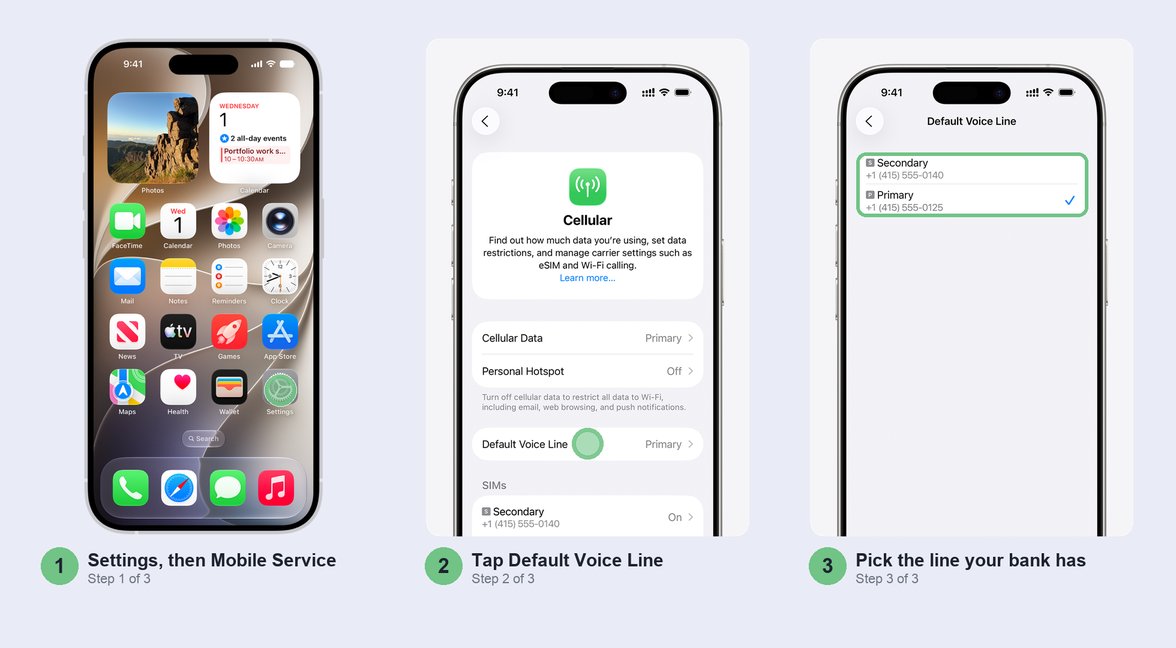
Open Settings > Mobile Service > Default Voice Line and pick the line with the number your bank has. You can switch it back once the app is set up.
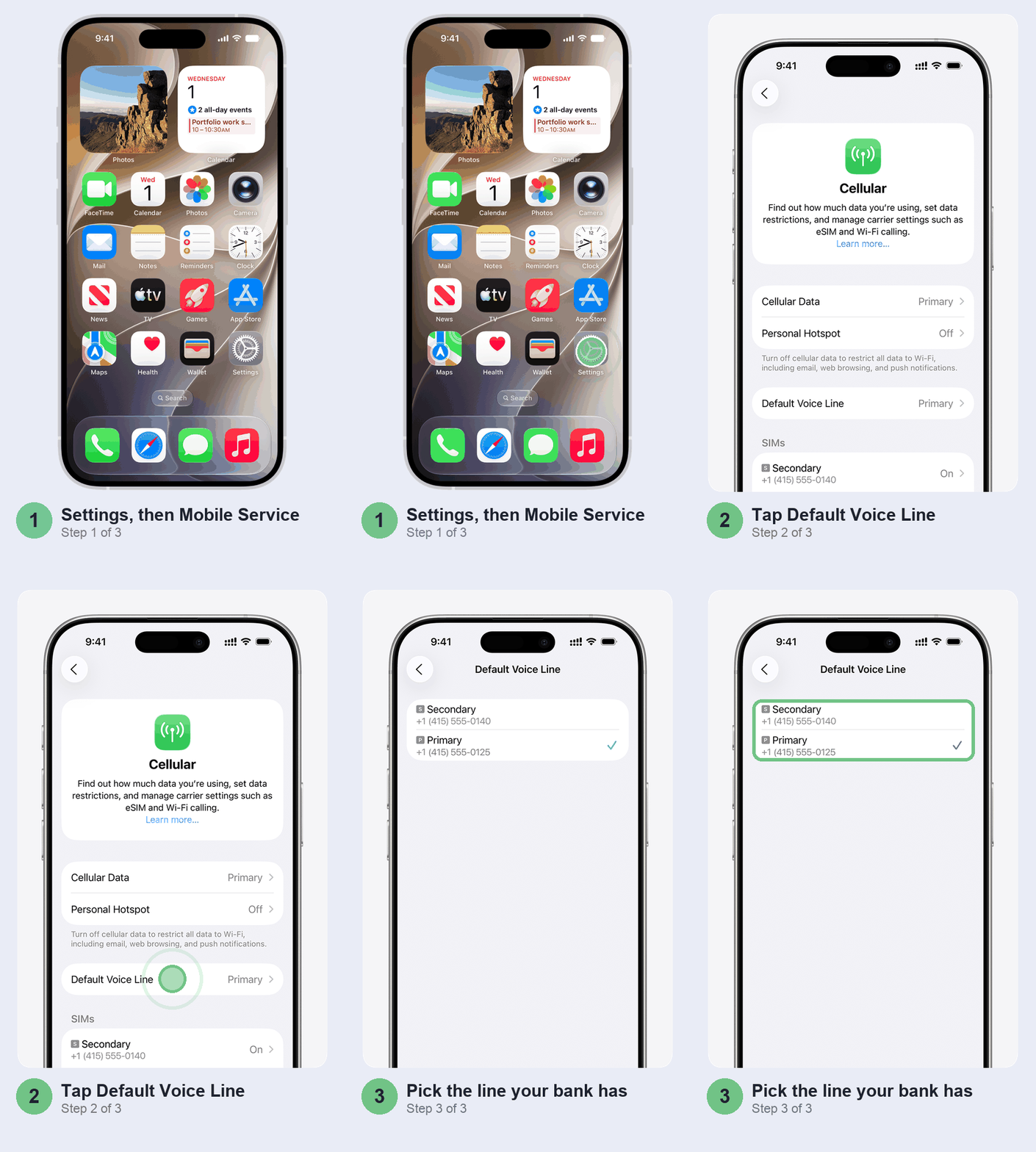
Two things to check while you’re on that screen. The bank’s number has to be one of the lines listed under SIMs and switched on: a SIM sitting in your old Android phone can’t verify anything. And make sure it really is the number the bank has. Check its app, a passbook or a recent SMS alert; a number change at the bank that never went through causes exactly this failure.
Just swapped SIMs or moved to eSIM? Wait a day
Got a new SIM, replaced a lost one, or converted your number to eSIM in the last 24 hours? Indian carriers block SMS on a new SIM for a day after a swap or replacement, under a Department of Telecommunications rule against SIM-swap fraud. People who’ve switched a Jio or Airtel number over to eSIM report the same day-long block, so expect it there too. The verification text can’t leave the phone until it lifts, and everything else can look normal, which is why it’s so confusing. Don’t spend your three attempts; wait it out.
Check the From line before you tap Send
When the app opens the pre-filled text, look at the top of the message before you tap anything else. On a dual SIM iPhone there’s a From line showing which SIM it’ll go from. Tap it and choose the bank’s line if it’s wrong.
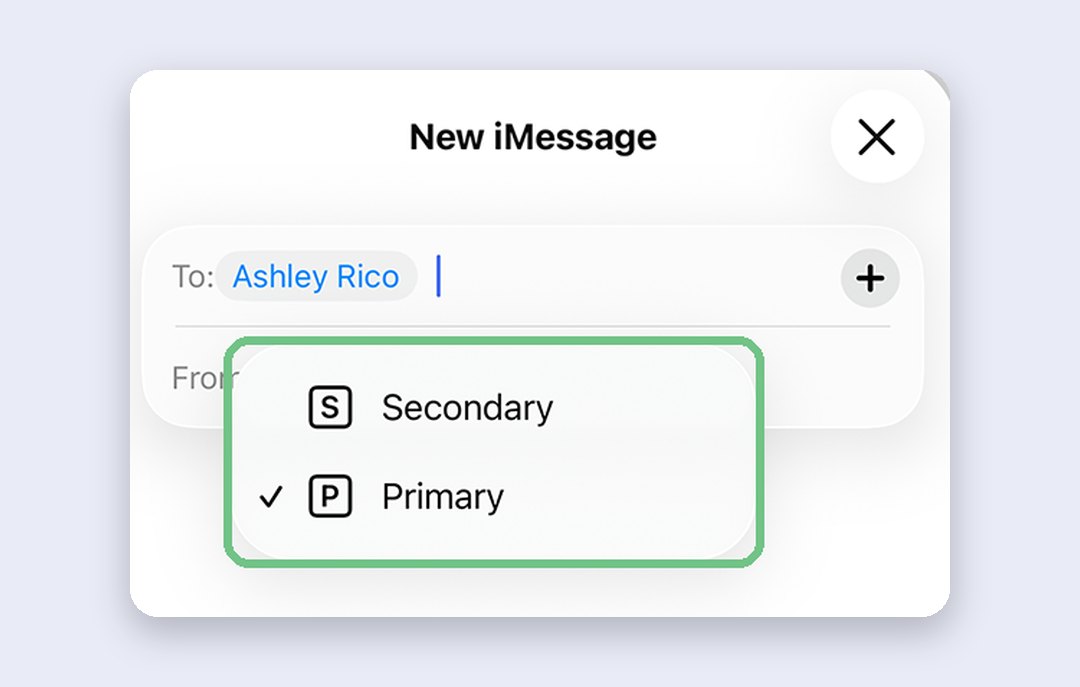
Then send it straight away. Some apps give you only seconds: Kotak’s app allows five seconds, then shows a timeout and makes you start over. Don’t edit the message text either; leave it exactly as the app wrote it.
Clear out an old chat with the bank’s number
If you tried earlier from the wrong SIM, Messages may already hold a conversation with the bank’s number on that line, and an SMS conversation stays on the line it started on. In Messages, swipe left on that conversation and tap Delete. The next verification text then starts a fresh conversation, and you can pick the right line.
Make sure that SIM can send a text
The verification is an ordinary outgoing SMS, and it needs a working plan behind it. A data-only pack, an expired validity or a prepaid line with no SMS balance won’t send it, and the app often just says “failed”. Send a normal text from that line to a friend. If it doesn’t go through, recharge or call your carrier before you touch anything else.
Weak signal does the same thing, so try near a window rather than in a basement.
Last resort: reset network settings
If the right line, a working plan and a day’s wait still don’t do it, reset the network settings. Know what you lose first: saved Wi-Fi networks and passwords, any VPN you set up yourself, and the phone’s name, which goes back to “iPhone”. Your photos, chats and apps stay put. On the same menu, leave Erase All Content and Settings alone, and don’t tap Delete All eSIMs: that means a new eSIM and another 24-hour SMS block.
Open Settings > General > Transfer or Reset iPhone > Reset and tap Reset Network Settings.
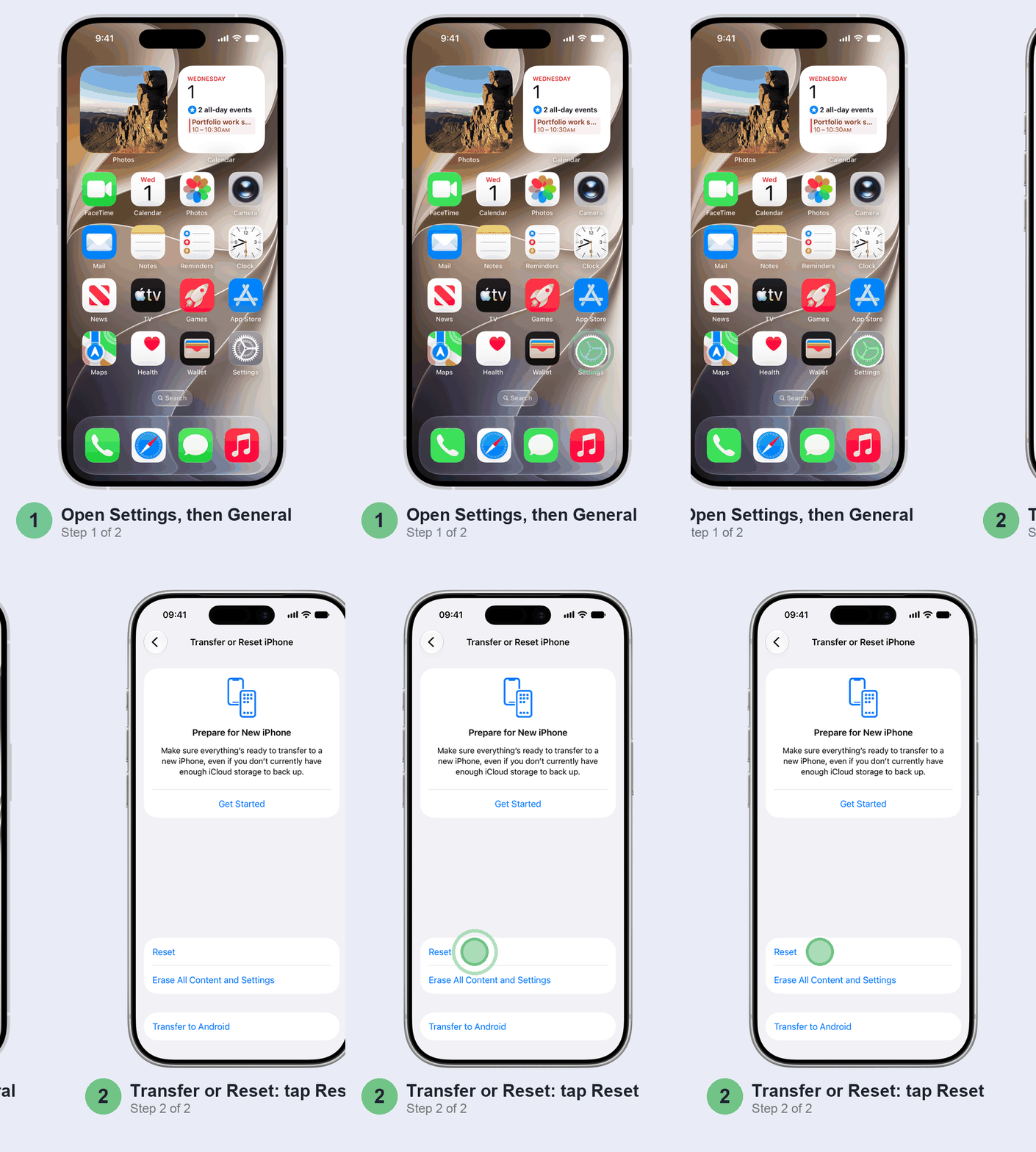
Some owners on Apple’s forums say Reset All Settings, on the same menu, finally did it after a network reset didn’t. It deletes no photos or apps, but it removes your Apple Pay cards and resets privacy, location and network settings, so you’ll set those up again. Worth a try before you call anyone, not before the steps above.
Part 2: The app asks for a newer iOS
This is the hardware side, and it is blunt. The UPI apps set a minimum iOS version, and once your iPhone can’t reach it, the app won’t install or open. Here’s where things stand on the App Store in India, checked in October 2026:
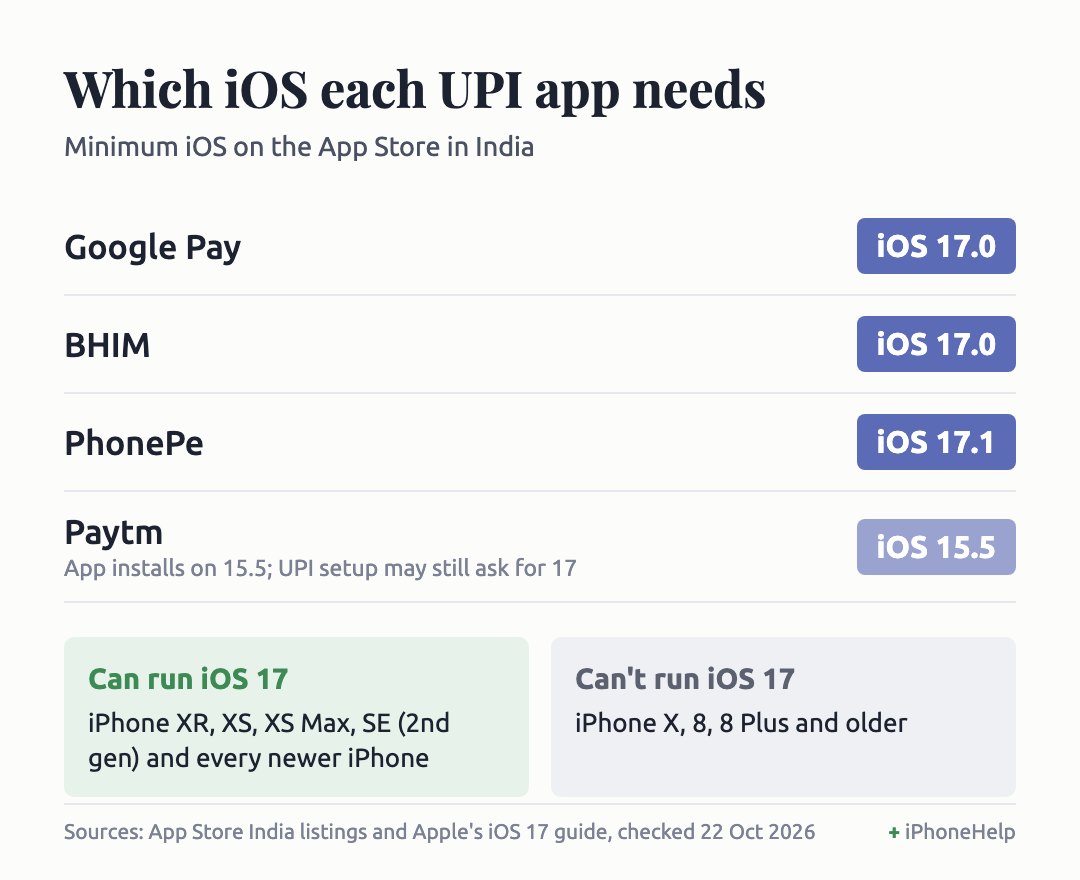
Paytm’s listing still says iOS 15.5, so the app itself installs on older phones. Owners on iOS 15 and 16 report that UPI setup in Paytm and in some bank apps asks for iOS 17 anyway, so don’t count on Paytm as the way round it.
Update iOS if your iPhone can take it
On an iPhone XR, XS, SE (2nd generation) or anything newer, the fix is simply updating. Open Settings > General > Software Update and install what’s offered. Not sure which version you’re on? It’s listed at the top of General > About.
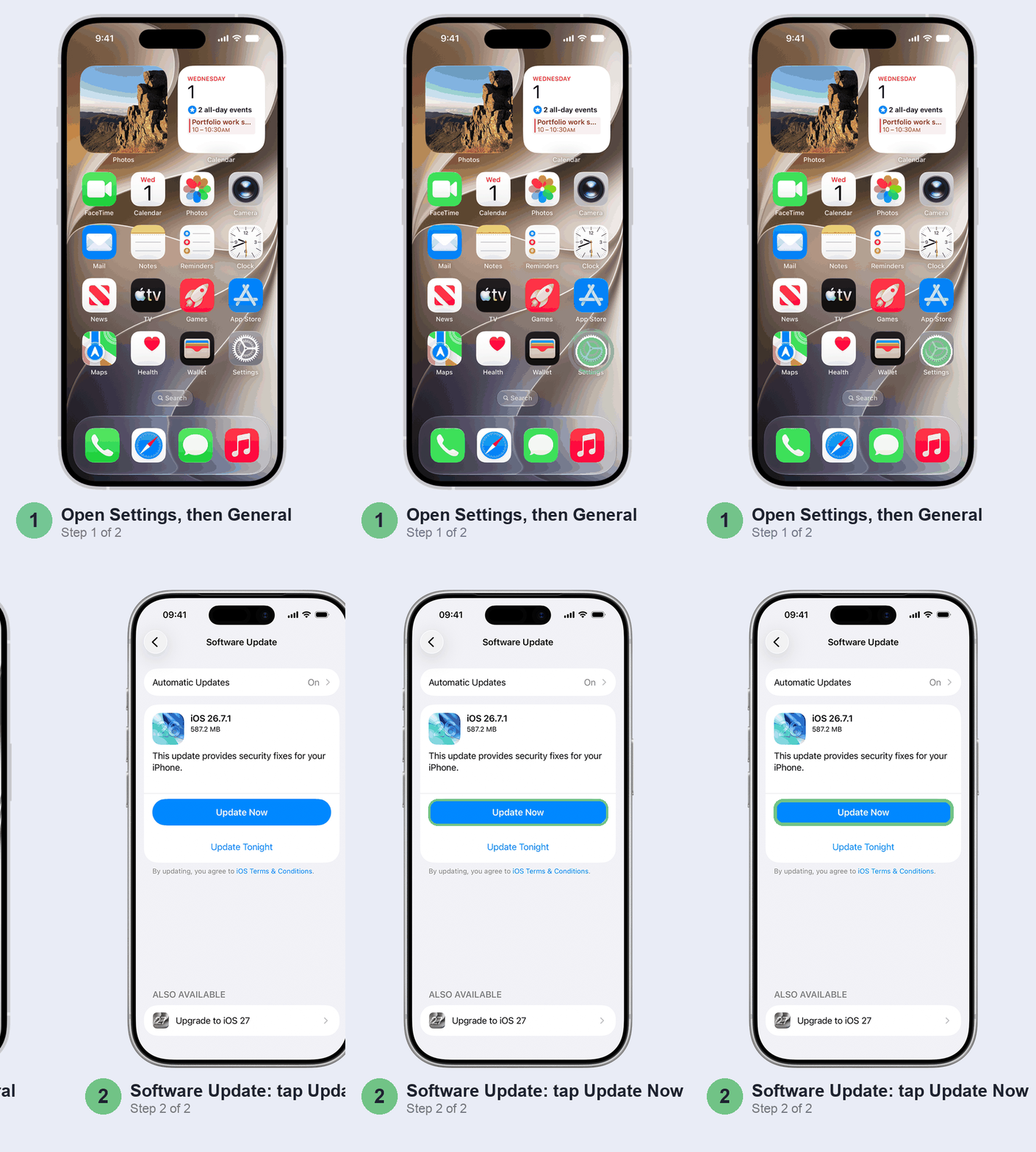
Plug in and use Wi-Fi before you start. Then update the UPI app from the App Store and open it again. Expect the phone to run warmer for a day or two after any big update (our iOS 27 battery drain guide explains why).
Stuck on an iPhone X or older?
Apple’s iOS 17 starts at the iPhone XR and XS, so an iPhone X, 8 or 8 Plus can’t install it, and nothing will change that, least of all the “100% working” videos. Don’t waste an evening on them. What you can still do:
- Pay by phone call. NPCI’s UPI 123PAY lets you make UPI payments by calling an IVR number. It was built for feature phones, needs no app and no internet, and you set it up once with your debit card and a UPI PIN.
- Use a card or net banking for online payments. Most sites that take UPI take cards too.
- Keep UPI on another phone. If someone in the family has a newer phone, that’s the honest answer until you upgrade.
Shopping for a replacement? Get an iPhone 11 or newer, even second-hand. The XR and XS still clear today’s iOS 17 bar, but they can’t run iOS 27, and UPI apps raise their minimums over time.
Don’t bother with these
- Reinstalling the UPI app again and again. It doesn’t change which SIM sends the text, and every verification text you send after it counts towards NPCI’s three a day.
- Downgrade or “bypass” tricks for old iPhones. You can’t install a newer app on an iOS it doesn’t support, and sideloaded payment apps are a fraud risk you don’t need.
- Signing out of your Apple Account. It turns up in forum answers, but UPI doesn’t use your Apple Account at all.
- Erasing your iPhone. Nothing here needs it.
When it’s not your iPhone
If the text goes out from the right line and verification still fails, the bank or the app is the next stop. Ask your bank whether the number on your account is current and active for mobile banking, then contact the UPI app’s support from its help section with your iPhone model and carrier. If incoming OTPs are the problem rather than the outgoing text, our guide to an iPhone not receiving OTP SMS covers that side.
Set up fine but payments fail? That’s rarely the iPhone. A wrong UPI PIN, a low balance, a daily limit or the bank’s server having a bad hour cause most of those, and the app’s error message usually says which.
Quick questions
Why is GPay not working on iPhone?
Two usual suspects: iOS older than 17, or a verification text sent from a SIM your bank doesn’t know. The first needs an update or a newer phone; the second is fixed by the default line and From checks in Part 1.
Which iOS version supports UPI?
In October 2026, Google Pay and BHIM need iOS 17.0 and PhonePe needs iOS 17.1. Paytm’s app installs on iOS 15.5, but its UPI setup may still ask for 17. Plan on iOS 17 or later.
Why are my UPI apps not working?
If they never finished setting up, it’s the iOS version or SMS verification. If they worked before and payments now fail, look at your PIN, balance and daily limit, or wait out a bank outage.
Why is PhonePe not working on iPhone?
PhonePe asks for iOS 17.1, a notch above Google Pay, so an iPhone still on 17.0 needs a small update first. Registration trouble follows the same fixes as GPay.
Which UPI app works on iPhone X?
None of the main ones: Google Pay, PhonePe and BHIM all need iOS 17, which the iPhone X can’t run. UPI 123PAY by phone call, a card or net banking are what’s left.
Which one was it for you: the wrong default line, a recent SIM swap or something else? Tell us in the comments with your bank and carrier, and we’ll add what works to this guide.
Last updated: October 2026