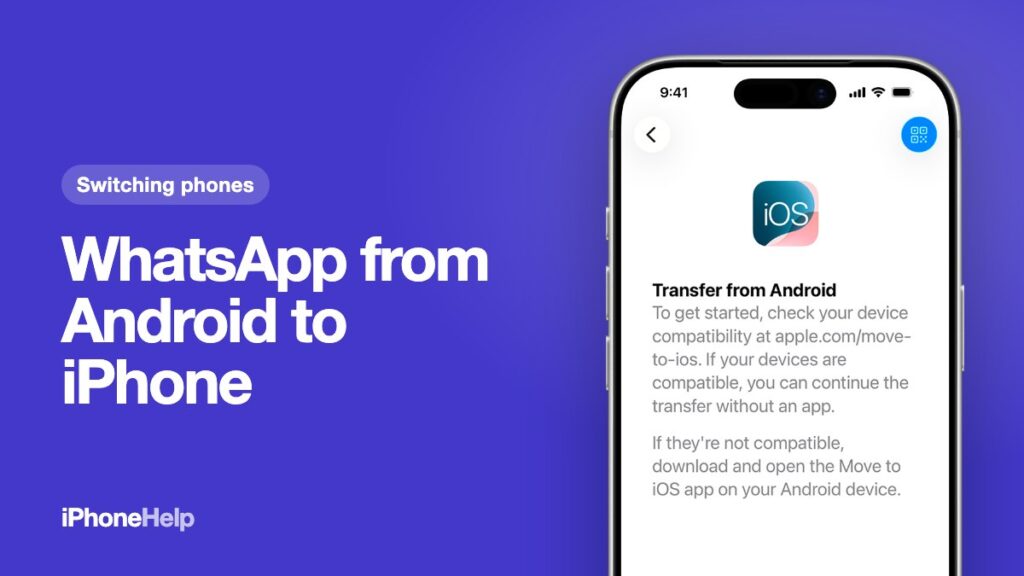
The new iPhone is out of the box, and your Android phone holds years of family groups, voice notes and photos. You can transfer WhatsApp from Android to iPhone for free, and it’s official. There’s a catch, and it decides everything: the move only happens while the iPhone is being set up. Do it before you start using the iPhone, not after.
Transfer WhatsApp from Android to iPhone: the quick answer
Use Apple’s free Move to iOS app on the Android phone, during the iPhone’s setup, and tick WhatsApp when it asks what to bring. Then install WhatsApp on the iPhone, log in with the same number and tap Start. Your chats, groups and media come across. That’s the whole official route.
Two things the “no reset” videos won’t tell you up front:
- A Google Drive backup is no use here. WhatsApp can’t restore a backup made on Android onto an iPhone. Don’t bother uninstalling and reinstalling to make it work.
- An iPhone you’ve already set up has to be erased first. If you skipped the WhatsApp step and you’re using the iPhone now, there’s no official way to add the chats later. We cover that below.
Before you start: five checks that save a failed transfer
A failed attempt can cost you an evening and sometimes a reset, so spend five minutes here first.
1. Same number, and the SIM in the iPhone. WhatsApp moves only to the same phone number. Put the SIM in the iPhone, or be ready to move your eSIM during setup, because WhatsApp sends a verification code to that number when you log in. One Indian catch: after a SIM or eSIM change, Jio, Airtel and Vi block SMS for up to 24 hours. If you’re moving an eSIM, do it a day before the WhatsApp move, or expect the code to come late. Switching to a new number too? Change the number in WhatsApp on the Android phone first, then transfer.
2. Update WhatsApp on the Android phone. WhatsApp wants its latest version on both phones. Update it from the Play Store now, and install Move to iOS while you’re there.
3. Check the chats are actually on the Android phone. If you’ve reinstalled WhatsApp there recently, restore your Google backup on the Android phone first. Move to iOS copies what’s on the phone, not what’s in the backup.
4. Room, power and a connection. Make sure the iPhone has space for everything you’re bringing, WhatsApp media included. Plug both phones in. A USB-C cable between them is faster; otherwise they talk over Wi-Fi, and the Android phone has to join a temporary network the iPhone creates. For a big WhatsApp, the cable saves real time.
5. WhatsApp Business is out. The WhatsApp Business app isn’t covered: its chats stay on Android. There’s no official route for it, so don’t pay for a tool that promises one.
Officially you need Android 5 and iOS 15.5 or later, which any phone you’re likely to own today clears.
Move WhatsApp with Move to iOS, step by step
Keep the two phones side by side, and keep your hands off them once it starts. Apple’s Move to iOS guide has the same steps if you want the official page open alongside.
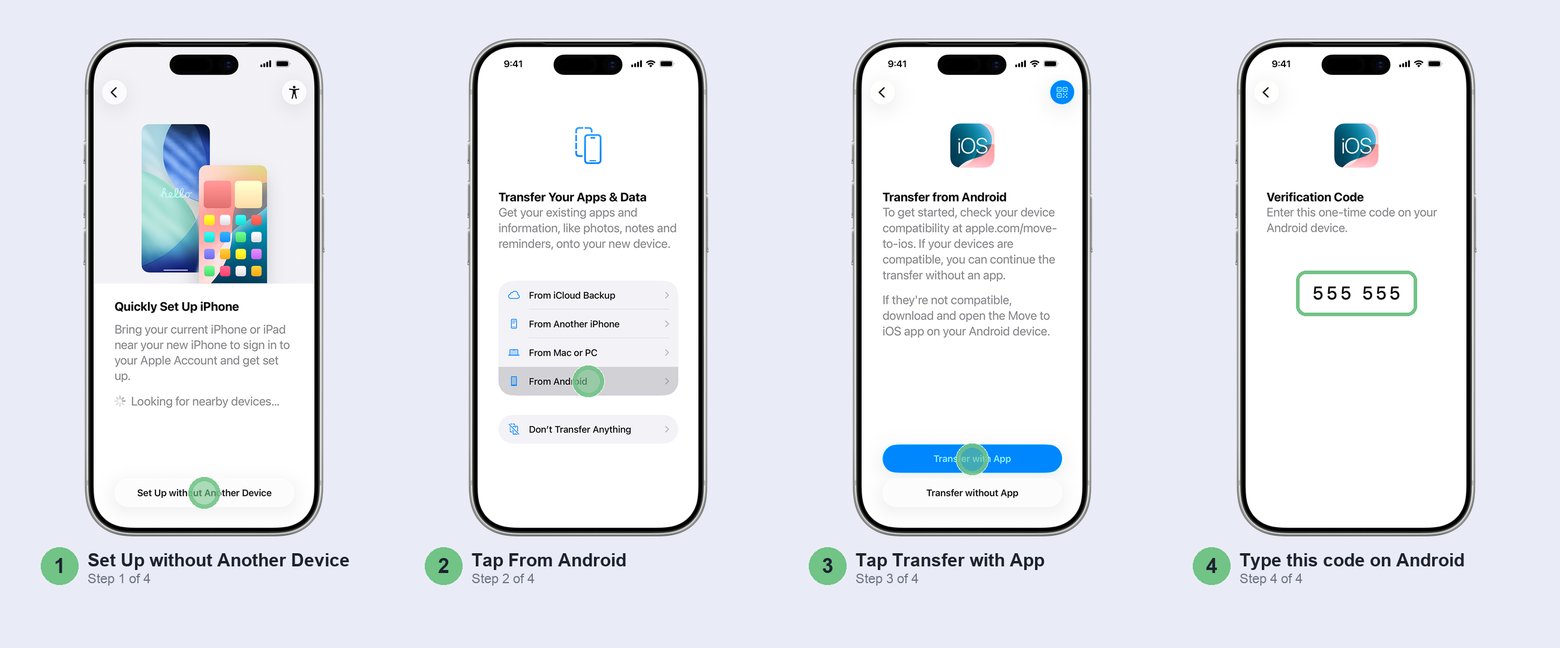
- Turn on the iPhone and follow setup. When Quick Start appears, choose Set Up without Another Device. Setup may also ask you to activate your SIM or eSIM.
- On Transfer Your Apps & Data, tap From Android, then Transfer with App.
- Using the cable? Connect it now; the Android phone may ask you to change its USB setting. Then open Move to iOS on the Android phone, agree to the terms and allow the permissions it asks for.
- Tap Continue on the iPhone. It shows a 6-digit or 10-digit code. Type it into the Android phone, and without a cable, join the iPhone’s temporary Wi-Fi when asked.
- On the Transfer Data screen on the Android phone, select WhatsApp, along with contacts, photos and anything else you want.
- WhatsApp then opens on the Android phone. Tap Start there. It prepares your chats for export, then signs you out of WhatsApp on Android. That’s expected, and your chats aren’t gone.
- Still on the Android phone, tap Next to go back to Move to iOS, then Continue, and wait.
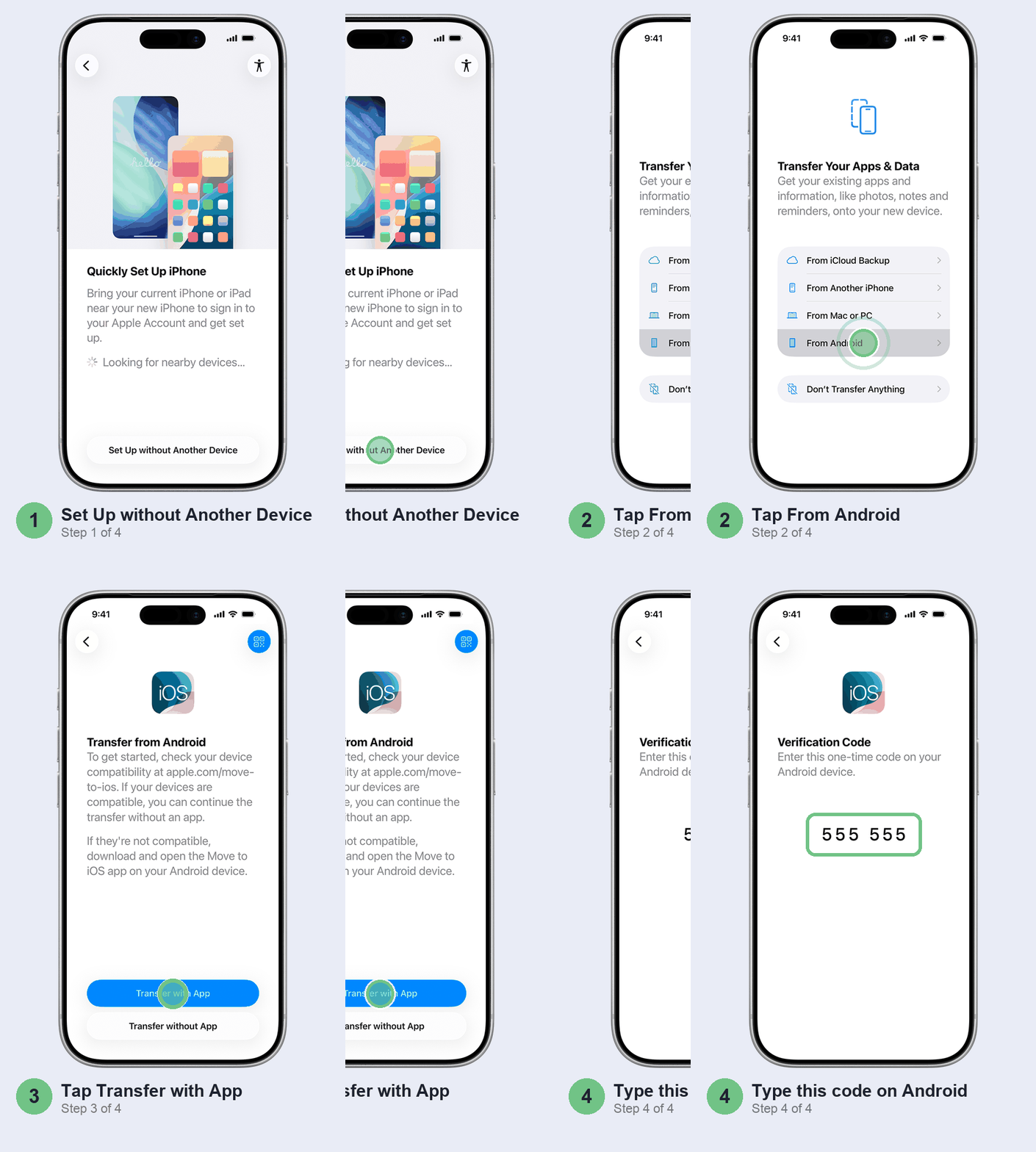
Wait for the iPhone’s loading bar, not the Android phone. Android may say it’s finished first; ignore it. A phone call or switching apps on the Android phone stops the transfer, so don’t start it while you’re expecting a call. How long it takes depends on how much media you have. Neither Apple nor WhatsApp gives a figure, so start it in the evening if your WhatsApp is big, and don’t plan to use either phone for a while.
Skip Transfer without App for this. It needs a supported Android 17 phone, and Apple’s list of what it moves doesn’t include WhatsApp. Transfer with App is the route WhatsApp documents.
Then open WhatsApp on the iPhone
Finish setup, then install WhatsApp from the App Store. Open it, log in with the same number and tap Start when it offers to bring your chats in. Let it run to the end before you start chatting.
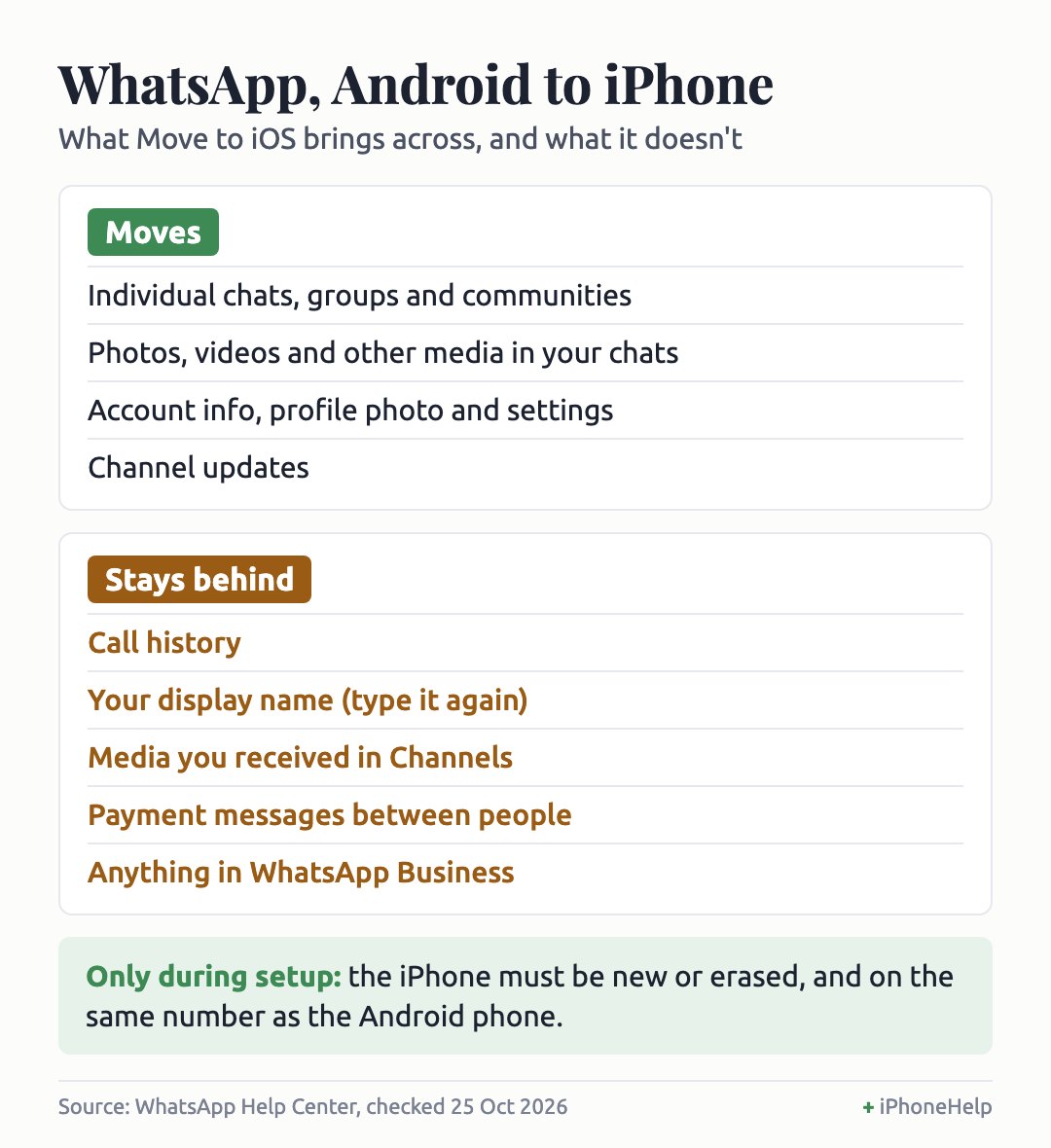
Check a few big groups and an old chat with photos. Your display name and call history don’t come across, so type your name again in WhatsApp’s settings.
Now the step most people forget: the chats are only on the iPhone until you back them up. Nothing goes to iCloud on its own. In WhatsApp, open Settings, then Chats, Chat backup and Cloud backup, choose iCloud and tap Turn on backups (daily is sensible). If your WhatsApp is bigger than the free 5 GB of iCloud, you’ll need more iCloud storage, or the backup won’t finish. Videos are only included if you switch Include videos on.
Your Android phone keeps its own copy for now. Leave it alone for a week, until you’re sure everything you care about made it.
Already set up your iPhone? You’ll have to erase it
WhatsApp is blunt about this: once WhatsApp is active on the iPhone, the only official way to bring the Android chats over is to put the iPhone back into setup, which means erasing it. It’s a nuisance, and on a phone you set up yesterday, it’s the right call. If anyone tells you WhatsApp can be moved across later, they’re wrong.
Do these checks first, in this order:
- Open WhatsApp on the Android phone and check the chats are there. If they aren’t, stop and don’t erase the iPhone. Check that the Android backup exists and how recent it is, and only then reinstall WhatsApp on Android and restore it.
- Accept that new iPhone chats will go. WhatsApp can’t merge two histories. Whatever you transfer replaces what’s on the iPhone.
- Back up the iPhone to iCloud or a computer, as a safety copy of anything you’ve added since setup.
Then open Settings > General > Transfer or Reset iPhone > Erase All Content and Settings, tap Continue, and when it asks about your eSIM, choose Keep eSIM and Erase Data.
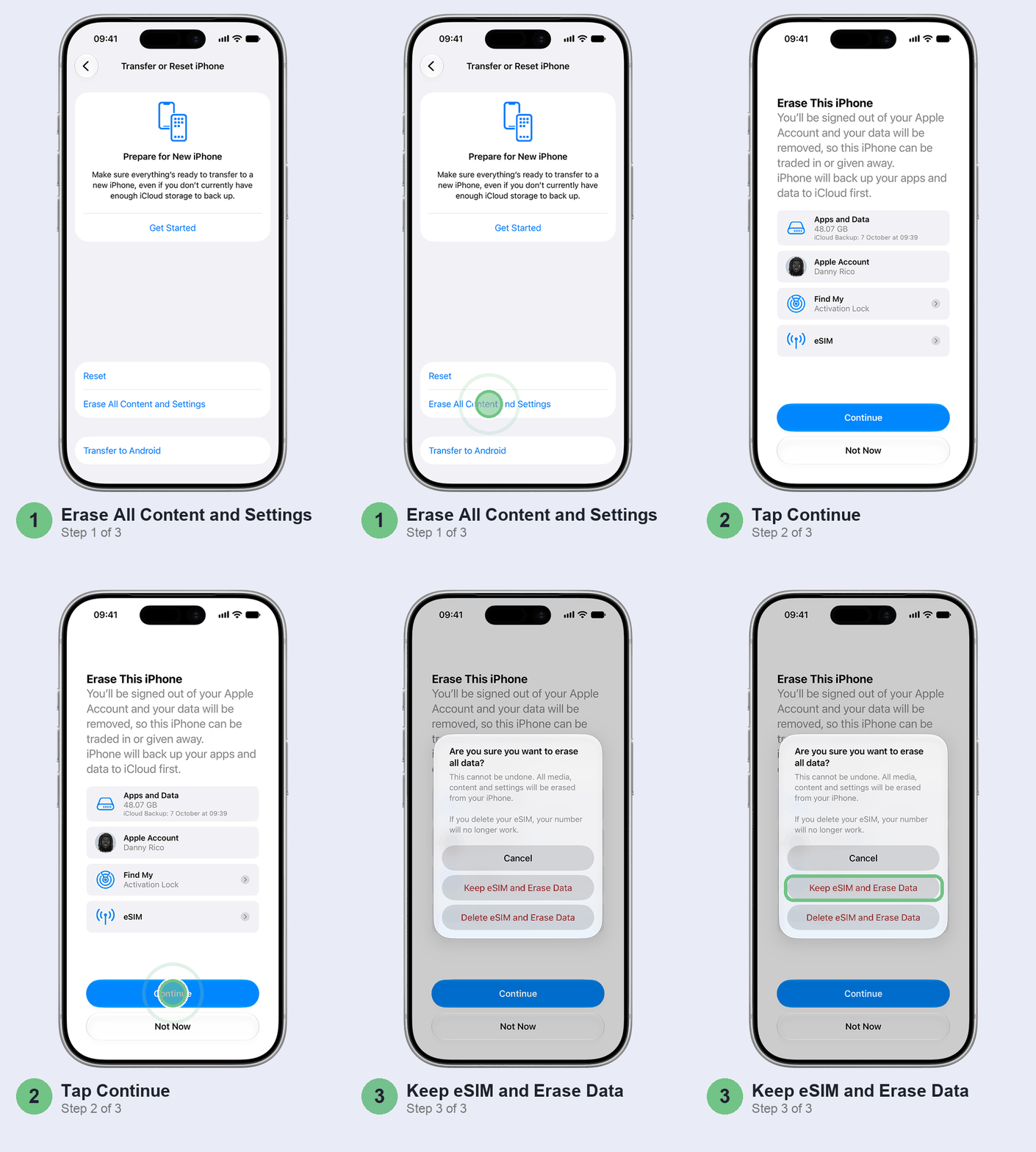
That last choice matters on Jio, Airtel and Vi. Delete the eSIM and your number stops working until the carrier issues a new one, and in India that also brings a 24-hour block on SMS, so no OTPs. When the iPhone restarts on the Hello screen, start the steps above again, picking WhatsApp in Move to iOS.
Where it gets stuck, and what to do
If it stalls, suspect the connection first: it’s the cheapest thing to fix, and the cable sidesteps it.
“Something went wrong” on the iPhone. WhatsApp says the chat history may be corrupted. Tap Retry first. Skip Import gives up on the old chats, so treat it as the last resort.
“An unknown error occurred. Please try again later.” Restart both phones and try again.
The transfer stops partway. That’s usually the connection. On the Android phone, turn off anything that hops between networks (Smart Network Switch on Samsung, for one), turn off mobile data, forget saved Wi-Fi networks and restart both phones. Or use the cable.
WhatsApp’s verification code won’t come. After several attempts, WhatsApp makes you wait, and nothing speeds it up. It may offer the code by email. If your SIM was just swapped, see our guide to an iPhone not receiving OTP SMS.
A QR code won’t scan. If you used the iPhone’s QR button to fetch Move to iOS on the Android phone, or WhatsApp shows a code, max out the iPhone’s brightness, wipe the Android camera, take off the iPhone’s screen protector, and check you’re scanning the right code.
The Move to iOS app crashes or cancels. Restart both phones and try once more. If it keeps failing, that’s Apple’s app, so contact Apple Support, not WhatsApp.
Some chats are missing after a “successful” transfer. WhatsApp can’t fetch them for you. If the Android phone still has them, you can erase the iPhone and run the whole thing again.
Don’t bother
Paid “no reset” transfer tools. The top videos for this search sell desktop software that promises to skip the erase. WhatsApp doesn’t support other transfer apps and warns they can lose chats. Erasing a day-old iPhone is the cheaper risk.
Restoring the Google Drive backup on the iPhone. It won’t restore, full stop. Android backups stay on Android.
WhatsApp’s own Transfer chats QR feature. That one is Android to Android only. You’ll find it in the settings, and it’ll waste your time.
After the move: payments, UPI and storage
If you pay friends through WhatsApp, those payment messages won’t be in the moved chats. The money isn’t affected; it’s on your bank statement. GPay, PhonePe and Paytm check your SIM by SMS, so register each one again on the iPhone, after any 24-hour SMS block is over. Our guide to UPI apps not working on iPhone covers the snags.
Moving your eSIM from the Android phone rather than a physical SIM? Our eSIM guide for Jio, Airtel and Vi has the carrier steps.
WhatsApp media is also the usual reason a new iPhone fills up within weeks. If yours does, start with our guide to iPhone storage full.
FAQ
How do I transfer my WhatsApp from Android to my new iPhone?
Run Move to iOS while setting up the iPhone, tick WhatsApp when Android shows the list of data, tap Start in WhatsApp on Android, then log in to WhatsApp on the iPhone with the same number and tap Start.
Can I restore a WhatsApp backup from Google Drive to iPhone?
No. An Android backup only restores on Android. Instead, the chats are copied straight from the Android phone during setup.
Can I transfer WhatsApp from Android to iPhone after setup?
Not without erasing it. Erase the iPhone, keeping the eSIM if you use one, and run setup again with Move to iOS. Back up the iPhone first.
Is there a way to transfer WhatsApp from Android to iPhone without a factory reset?
Only through third-party desktop tools, which WhatsApp doesn’t support and warns can lose chats. We’d erase a new iPhone rather than trust years of chats to one.
Is the transfer free?
Yes. Both apps are free. Budget for more iCloud storage if your chats are bigger than the free 5 GB and you want a backup.
Can I move WhatsApp Business from Android to iPhone?
Not with this method. WhatsApp doesn’t support it for the Business app, so those chats stay on Android.
Do I lose the chats on my Android phone?
No. You’re signed out there, but the chats remain on the Android phone. They’re only gone once you delete WhatsApp there or reset it.
Steps checked against WhatsApp’s Help Center and Apple’s Move to iOS guide on 25 October 2026.
Prefer to watch? Apple’s own video shows the Move to iOS setup on both phones.
How long did your WhatsApp take to come across, and did you use the cable or Wi-Fi? Tell us in the comments, along with how big your WhatsApp was. It helps the next person plan their evening.
Last updated: October 2026