
“iPhone Storage Full” pops up just as you try to record your niece’s dance, or the iOS update refuses to start. You open iPhone Storage and there it is: a fat grey System Data block you can’t tap, can’t delete and didn’t ask for.
Don’t start there. On most Indian iPhones the space you can get back today is in WhatsApp, Photos and Messages, and System Data is the last thing worth fighting.
iPhone storage full: the quick answer
Work down this list and stop when the warning goes away:
- Check what’s big: Settings > General > iPhone Storage. It’s usually WhatsApp.
- WhatsApp: delete its largest files and its busiest groups’ media, then turn off media auto-download. Usually the biggest win.
- Photos: empty Recently Deleted. Deleted photos keep using space for 30 days.
- Apps: offload the ones you never open; clear downloaded episodes inside Netflix, Prime Video or Hotstar if they’re near the top.
- System Data last: there’s no delete button. iOS trims it when it needs room, and the only real reset is backing up, erasing and restoring.
Skip the cleaner apps.
See what’s actually eating the space
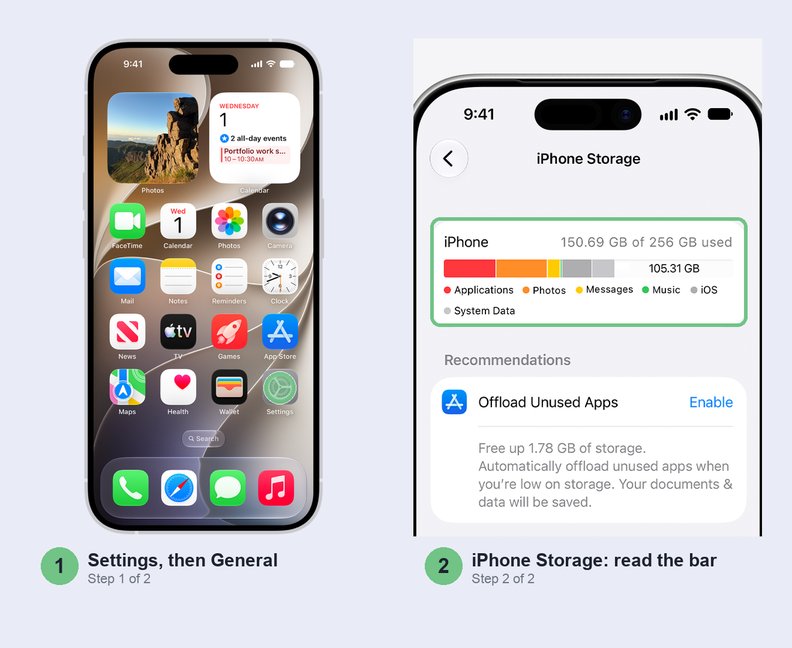
Two minutes here saves you deleting the wrong thing. Open Settings > General > iPhone Storage and let it finish counting.
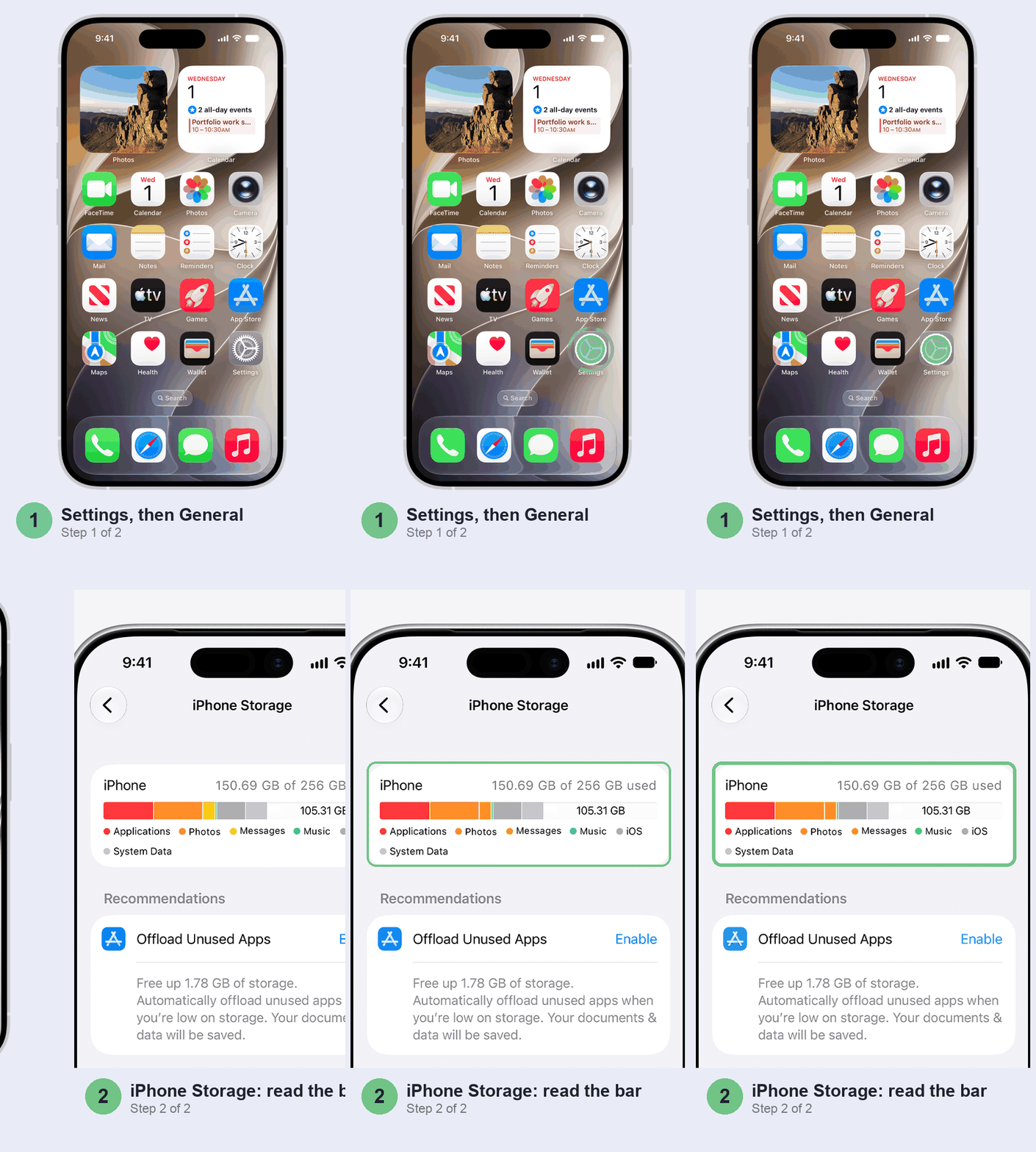
The coloured bar at the top splits your storage into Applications, Photos, Messages, iOS, System Data and so on. Below it come one-tap Recommendations, then every app, biggest first. Tap any app to see how much is the app itself and how much is its documents and data. One catch: Apple says an app’s cached and temporary files may not show up in its own number. That’s probably part of why System Data looks so big.
If WhatsApp is near the top, start with the next section. If Photos is the giant, skip to the Photos sections.
Clean out WhatsApp first
On Indian iPhones this is the one that usually does it. With auto-download on, every forwarded video in every family and society group lands on your phone, and it stays there until you remove it.
Before you clear anything: deleting here is permanent and only for you, so save any video you want to keep first. And if WhatsApp also saved copies to your Photos library, those copies stay; WhatsApp’s own help says deleted items might still be on your phone, so do the Photos clean-up below too.
In WhatsApp, tap your profile picture (or Settings), then Chats > Chat backup > Manage your storage > Review and delete media. Pick a chat and sort by Largest, then select the videos you don’t need and delete them. When WhatsApp asks, choose Delete items and any copies, so the same forward saved in five chats goes from all five.
For the noisiest group, there’s a shortcut: open the chat, tap its name and tap Manage storage. That chat’s media is sorted biggest first. Starred items can be kept with Delete all except starred.
Number in iPhone Storage didn’t move? Restart the phone and check again; iOS can be slow to recount.
Stop it filling up again
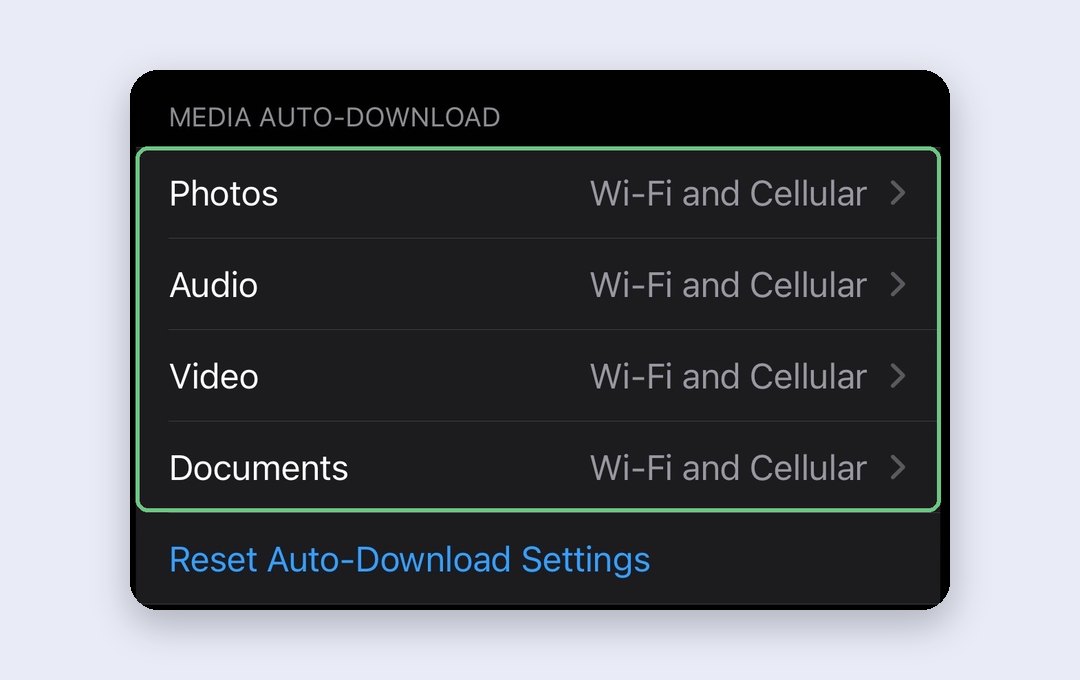
In WhatsApp’s settings, open Storage and data and look under Media auto-download. Set Video and Documents to Never, and Photos to Wi-Fi or Never. You’ll tap to download what you actually want to see, and the good-morning videos never land on your phone unless you ask for them.
Empty Recently Deleted in Photos
This is the one people forget. When you delete photos and videos, iOS keeps them in Recently Deleted for 30 days, and they keep using space all that time. Clear a thousand screenshots today and your free space barely moves.
With iCloud Photos on, a delete here also removes the photo from iCloud and your other devices, and there’s no undo, so glance through first.
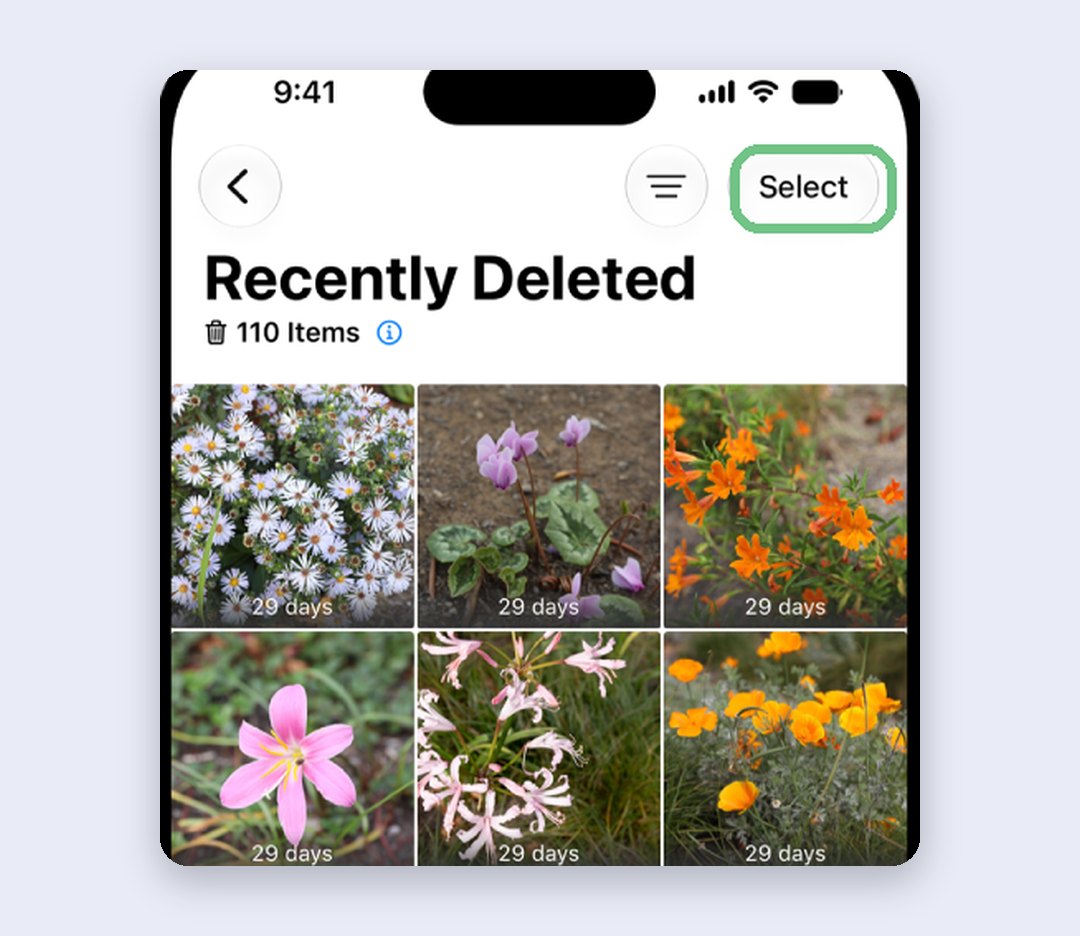
Open Photos, tap Collections, scroll to Recently Deleted under Utilities, tap View Album and unlock it with Face ID or your passcode. Tap Select, pick everything you’re sure about, and delete.
Let iCloud keep the full-size photos
If Photos is your biggest block and you don’t want to delete memories, let iCloud hold the originals. With iCloud Photos on, Optimise iPhone Storage keeps smaller versions on your iPhone and the full-size files in iCloud, and it’s on by default. Old photos download again when you open them. If your library is bigger than your free iCloud space, pick a plan first (below): space only comes back after the photos have uploaded.
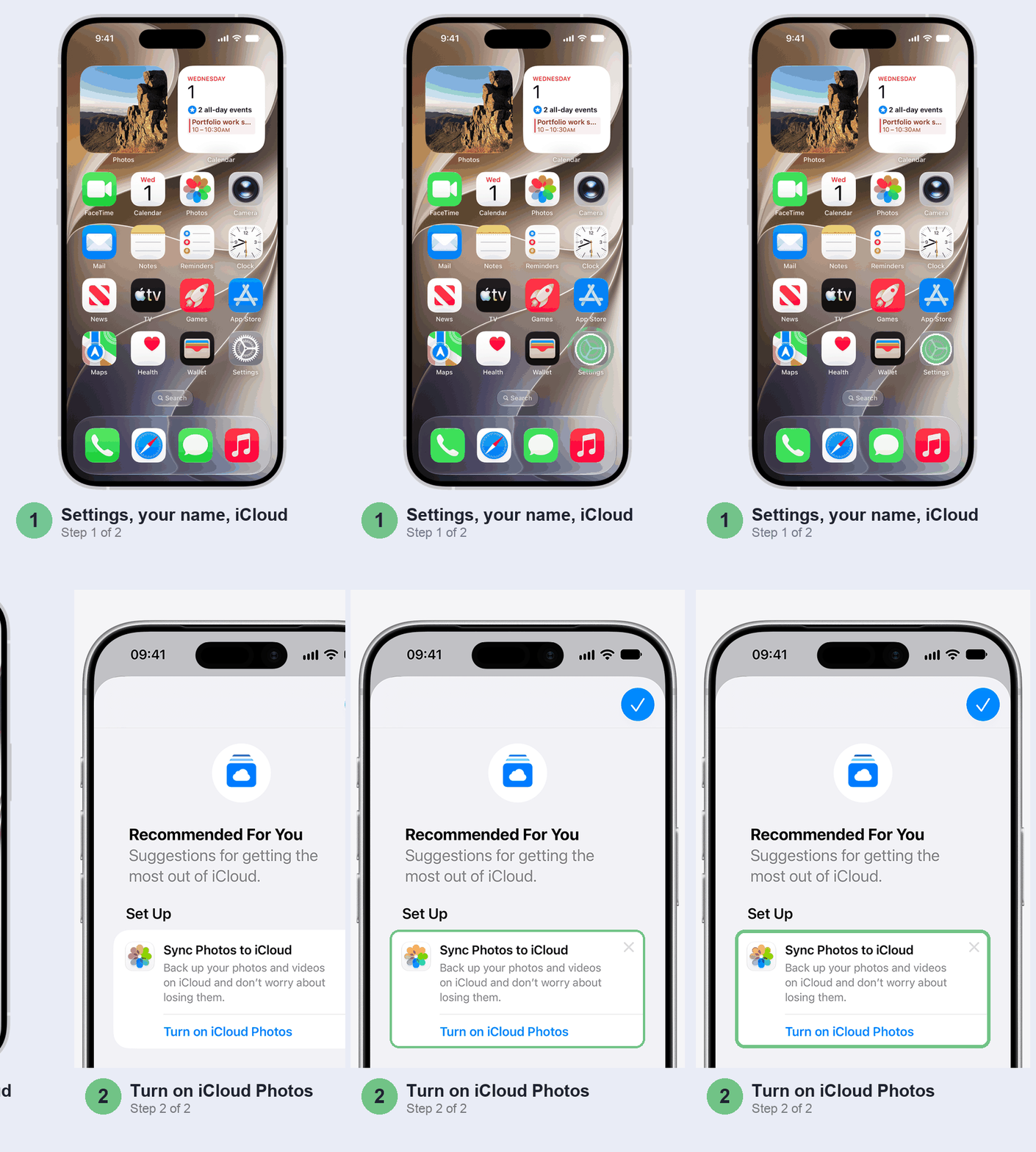
Open Settings > [your name] > iCloud. If Recommended For You suggests syncing photos, tap Turn on iCloud Photos; otherwise tap Photos and turn on Sync this iPhone. Then check that Optimise iPhone Storage is selected.
Is iCloud+ worth paying for?
The free 5 GB fills fast, and once iCloud is full, new photos stop uploading and backups stop. Here’s what Apple charges in India, per month with tax:
- 50 GB, ₹75: enough for backups and a modest photo library.
- 200 GB, ₹219: the one most people with years of photos need. One plan covers you and up to five family members, so it’s cheap per head.
- 2 TB, ₹749: for heavy video shooters or a family with several iPhones.
Our take: if Photos in iPhone Storage is over about 40 GB and you want to keep it all, pay the ₹219. In between, ₹75 for 50 GB does it. If it’s under 5 GB, free iCloud and a clean-up will do. Prices are from Apple’s iCloud+ pricing page, checked in October 2026.
Offload the apps you never open
Offloading removes an app but keeps its documents and data. Its icon remains, marked with a little cloud, and one tap downloads it again with everything where you left it. It suits games and travel apps you open twice a year.
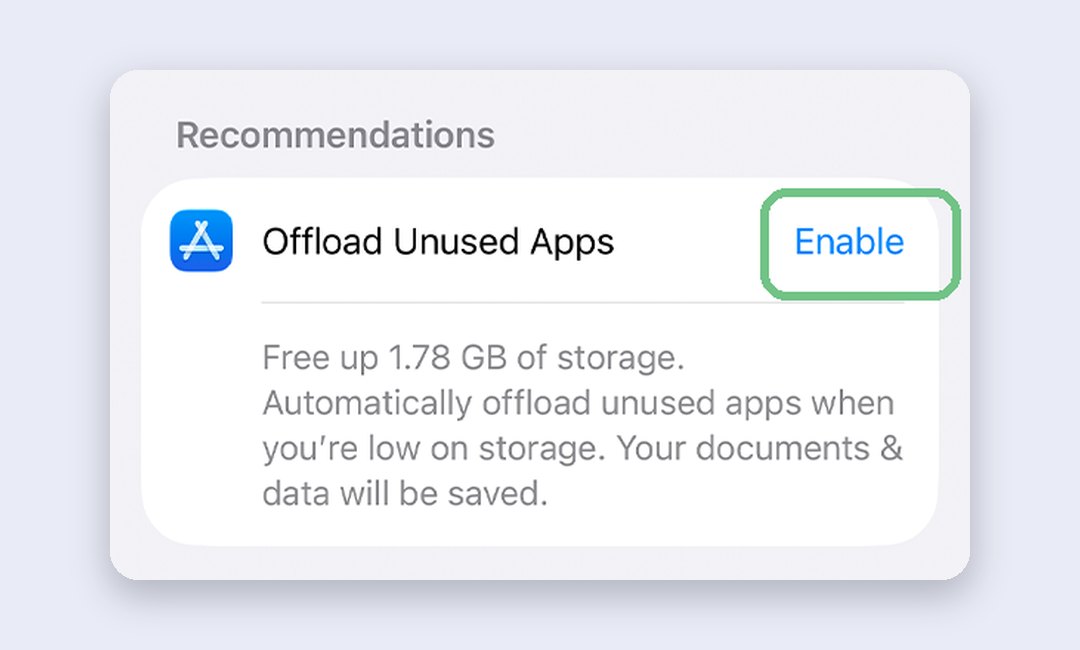
On the iPhone Storage screen from earlier, tap Enable next to Offload Unused Apps under Recommendations, and iOS does it automatically when space runs low. No card there? Turn it on in Settings > Apps > App Store instead. To offload one app now, tap it in the list and choose Offload App.
For Instagram, YouTube or a streaming app whose number keeps growing, deleting and reinstalling works better than offloading, because deleting removes the app’s stored data while offloading keeps it. You’ll sign in again and lose offline downloads. Never do this to WhatsApp unless you’ve just made a chat backup: delete WhatsApp and the chats go with it.
Trim old Messages attachments
Years of photos and videos in Messages add up. To clear media from one chat, open the conversation, tap their name at the top of the chat, tap Photos, then Edit > Select Photos, choose what to remove and delete it.
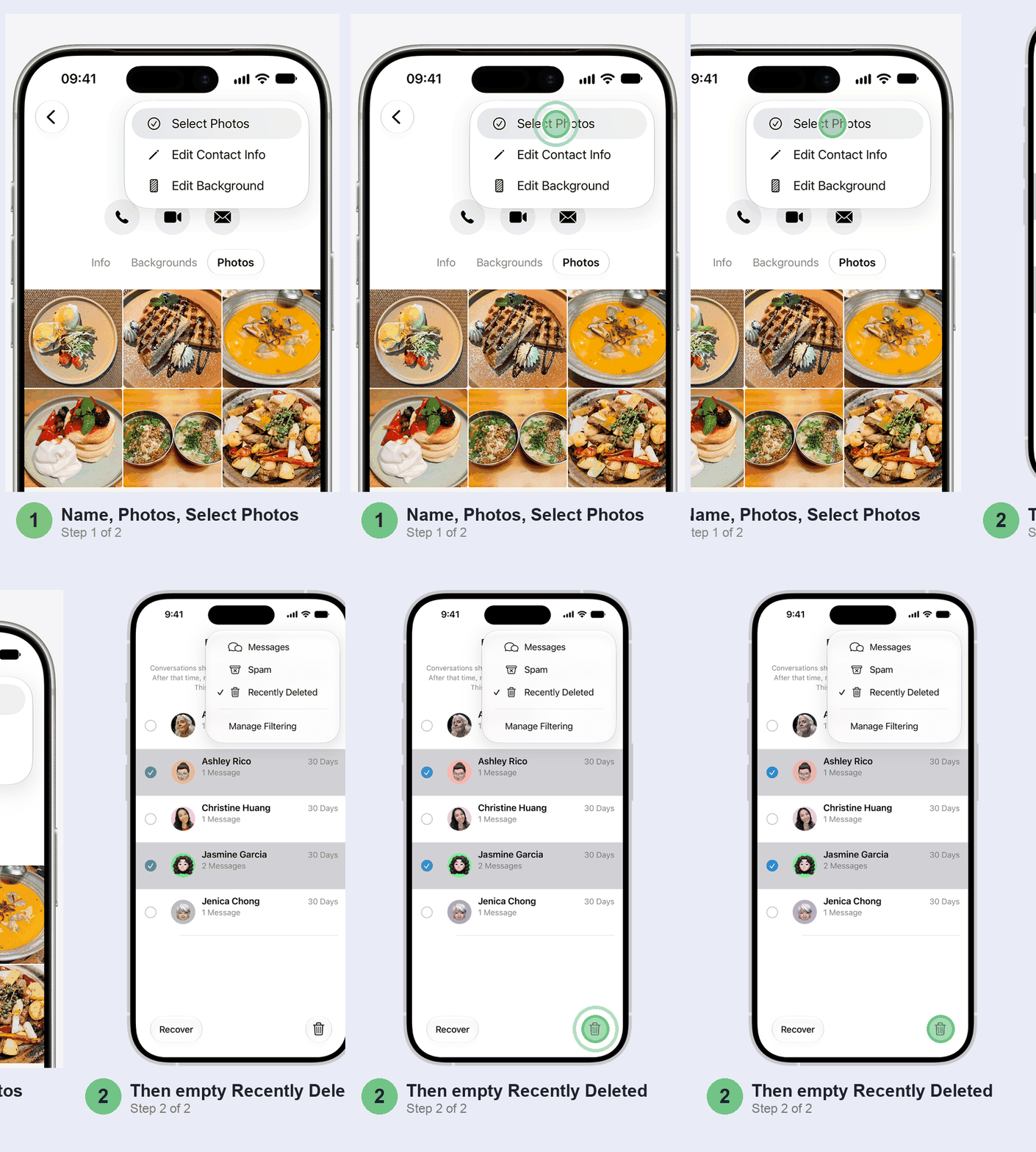
Messages also holds deleted items for as long as 30 days, in its own Recently Deleted list. Tap the filter button at the top of the conversation list, choose Recently Deleted, and empty it to get the space back now.
For the long term, set an expiry. Two things first: older messages are deleted for good, and if you use Messages in iCloud, they go from your Mac and iPad too. Then open Settings > Apps > Messages and set Keep Messages to 1 Year; older conversations, attachments included, delete themselves from then on.
System Data: what shrinks it and what doesn’t
System Data is the bucket for things iOS needs but you can’t see: caches and logs, Siri voices, fonts and dictionaries, the search index, and system databases. Apple doesn’t give you a button to clear it, and it isn’t supposed to stay fixed. Its size rises and falls, and iOS clears cached and temporary files by itself when your phone needs room.
So the order is:
- Clear real space first. If WhatsApp and Recently Deleted gave you a few GB back, you may already have the room you need, whatever System Data says. And when space does run short, iOS purges its own caches.
- Restart and give it a day. It’s free, and it’s the first thing Apple’s forum regulars suggest.
- Just updated? A big update keeps finishing jobs in the background for a few days (our iOS 27 battery drain guide explains why). The search index lives in this bucket, so System Data can read high until that settles. Look again later in the week.
Still huge, say 40 GB or more on a 128 GB phone and growing? The last resort is to back up, erase and restore. On Apple’s own forums, people with System Data of 35 GB and more get the same advice from the regulars: back up, erase, restore. It costs you an evening.
Before you erase:
- Make a fresh iCloud or computer backup, and make sure iCloud Photos has finished uploading: an iCloud backup doesn’t include photos already synced to iCloud Photos.
- Back up WhatsApp too: in WhatsApp, Chats > Chat backup > Back Up Now, and check the date it shows.
- Keep your Apple Account password handy.
- When the erase asks about your eSIM, choose to keep it. Erase a Jio, Airtel or Vi eSIM and you’ll be calling your carrier to get it back.
Then open Settings > General > Transfer or Reset iPhone > Erase All Content and Settings.
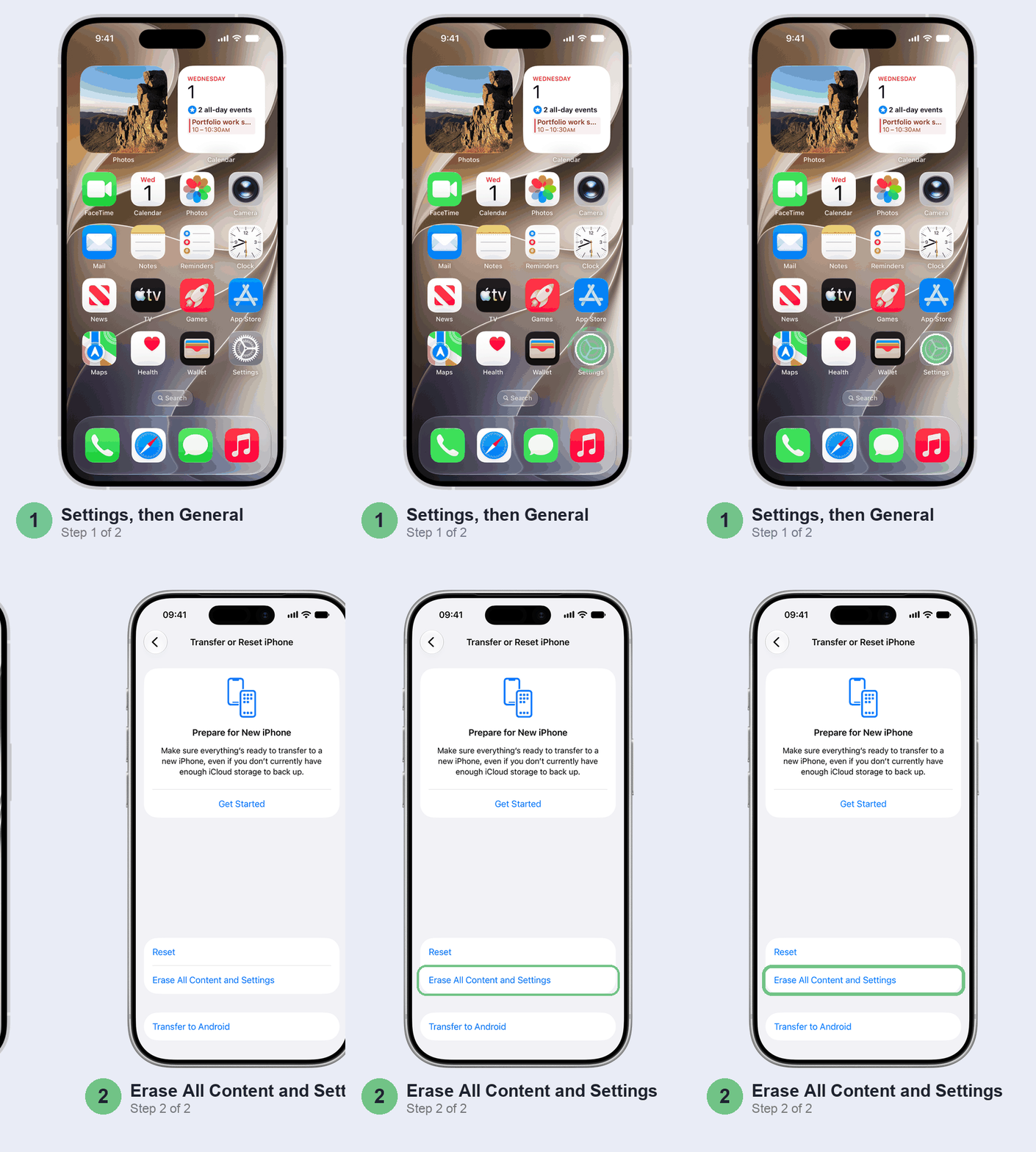
After the reset, pick From iCloud Backup (or restore from the Apple Devices app on a Windows PC) and stay on Wi-Fi and power until it finishes.
Don’t bother with these
- “Cleaner” and “booster” apps. Every App Store app runs in its own sandbox and can’t touch other apps’ data or system files, so none of them can clear System Data or another app’s cache, whatever the screenshots promise.
- Deleting WhatsApp to clear its cache. You lose every chat that isn’t in a backup. Manage storage does the job safely.
- Erasing as the first step. WhatsApp and Recently Deleted are safer, quicker and often enough on their own.
- Chasing a “normal” System Data number. Apple doesn’t publish one. Watch whether it keeps growing, not whether it matches someone else’s phone.
When it’s not about cleaning
Full again within weeks after all this? The phone may simply be too small for how you use it. A 64 GB iPhone with WhatsApp, 4K video and a few games will always be tight; ₹219 a month for iCloud, or a 256 GB phone next time, is the honest fix. If System Data keeps climbing by gigabytes a day even after an erase and restore, that’s worth a chat with Apple Support.
Quick questions
How do I clear System Data in iPhone storage?
There’s no button for it. Free up space elsewhere first, restart, and let iOS clear its caches as it needs room. If it stays huge, back up, erase and restore; Apple’s forum regulars say that resets it.
Why is System Data so high on an iPhone?
It holds caches, logs, Siri voices, the search index and system databases. It can swell after updates and heavy streaming; iOS clears the cache part when it needs room.
iPhone System Data is 20GB. Is this normal?
Apple doesn’t say what’s normal, and owners on its forums report far bigger figures. On a 128 GB or bigger phone, 20 GB isn’t a worry. Act if it keeps growing or passes about a third of your storage.
How do I reduce system storage?
The iOS part of the bar is the operating system itself and can’t be shrunk. For System Data, follow the order above: real clean-up, restart, wait out an update, then erase and restore as a last resort.
Prefer to watch? Apple’s own video walks through the iPhone Storage screen and its recommendations.
What freed the most space for you: WhatsApp, Recently Deleted or something else? Tell us in the comments with your iPhone model and how many GB you got back, and we’ll add the best finds to this guide.
Last updated: October 2026