You plugged in before bed and woke up to 80%. Or it’s been on the charger for an hour and gained six per cent. Or nothing happens at all, not even the little lightning bolt. Before you buy another cable or book a repair, ask the phone. These days it usually tells you why.
Quick answer: iPhone not charging? Open Settings > Battery while it’s plugged in. The card at the top names the reason: too hot, Optimised Battery Charging, a charge limit or a slow charger. No reason and no bolt? Swap to a cable and adapter you know work, then clear the lint out of the port. Those three checks sort out most cases. Screen completely black? Leave it on a wall charger for 30 minutes, then force restart (steps below).
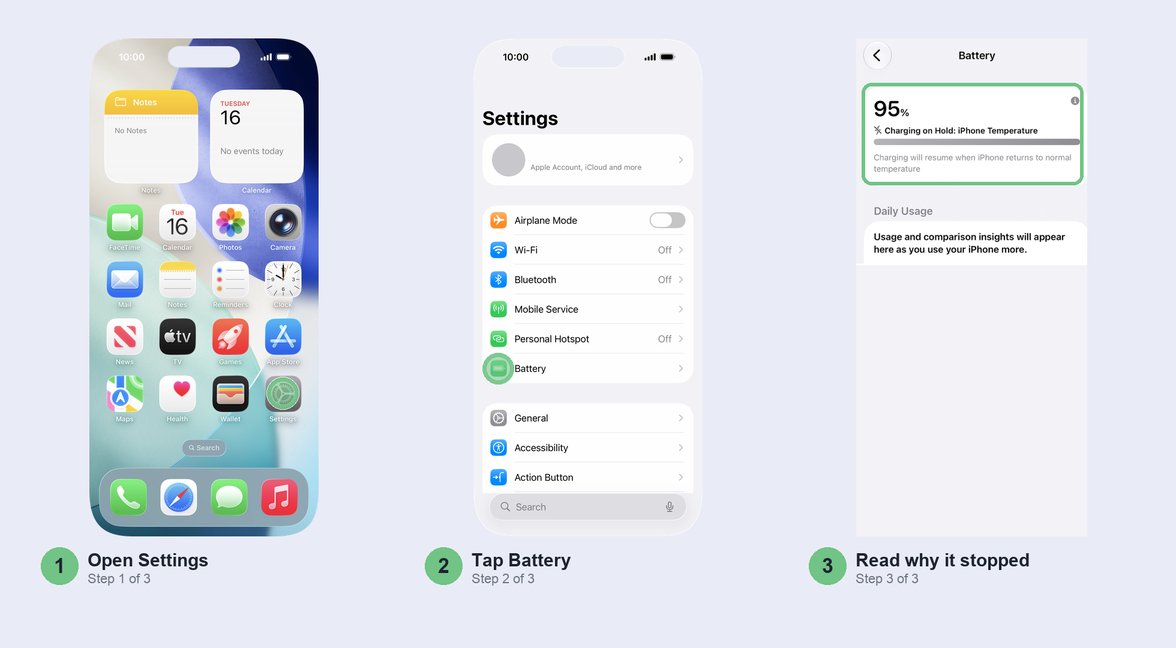
iPhone not charging? Check Settings > Battery first
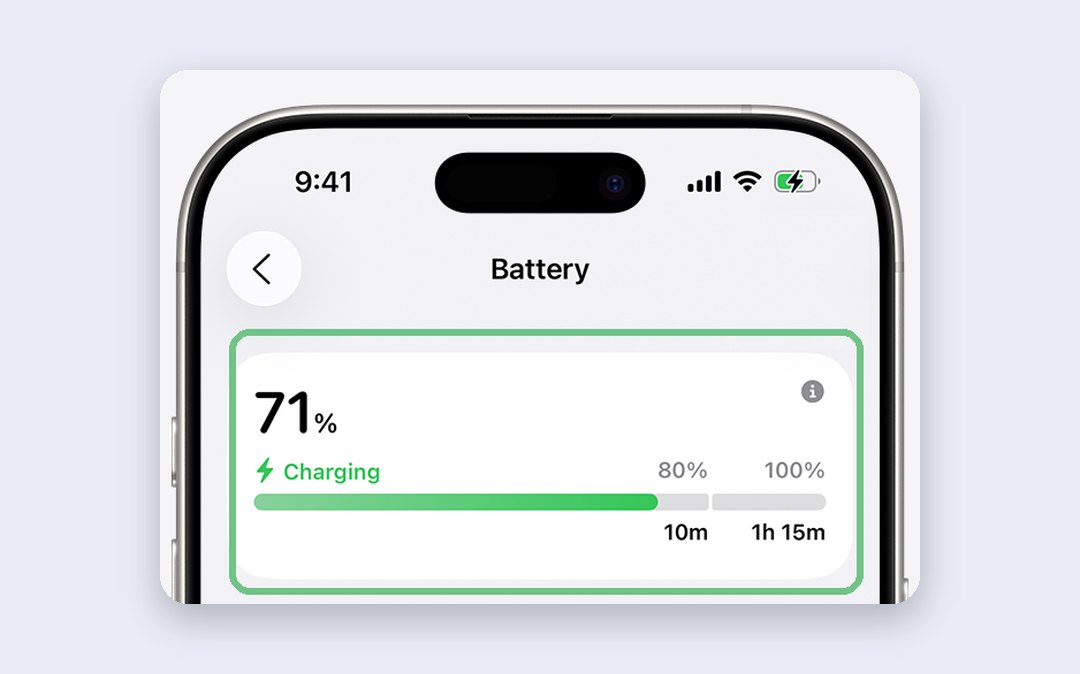
This takes you ten seconds and saves trying fixes for the wrong problem. Keep your phone on the charger and open Settings > Battery. On iOS 26 and iOS 27, the card at the top says what charging is doing right now. On an older iOS you won’t get the card, so skip straight to the cable.
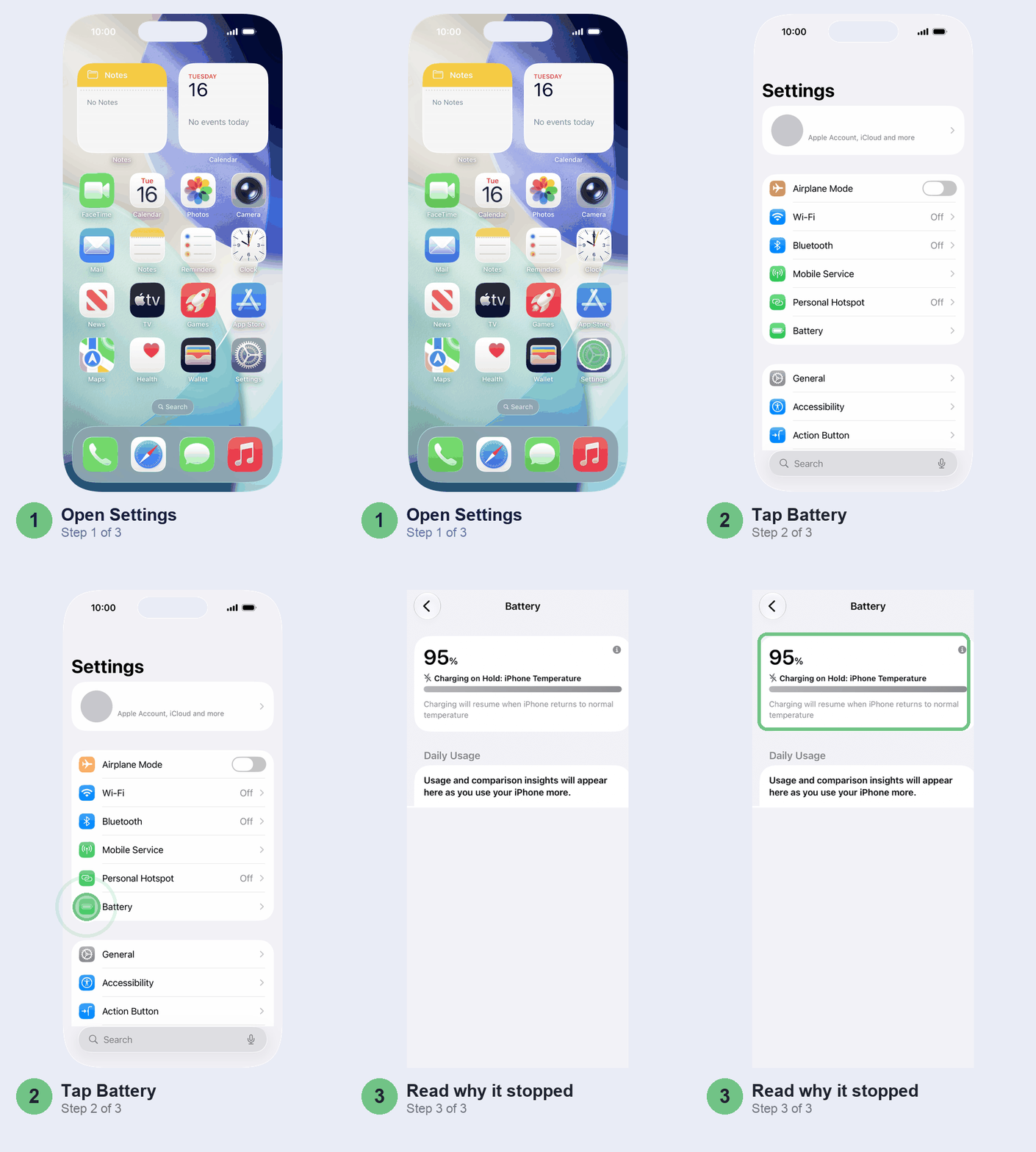
Here’s how to read it:
- Charging on Hold: iPhone Temperature. It’s too hot (or, rarely in India, too cold). Jump to the heat section below.
- Charging on Hold: Optimised Battery Charging. Your phone is waiting at 80% on purpose and will finish before you usually unplug. Tap Resume Charging if you need it full now.
- Charged to 80% Limit (or 85%, 90%). That’s your charge limit. Tap Charge to 100% for a one-off full charge.
- Slow Charger. It is charging, just slowly, because the adapter or port can’t supply full power.
- Incompatible Charger. Something is connected but not charging the phone at all. Try another adapter.
- Charging, with a time to 80% and to 100%. All normal. Leave it alone.
Connected but not charging, with no lightning bolt on the battery icon at the top of the screen and nothing on this card? Then your phone isn’t getting power. That points at the socket, the cable, the adapter or the port, in that order.
Swap the cable and adapter (and spot a duplicate)
When the card is blank, start with the cable. Cables die at the neck, right where they bend at the phone end, long before they look broken. The adapter is the other usual suspect, especially the cheap “original” ones you’ll find at every mobile counter.
First the boring one: is the switch on the wall socket actually on? Try another socket too, plugged in directly rather than through your laptop, a car port or a crowded extension board. Then borrow a set you know works and swap one part at a time: the borrowed cable on your adapter first, then the borrowed adapter. Whichever swap brings the bolt back tells you what to bin. Don’t keep a frayed cable as a spare; a damaged charger can start a fire.
Still nothing with a known-good set? Restart the phone before you touch the port. It’s free and clears the odd charging glitch.
How to tell a duplicate from the real thing:
- Lightning cable (iPhone 14 and earlier): a certified third-party cable has the “Made for iPhone” (MFi) badge on the box. On Apple’s Lightning to USB cable, look for “Designed by Apple in California” and a 12-digit serial printed about 17.5 cm along from the USB plug. Fakes often have rough, squared contacts and a plug that gets hot or works loose.
- USB-C cable (iPhone 15 and later): MFi doesn’t apply. Buy a USB-C Power Delivery cable and adapter from a brand you recognise. For fast charging you want an adapter of 20W or more.
- The adapter, in India: a legitimate one carries the BIS mark with a registration number starting with R. Check that number in the free BIS Care app and you’ll see which manufacturer registered it. No mark, or a number that doesn’t match? Skip it. Apple’s own 20W USB-C adapter costs ₹2,190 on Apple’s Indian store (checked 24 October 2026), so a “genuine Apple” one at a third of that price is a copy.
Clear the lint out of the charging port
This is the fix that surprises people most. Every time you push the cable in, it packs a little pocket lint into the bottom of the port. After a few months the plug stops a millimetre short, so the cable feels loose or charges only at an angle.
Use wood or plastic only. SIM ejector pins, safety pins and needles can scratch the contacts, compressed air is something Apple says not to use on an iPhone, and cotton buds leave fibres behind.
- Switch your iPhone off.
- Shine a torch into the port. Grey felt packed at the back is lint.
- Use a wooden toothpick (shave the tip thinner if it won’t fit) or a plastic pick. Scrape gently along the back wall and pull the lint towards you. On a USB-C iPhone there’s a thin tongue of contacts in the middle: work around it, along the top and bottom walls, and never lever against it.
- Plug the cable back in. It should seat noticeably deeper than before.
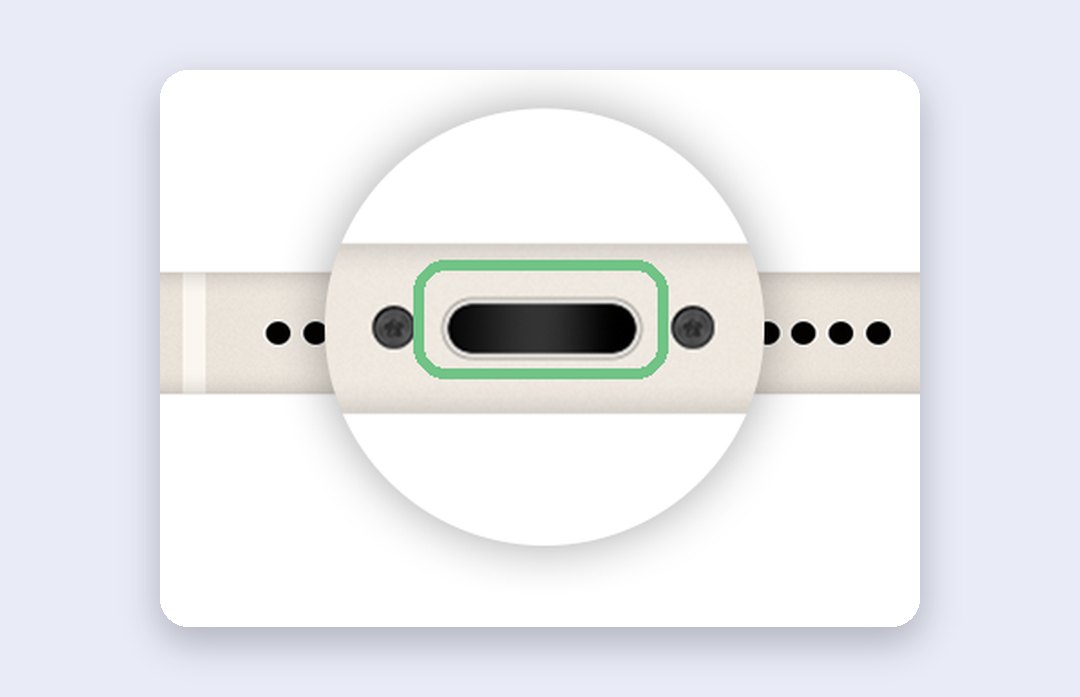
Port looks clean and your cable still wobbles? The port itself may be worn, which is a repair.
Charging On Hold: let it cool down
Your iPhone pauses or slows charging when the battery gets too warm, to protect it, and you can’t switch that off. Apple wants you charging between 0 and 35 °C. A summer afternoon in much of India is above that before you add the phone’s own heat. You’re probably doing one of these:
- Charging under your pillow or on the bed, where the heat has nowhere to go.
- Leaving it in a parked car, or on the dashboard running maps in the sun.
- Keeping a thick case on while you game, video call or shoot while it charges.
- Using a wireless charger, which warms the phone more than a cable does.
The quickest fix: unplug it, take the case off, close the heavy app and put the phone somewhere shaded with air moving around it, like a table under the fan. Charging resumes by itself once it cools. From then on, charge on a hard surface: Apple asks for a well-ventilated spot, and its adapters can switch themselves off when smothered by a blanket.
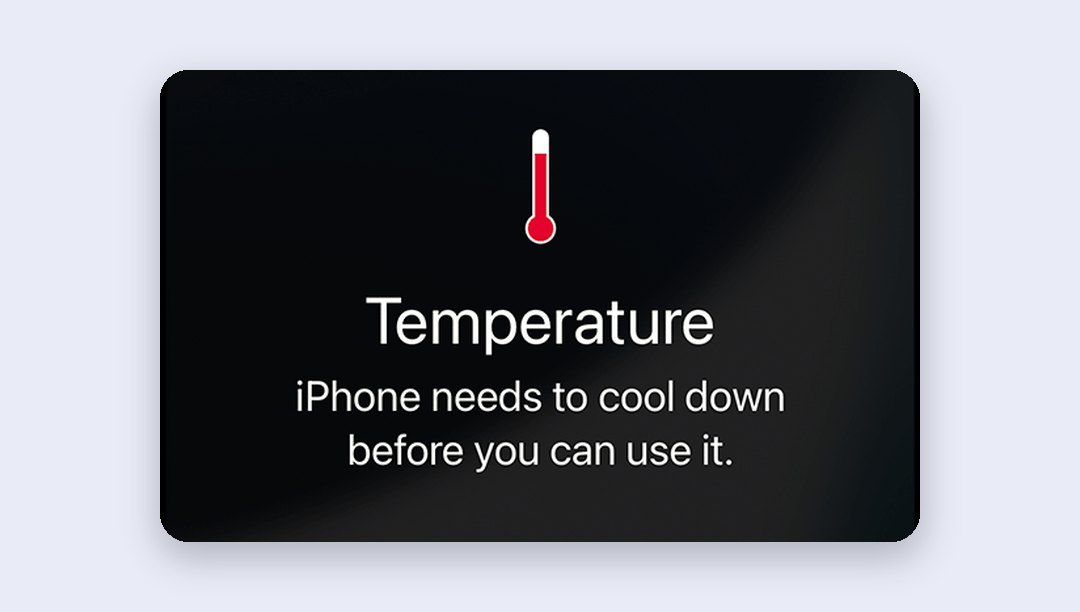
Hot enough to show the temperature warning screen? Turn it off and let it cool before you try again. This matters beyond today, too: a phone that cooks every afternoon ends up with a battery that wears out faster, and that damage doesn’t come back.
Stuck at 80%? It’s probably on purpose
Stopping at 80% is the most common “fault” you’ll meet that isn’t one. Two features do it deliberately.
Optimised Battery Charging learns when you usually unplug, holds at 80% overnight and finishes just before you wake. It only kicks in after about two weeks and nine long charges at the same place, which is why it seems to switch on by itself one day. Need it full now? Open Settings > Battery and tap Resume Charging, or touch and hold the charging notification on the Lock Screen and tap Charge Now.
Charge Limit is on iPhone 15 and later. Go to Settings > Battery > Charging and you’ll see a slider that runs from 80% up to 100%, five points at a time. You only get the Optimised Battery Charging switch when the slider sits at 100%.
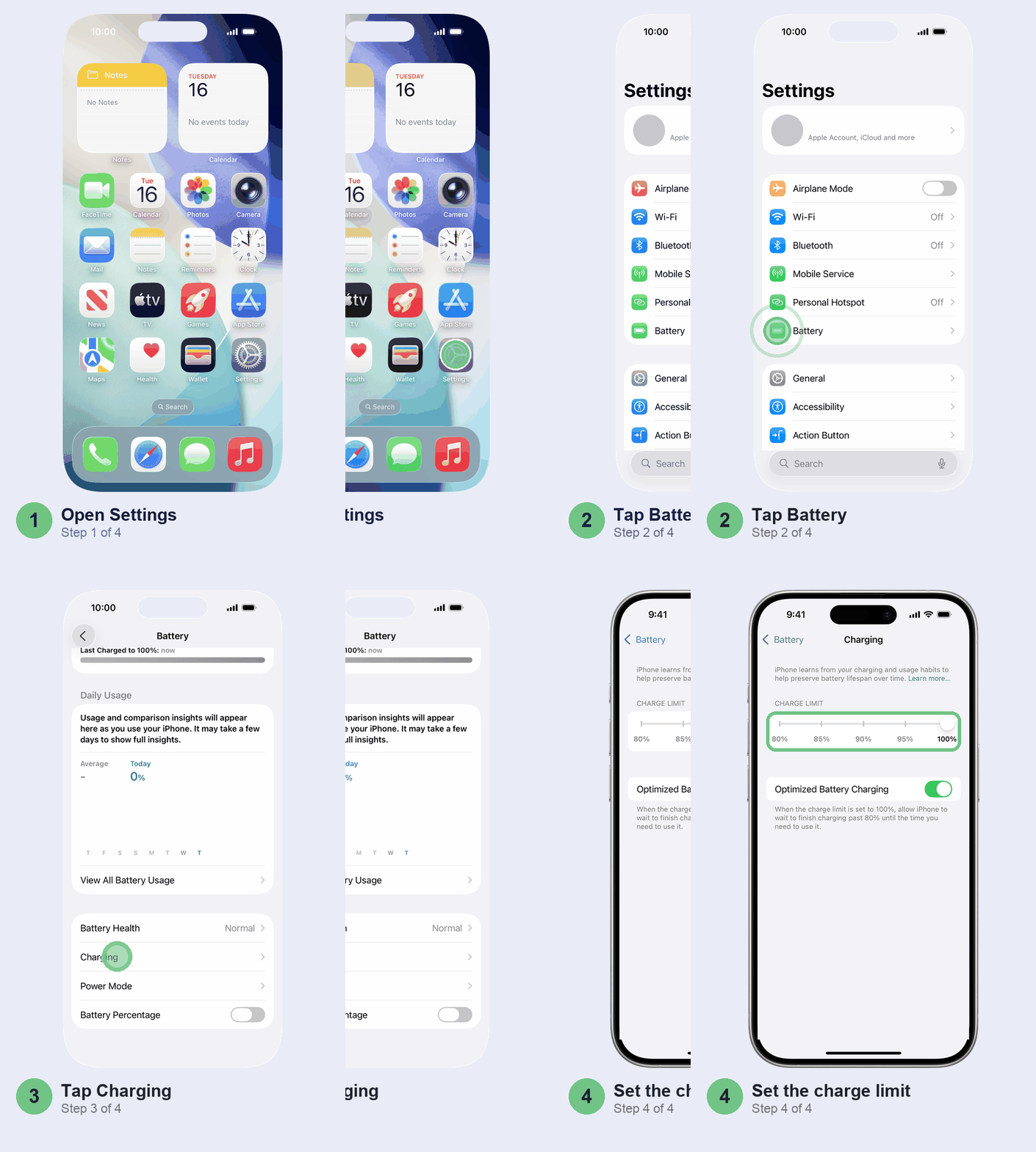
For a one-off full charge, tap Charge to 100% on the Battery screen. Drag the slider to 100% and you get two choices: Allow Until Tomorrow (your limit comes back at 6 a.m.) or Set Limit to 100%, which sticks. Got an iPhone 14 or earlier? You have no limit, only the Optimised Battery Charging switch under Battery Health & Charging in the Battery settings.
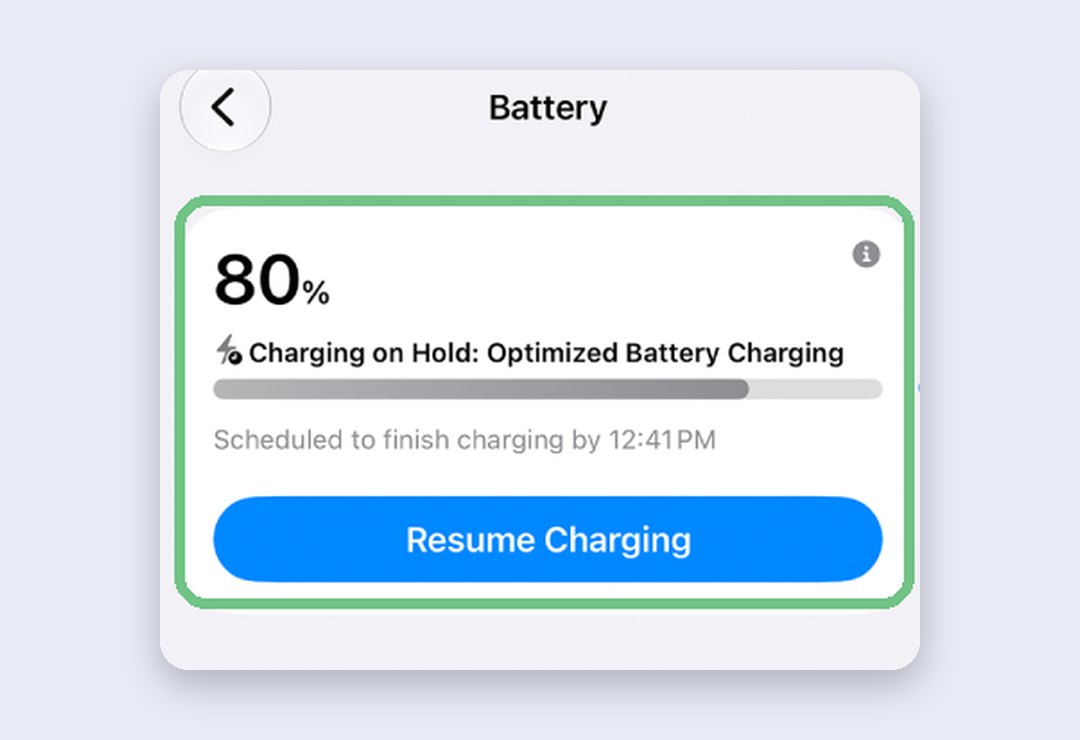
We’d leave Optimised Battery Charging on and the limit at 100%, which suits most people. On a day you need every per cent, tap Resume Charging that morning rather than switching the feature off for good, since turning it off can add wear. And if you’ve set a lower limit and see 100% now and then, that’s normal: the phone does it to keep its percentage accurate.
Still stuck at 80% with both of those ruled out? It’s probably heat: a warm battery can be held there until it cools.
Charging slowly? Check the watts
Some slowness is built in, so don’t chase it. The iPhone charges quickly to about 80%, then trickles the last stretch to go easy on the battery, so 80 to 100 always takes longer than you expect. If the whole charge crawls, the power source is usually too weak:
- The small 5W cube that came with older iPhones. Apple treats anything at 7.5W or less as slow.
- A laptop port, car port, USB hub, or a multi-port charger shared with a tablet.
- An iPhone 15 or later on an old USB-A adapter, which tops out at 7.5W.
- An old wireless pad under 10W. MagSafe or a Qi2 charger is faster.
Using your phone hard also slows charging: games, the camera, and video at full brightness all compete with the battery. Open Settings > Battery to see the Slow Charger message, plus how long it expects to take to reach 80% and 100%.
Your fix is a 20W or higher USB-C Power Delivery adapter, plugged straight into the wall. Same adapter, but your phone used to charge faster? Look at the port and the cable before you blame the phone.
“Accessory not supported” or “Liquid detected”
Accessory not supported is usually a dirty port or a cheap cable, so start there: clean the port and try a certified cable plugged in directly, with no adapters or dongles in between. The other causes are a damaged cable or a USB charger that isn’t meant for phones. A restart clears the alert now and then too. Updating iOS (General, then Software Update in Settings) helps when a newer accessory needs it. Seeing the alert with nothing plugged in at all? The port may be damaged and need a service.
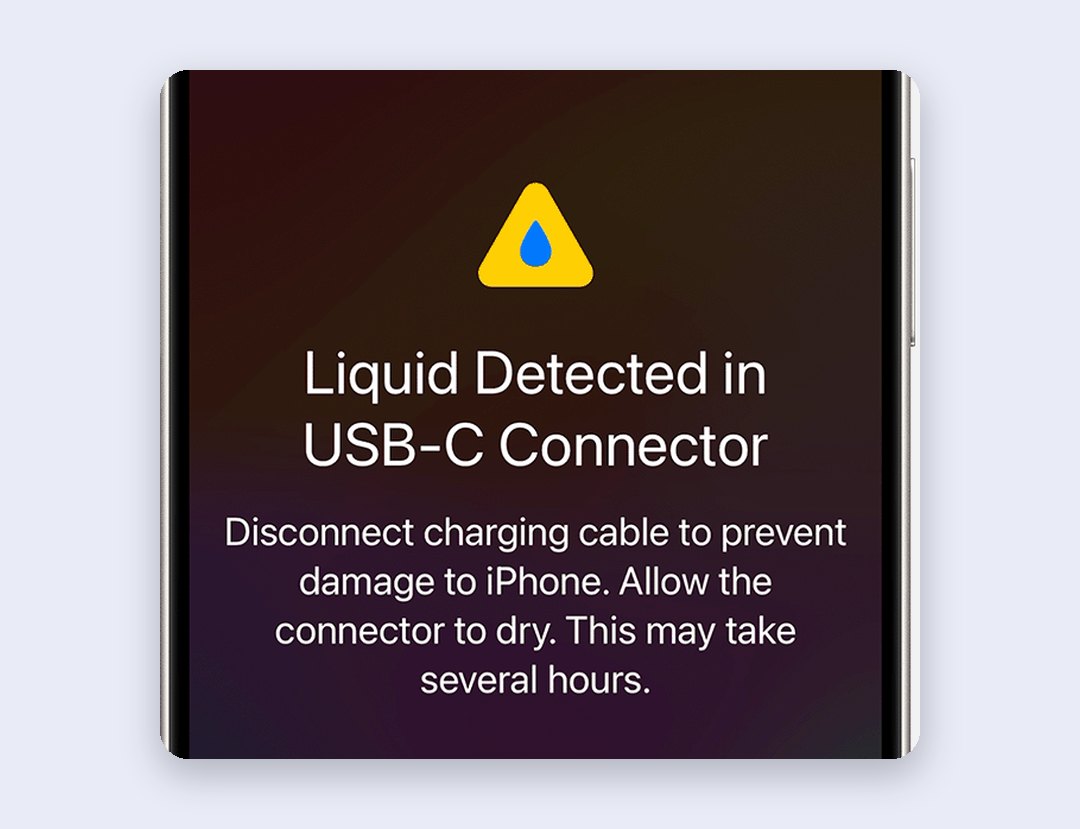
Liquid detected is a monsoon regular. From the iPhone XS and XR onwards, the phone refuses to charge through the port when it senses water in it, because charging a wet port can corrode the pins for good. Before you start drying, put away the hair dryer and the compressed air, keep cotton buds out of the port, and skip the bag of rice: Apple says rice particles can damage the phone.
- Unplug the cable from your phone and from the adapter.
- Tap the phone gently against your palm, port facing down, to shake out water.
- Leave it in a dry spot with some airflow and try again after at least 30 minutes. It can take up to a day to dry fully.
Plug back in while it’s still wet and the alert offers to override the warning and charge anyway. Use that only in a real emergency, like needing a cab home, because that’s exactly how the pins corrode. A wireless charger is the safer stopgap if the back of your phone is dry.
Wireless or MagSafe charger not working
Wireless charging is fussier than a cable, so start with the easy checks if the bolt doesn’t appear:
- Put your phone face up in the centre of the pad. Off-centre often means no charge.
- Take off thick, metal or battery cases and anything with cards in it. With MagSafe, remove the Leather Wallet first.
- Clear keys or coins off the pad. They heat up and get in the way.
- Turn off vibration or use a grippy case if notifications keep buzzing the phone off the coil.
- Unplug the cable. If you’ve got a cable plugged in as well, it charges from the cable, not the pad.
Works on a cable but not on the pad? Then it’s the pad or its adapter, not your phone.
Completely dead? Charge for 30 minutes, then force restart
When your iPhone is totally flat, you can get a black screen for up to two minutes after plugging in, then a near-empty battery picture for up to ten. Don’t keep replugging it. Leave it on a wall charger for half an hour.
Still black, or stuck on the battery picture? Force restart it. On iPhone 8 and later (and the second- and third-generation SE), press and release volume up, press and release volume down, then keep holding the side button till you see the Apple logo. Then give it another 30 minutes on the charger.
Don’t bother with these
- Turning off Optimised Battery Charging to fix a temperature hold. Several videos suggest it. It’s a different cause: the heat hold stays until the phone cools.
- Clean Energy Charging tips. That feature is US-only, so it isn’t what’s slowing your phone in India.
- “Battery booster” or fast-charge apps. No app controls how your iPhone charges.
- Resetting or restoring the phone. It isn’t on Apple’s list of charging fixes and it costs you an evening.
- A new battery before you’ve tried another cable and cleaned the port. A worn battery still charges; it just empties faster.
When it’s the port or the battery
Don’t pay for a repair until you’ve tried a known-good cable and adapter, cleaned and dried the port, and seen no hold on the Battery screen. Still won’t charge, or only at an angle? Then it’s a technician’s job, as it is when the accessory alert shows with nothing connected or the liquid alert won’t clear on a dry phone.
In India you can take your phone to a Genius Bar at an Apple Store or to an Apple Authorised Service Provider, or arrange a pick-up. Start in the Apple Support app or from Apple’s won’t-charge page; they’ll inspect it before quoting. Within the first year, manufacturing faults are covered by Apple’s warranty. Liquid damage isn’t, although consumer law may still give you some rights.
Is your real problem how long the charge lasts? Then you’re in the wrong guide. A battery that empties fast after an update is usually software: start with our iOS 27 battery drain fixes. A battery that’s simply worn out, with Battery Health showing Service, is a replacement job, and our iPhone battery replacement price guide has Apple’s rupee prices model by model.
Quick questions
Why is my iPhone not charging even though the charger works?
Because the cable or port isn’t. Lint in the port, a cable damaged at the phone end, or a heat hold will all stop a working charger. Check the card in the Battery settings, then clean the port.
How do I force my iPhone to charge?
For Optimised Battery Charging or a charge limit, tap Resume Charging or Charge to 100% in the Battery settings. A temperature hold can’t be overridden, and a dead phone needs 30 minutes on a wall charger, then a force restart.
How do I clean my iPhone charging port?
Switch the phone off, look in with a torch, and gently scrape the lint out with a wooden toothpick or plastic pick. Avoid metal pins, compressed air and cotton buds.
Why does my iPhone get stuck at 80 percent?
Usually Optimised Battery Charging, which waits at 80% and finishes before you unplug, or a charge limit on iPhone 15 and later. A warm battery can also sit at 80% until it cools.
How do I turn off the 80% charging limit?
With an iPhone 15 or later, open the Battery settings, tap Charging and drag the slider to 100%. Choose Set Limit to 100% to keep it there, or Allow Until Tomorrow for one day.
Why is my iPhone saying Charging On Hold?
When the card says iPhone Temperature, your phone is too hot or cold and resumes once it’s back to normal. If it says Optimised Battery Charging, it’s waiting on purpose; tap Resume Charging.
Why is my iPhone charging so slowly all of a sudden?
A weaker adapter, or a laptop or car port, is the usual reason. Heat, heavy use and lint slow it too, and the last 20% is always slower.
What fixes “This accessory is not supported” on iPhone?
Clean the port, try a certified cable plugged in directly, restart and update iOS. If it shows with nothing plugged in, get the port checked.
Which one was it for you: lint, a duplicate cable or the 80% limit? Tell us in the comments with your iPhone model, so the next reader knows where to start.
Checked against Apple’s iOS 27 User Guide and Apple Support (India).
Last updated: October 2026