Your old iPhone is about to become your child’s, or a new one is going into the school bag next week, and every guide you find shows Downtime and App Limits screens that iOS 27 has replaced. Here’s how to set up parental controls on iPhone today, from your own phone, so your child can’t quietly undo it. It’s free, built in, and takes about half an hour the first time.
Parental controls on iPhone: the quick answer
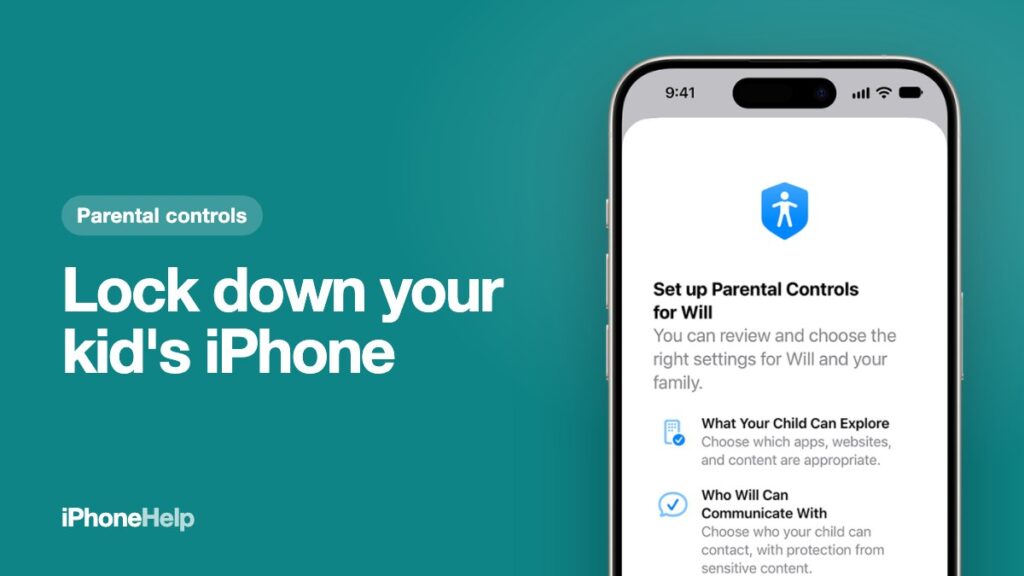
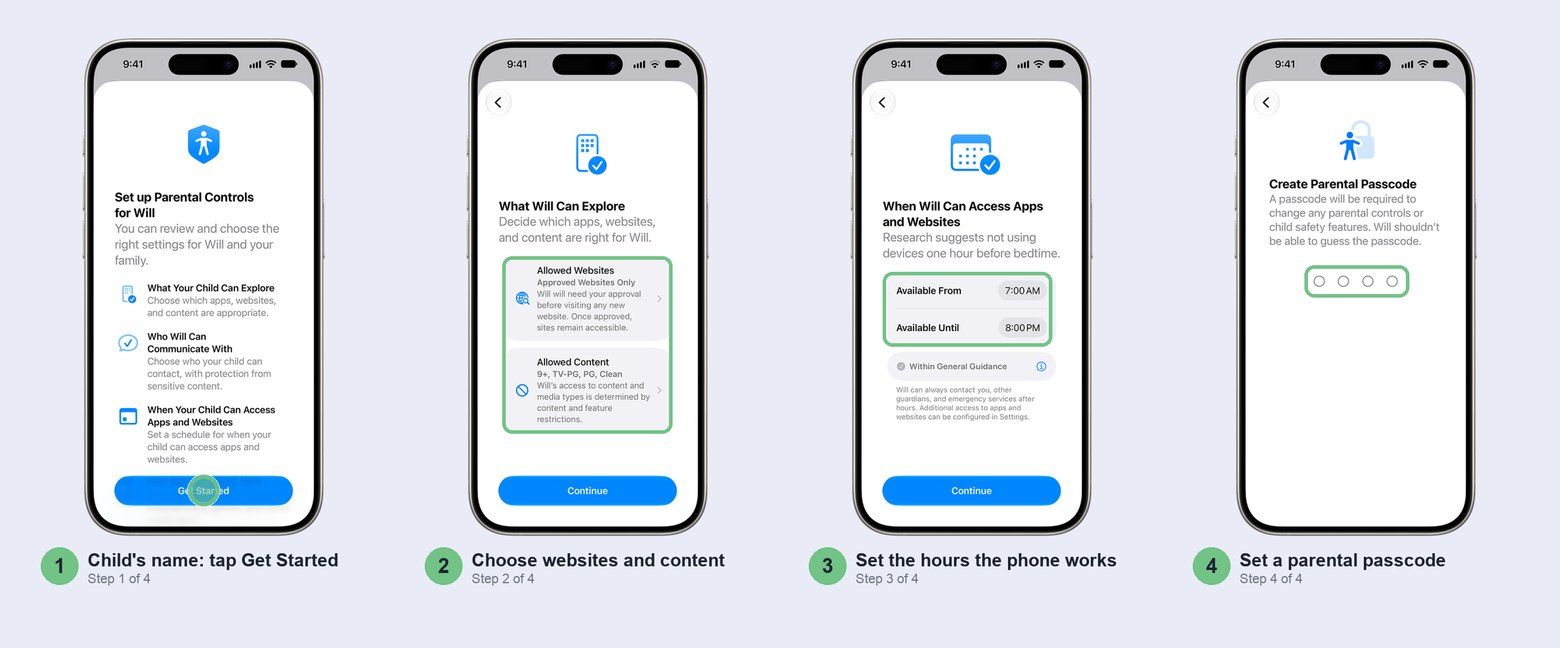
Give your child their own Child Account in Family Sharing, then run the parental controls setup from your iPhone. After you tap Get Started, iOS 27 walks you through six short screens: websites and content, who they can talk to, the hours the phone works, school-hours pause, time for games and social media, and a parental passcode. Your choices land on the child’s iPhone by themselves, and when they want more time or a new app, the request pops up in your Messages.
Don’t just switch on Screen Time on a phone that’s still signed in to your Apple Account. You lose remote approvals, and the kid gets your photos, your messages and your card.
Before you start
Sort these three out first and the setup goes smoothly:
- Update every Apple device the family uses to version 27. That means your iPhone, your partner’s, the child’s phone, any Apple Watch and the iPad the kids still use. The new controls only switch on once every device used by a parent or a managed child in the last 90 days is on version 27 of iOS, iPadOS, macOS or watchOS. One iPad running last year’s software holds the whole family back.
- Wipe a hand-me-down iPhone first. Back it up to iCloud or a computer, sign out of your Apple Account and erase it, so it starts fresh with your child’s account instead of yours. Same fix if your child already uses a phone signed in to your account: make the Child Account first, then wipe the phone and set it up with theirs.
- Have your child’s real date of birth ready. The age you enter decides which protections switch on by default, so don’t round it up to dodge the limits.
Step 1: Create a Child Account and set up their iPhone
A Child Account is compulsory for children under 13 and you can make one for anyone up to 18. It’s a separate Apple Account that sits inside your Family Sharing group, which is what lets you manage it from your own phone.
The easiest route is during setup. Make sure Bluetooth is on on your iPhone, then turn on the child’s iPhone and choose your region and language. When the Quick Start screen appears, hold your own iPhone next to it and centre the animation on the child’s screen in your camera view. When it asks who will use the phone, choose your child or Create New Child Account, then follow the screens.
Already set up, or setting things up without the phone in hand? Open Settings > Family on your iPhone, tap the add-member button, then Create Child Account, and enter their name and birthday.
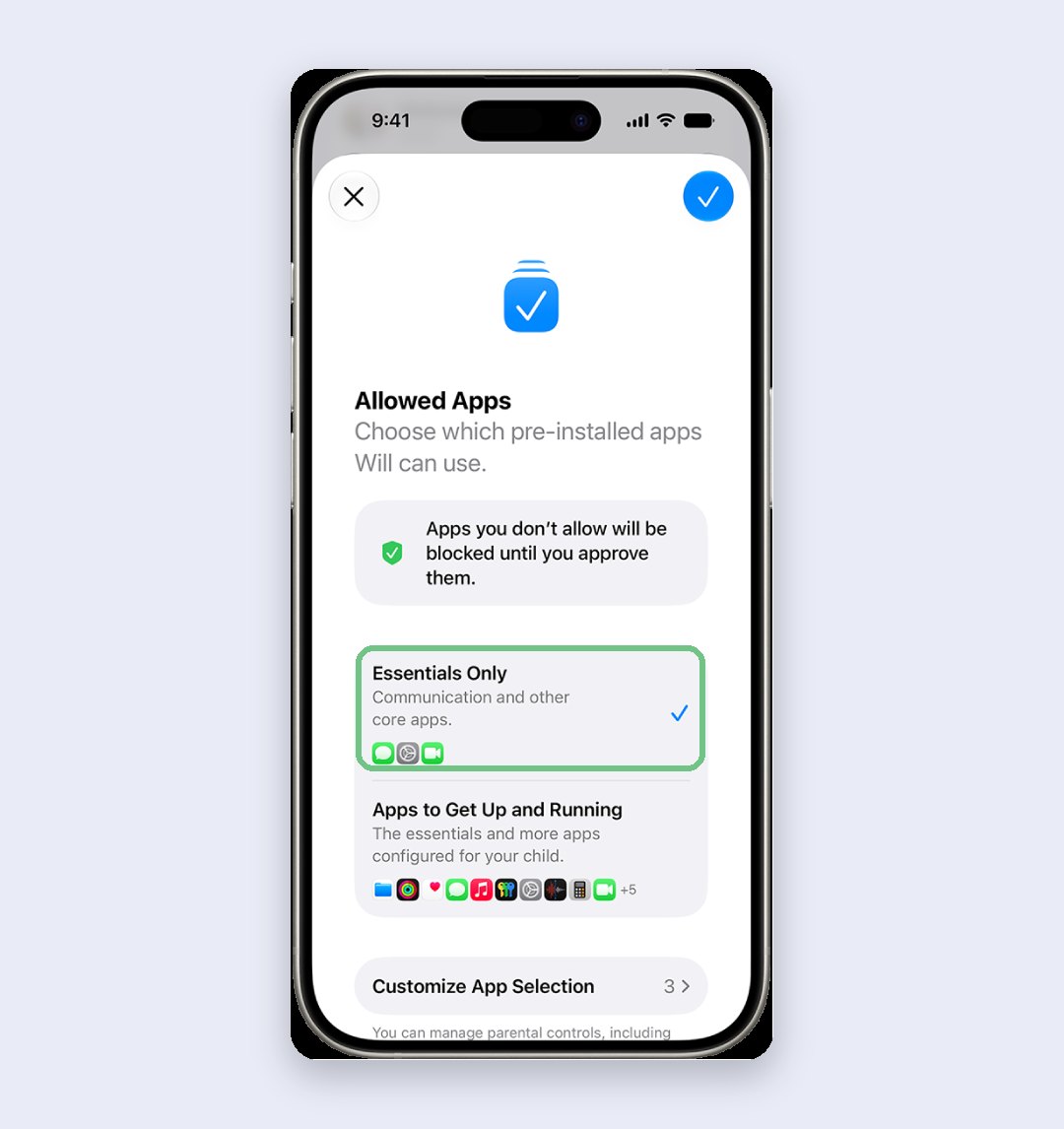
During setup you’ll be asked which apps the child starts with. Pick Essentials Only for a younger child: calls, messages and the core apps, with everything else added later as they ask. It’s far easier than taking apps away after the fact.
Step 2: Run the parental controls setup
Once the child is in your family, open Settings > Family, tap your child’s name and tap Get Started. Then work through the screens in order:
- What they can explore. Pick how Safari behaves and the age ratings for films, music and books. Under-13s start on Ask to Browse, which means each new website needs your OK first.
- Who they can talk to. Phone, Messages and FaceTime with approved contacts only, plus Communication Safety, which blurs nude or gory pictures and videos before your child sees them.
- When they can use the phone. An Available From and Available Until time, separately for weekdays and weekends. Outside those hours most apps and notifications stop. This is the old Downtime, built into the day.
- School hours. Switch on Pause During School Hours to block games, entertainment and social media between your start and end times.
- Time Allowances. A daily total for Entertainment, Games and Social Media. iOS shows an age-based suggested range as you drag the slider.
- Parental passcode. Four digits your child won’t guess.
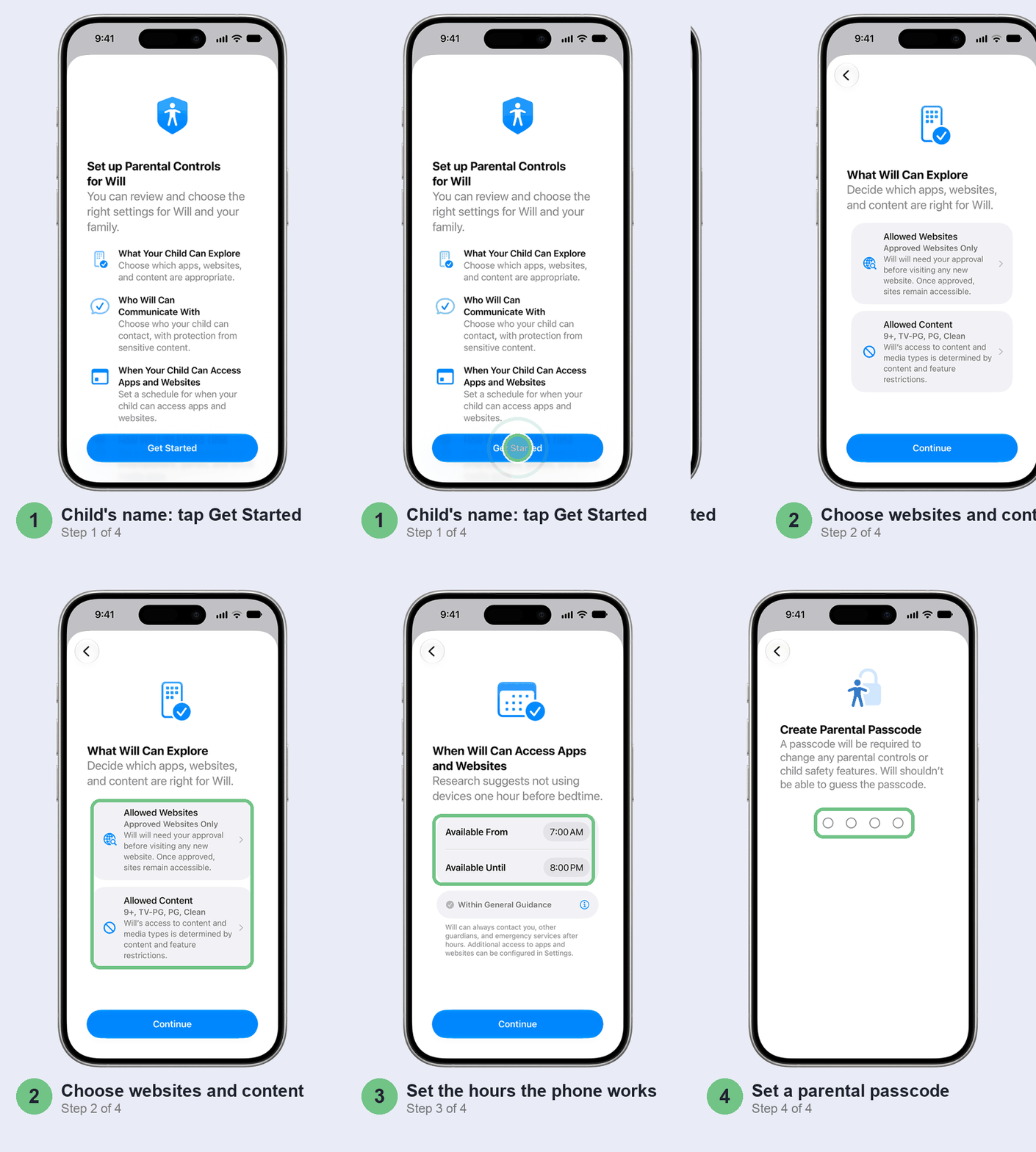
Can’t finish in one go? Come back to the same spot in Family settings any time. Every setting below is on your child’s page there, so you’ll rarely need the child’s phone in your hand again. Apple’s own guide for families lists every option if you want the full map.
Set a schedule that ends at bedtime
The schedule decides when the phone works at all. Get it right and the 1 a.m. reels stop. On your child’s page, tap Screen Time Schedule. The day is split into windows (Before School, School, After School), each allowing its own app categories, and weekends get a routine of their own.
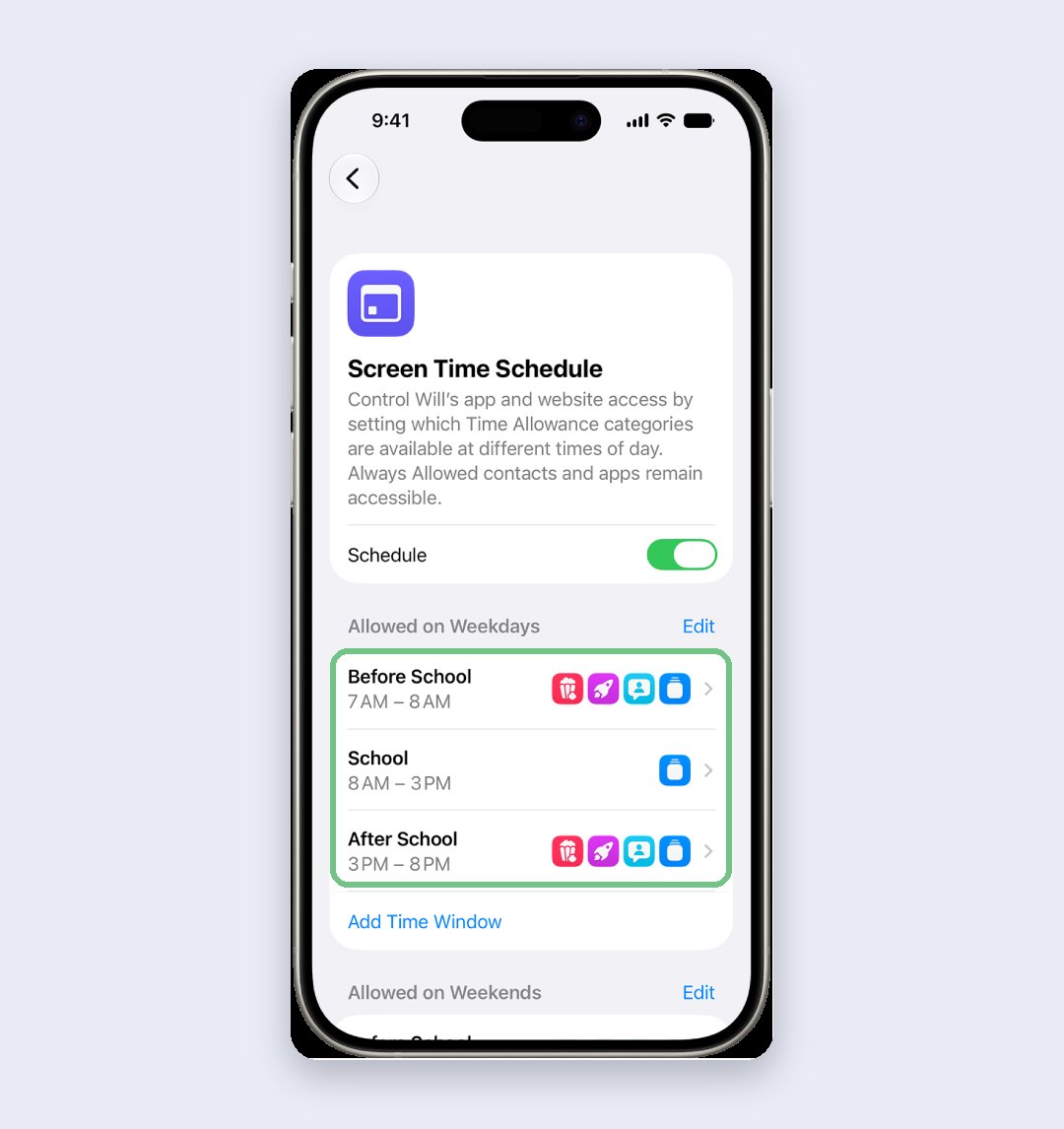
Tap any window to change its times or the apps it allows, or Add Time Window for tuition or coaching evenings. Keep weekends a little later than school nights rather than wide open. Kids push hardest against a schedule they think is unfair, so it’s worth agreeing the times with them.
Cap games, YouTube and Instagram with Time Allowances
This is where the evenings actually go. Time Allowances (the old App Limits) cover Entertainment, Games and Social Media. Tap Time Allowances on your child’s page, set a shared daily total, then nudge each category up or down.
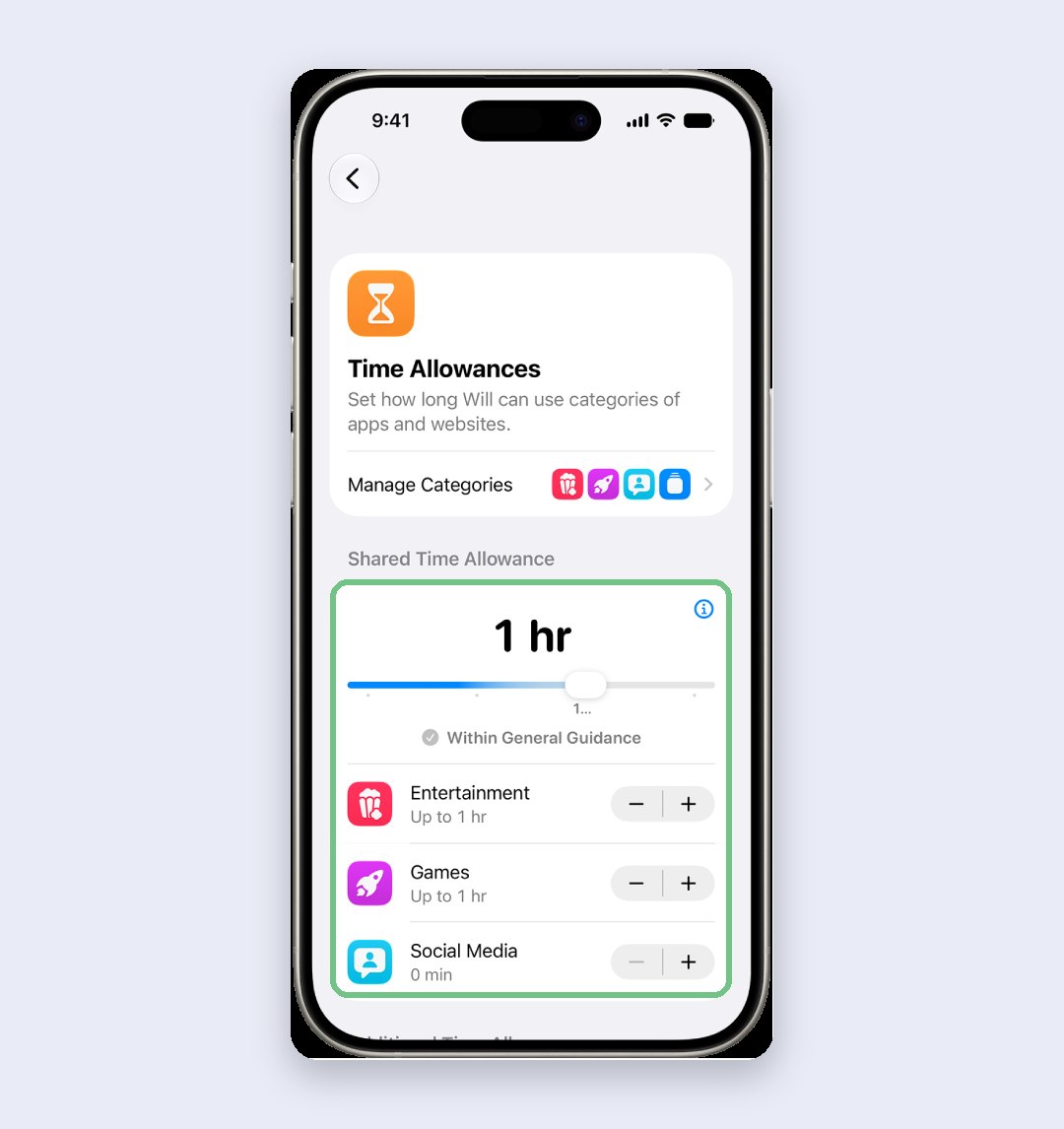
BGMI and other games land under Games. Tap Manage Categories at the top to check which category YouTube and Instagram sit in, and move them if needed. An app outside the three categories needs its own limit under Additional Time Allowances, further down. Start near the suggested range for your child’s age; loosening later is easier than clawing time back.
Always allow calls and the school app
When a limit runs out, your child still needs to reach you. Phone, Messages, FaceTime and Maps stay available by default. Tap Always Allowed there to add the school’s app, the coaching institute’s app and the people they must always be able to call.
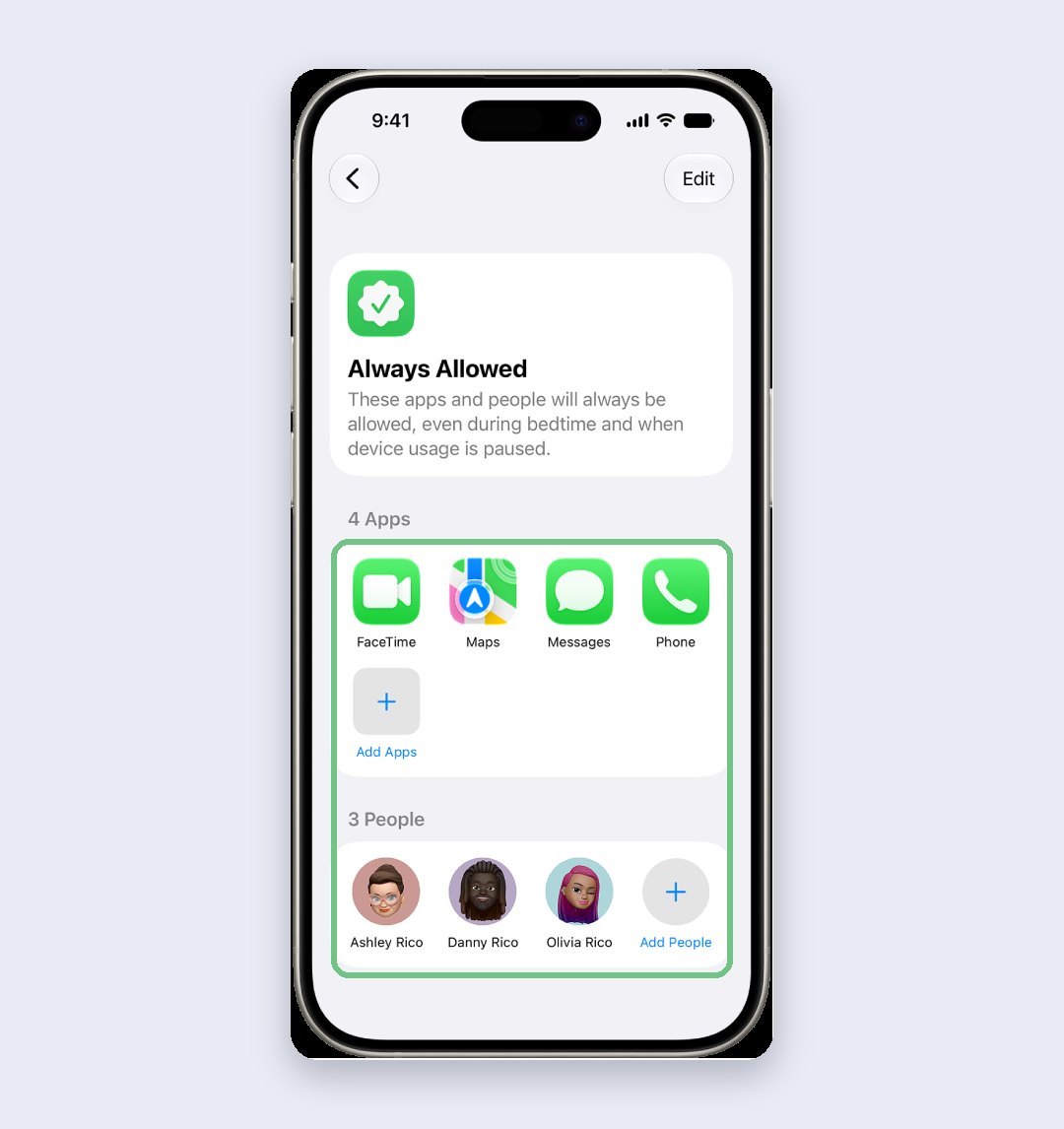
The awkward one in India is WhatsApp, because the class group lives there. Put it in Always Allowed and it’s unlimited, all day. We’d leave it inside the allowance for a child under 13 and approve extra time when homework actually needs it.
Ask to Buy and Ask to Browse
This is the setting that protects your wallet. With Family Sharing, the organiser’s payment method pays for the child’s purchases, so if your card or UPI is on your Apple Account, every in-game purchase in BGMI can land on your statement. Ask to Buy stops that: any download or in-app purchase becomes a request you approve or decline in Messages.
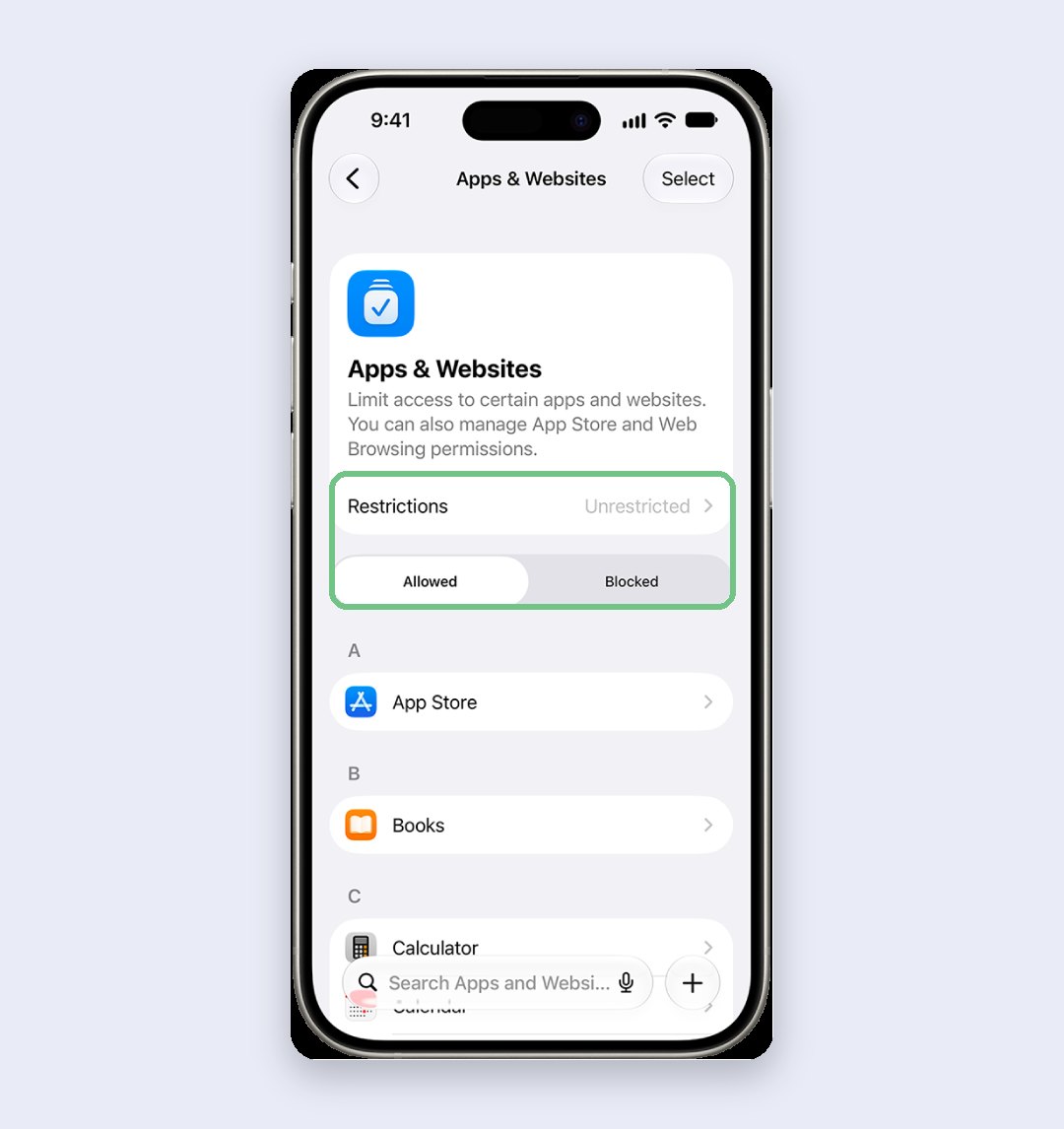
On your child’s page, tap Ask to Buy and make sure it’s on. For websites, tap Apps & Websites, then Restrictions, then Filtering. For under-13s keep Approved Websites Only; Limit Adult Websites is the sensible step up for teens. Unrestricted we’d skip until they’re nearly 18.
If a payment does fail when you approve, our App Store payment guide covers the Indian card and UPI quirks.
Choose who they can call and message
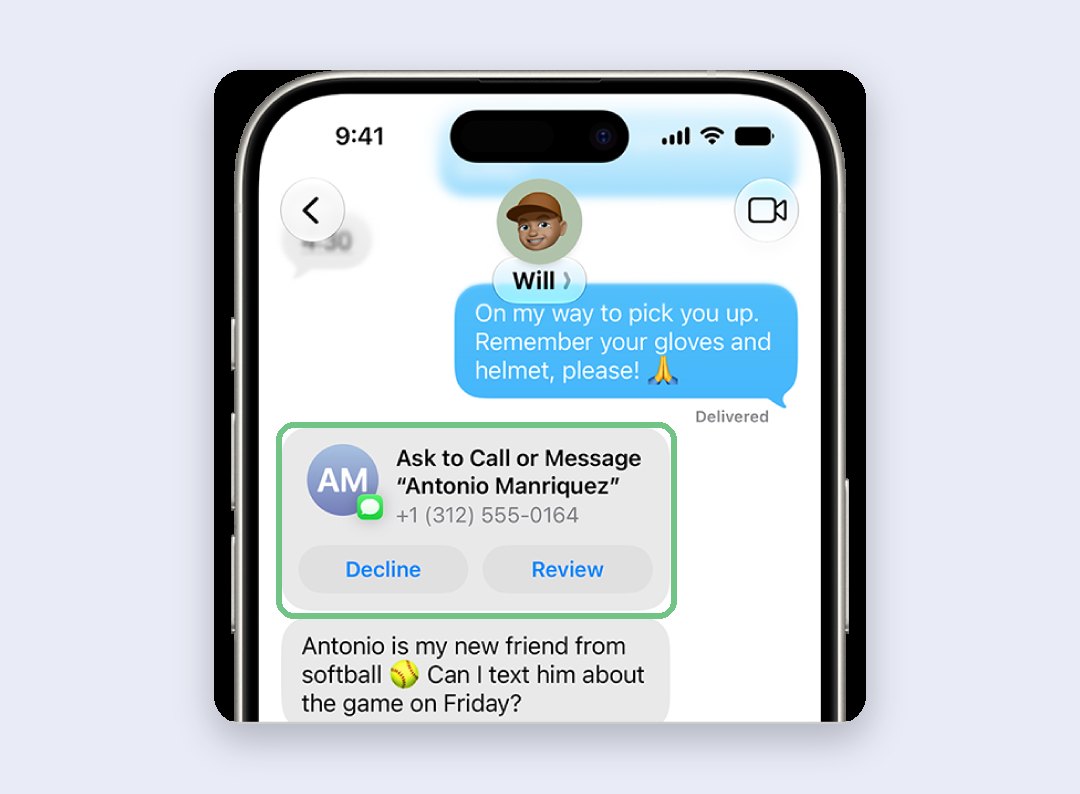
First, check Contacts is switched on in iCloud on the child’s phone; without it these limits do nothing. Then on your child’s page, Allowed Contacts controls who can reach them in Phone, Messages and FaceTime, during the schedule and when the phone is paused. Turn on Manage [name’s] Contacts and accept the request on the child’s phone, and from then on a new number becomes a request you review first. It’s on by default for under-13s.
If unknown numbers are a worry beyond friends, our spam calls guide covers Silence Unknown Callers and DND.
Lock it with a passcode they can’t guess
The parental passcode is the only thing between your child and every setting above. Make it four digits that aren’t a birthday, the house number, the car number or 1234. Children watch you type.
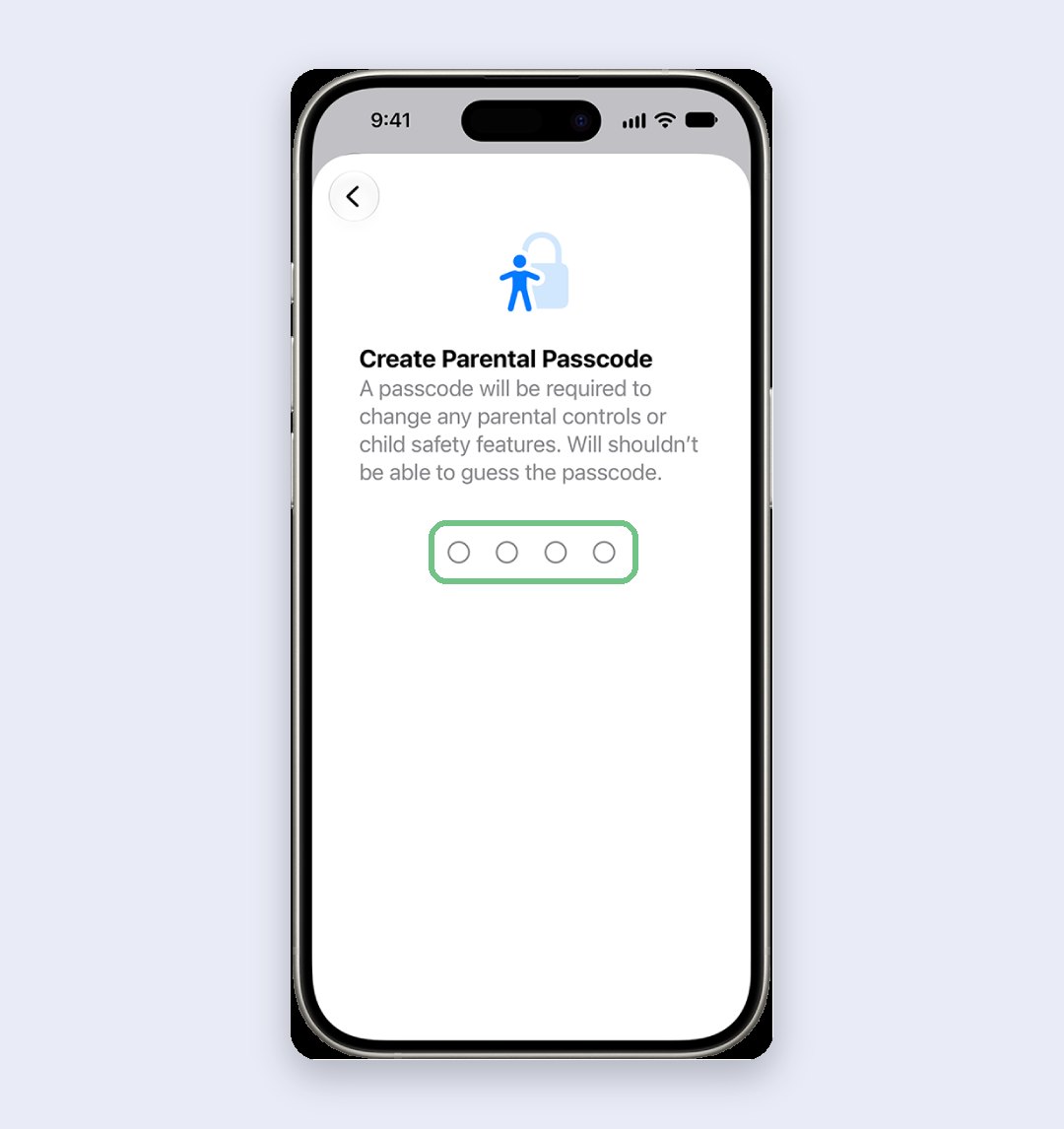
Suspect it’s been cracked? Tap Passcode & Management on your child’s page and look at “Last used” under the passcode. If it was used at a time you weren’t around, change it from the same screen.
Pause the phone, give extra time, check the week
The top of your child’s page has three buttons you’ll use more than any setting: Pause Device Use for dinner or exam week, Allow Unlimited Use for a long train journey, and Change Schedule for a one-off late night. Below them, Daily Average and Most Used Today show where the hours went.
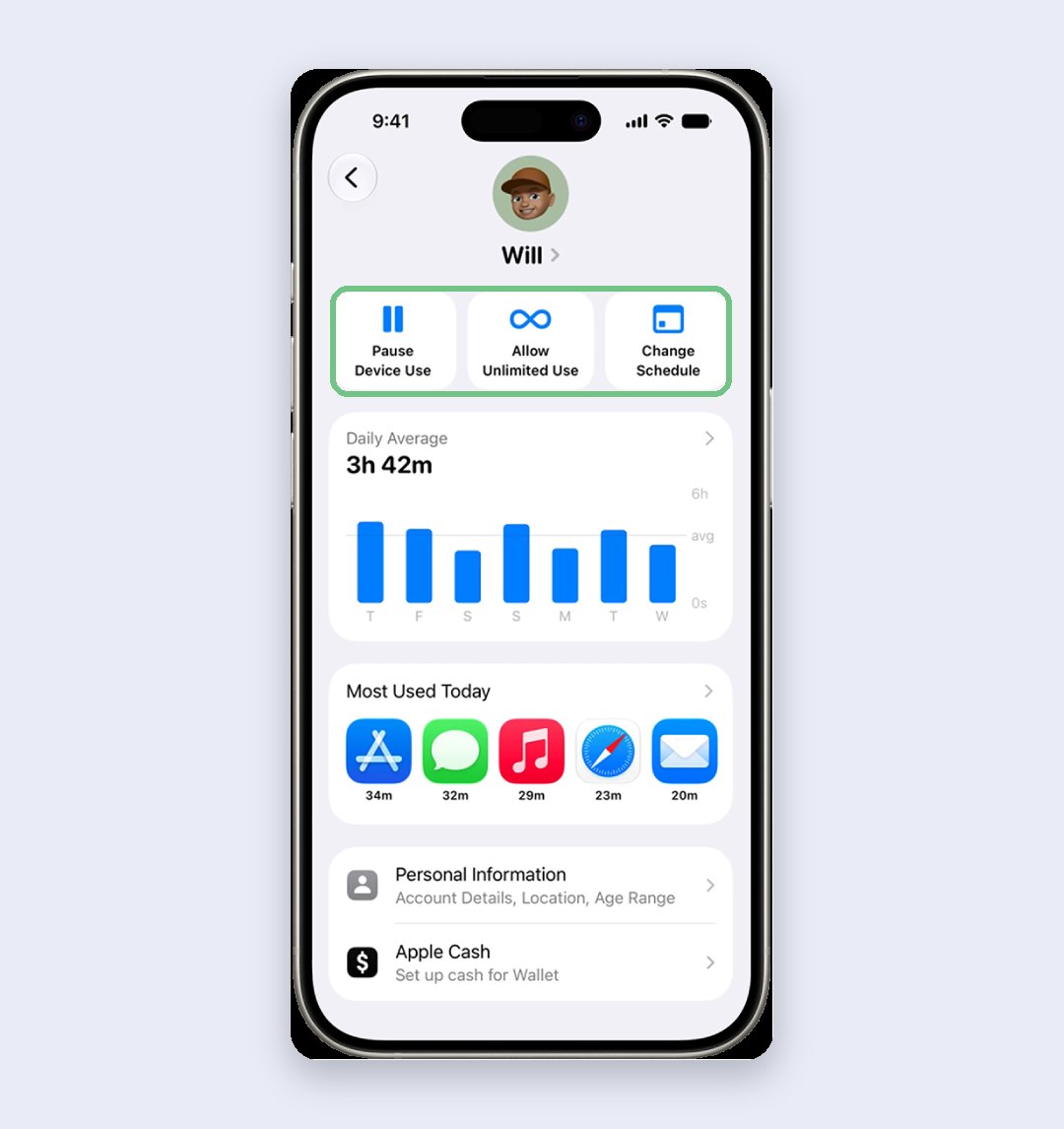
When your child hits a limit, they can send a request. You’ll see it in Messages and can approve 15 minutes, an hour, or the rest of the day, or tap Not Now. Ten seconds on a Sunday looking at the weekly numbers tells you more than any setting.
Block Camera, AirDrop and explicit content
Most families can leave this alone at first, because the age defaults are sensible. If you need more, on your child’s page tap Content & Privacy Restrictions. Other Features switches off things like AirDrop and Camera, and Allow Changes to Settings stops your child changing Face ID & Passcode, Location Services or their account.
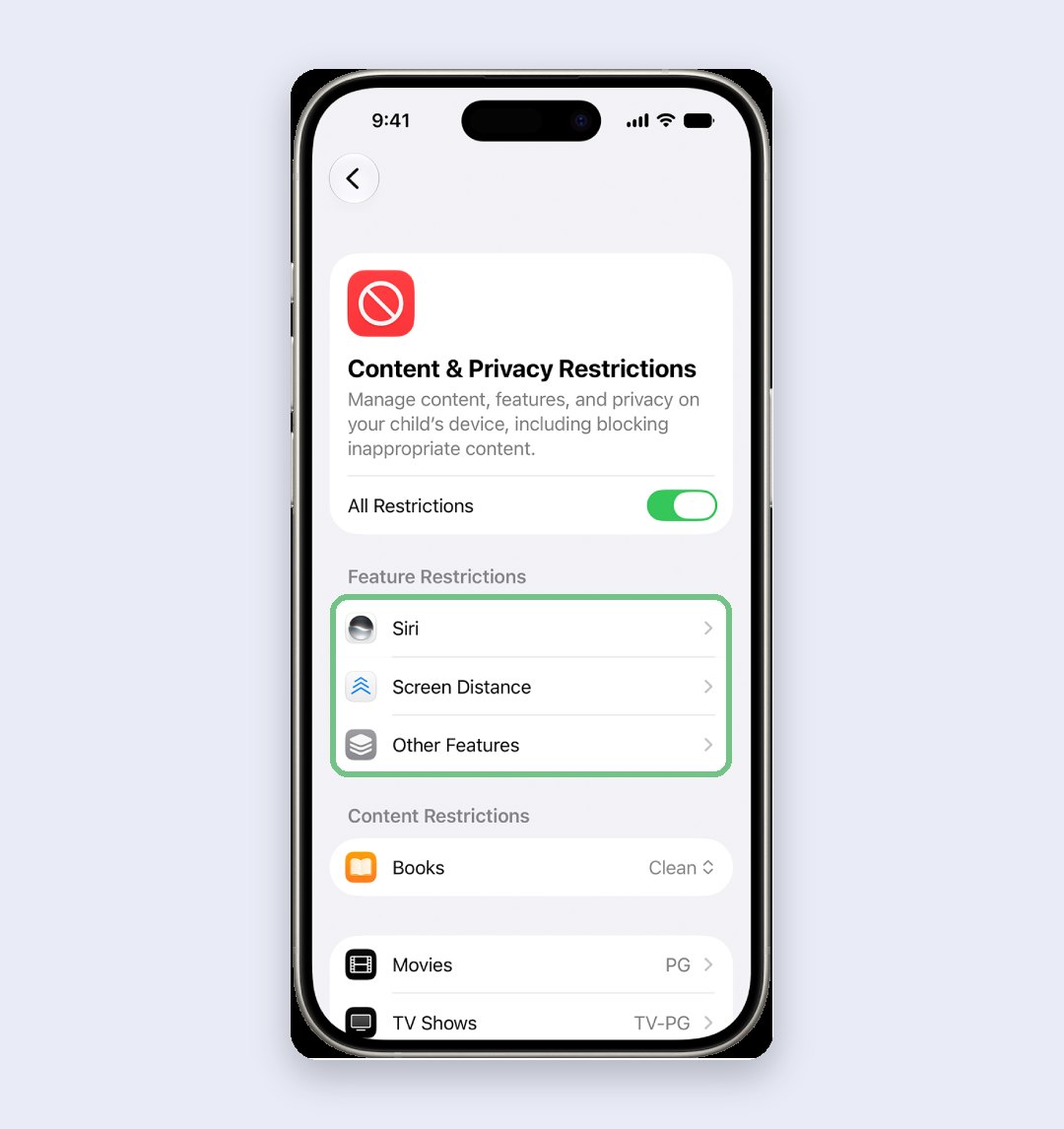
Blocking AirDrop is worth it for a younger child: it’s the easiest way for someone nearby, whom they don’t know, to send a picture to their phone.
A starting point by age
Fifteen decisions is a lot on day one, so here’s where we’d start, then adjust after a week of watching the numbers.
- Under 10: Essentials Only, Approved Websites Only, the phone off by 8 p.m., 30 minutes a day across games, entertainment and social media, and new contacts approved by you.
- 10 to 12: the same website and contact rules, school-hours pause on, the phone off by 9 p.m., about an hour a day across the three categories.
- 13 to 17: Limit Adult Websites, school-hours pause on, the phone off by 10 p.m. on school nights, about two hours a day across the three categories, and Ask to Buy kept on. Talk the limits through first; teens find workarounds for rules they didn’t agree to.
Don’t bother with these
A paid parental-control app, before you’ve tried this. Most of those apps on iPhone work through the same family controls Apple gives you free, plus reports and alerts. Start with Screen Time and pay only if you need something it can’t do.
Deleting or hiding apps. The child reinstalls them by evening. Blocked apps through Apps & Websites stay hidden until you allow them.
Where parents get stuck
No Get Started button, or a prompt to update devices. Some device in the family hasn’t reached version 27. In Family settings, View Family Devices lists the ones holding you back. A device that can’t update can still be managed on the device itself with the passcode.
Your child isn’t offered during setup. Only under-13s already in your family show up on the Quick Start screen. For a child of 13 or over, choose Create New Child Account, or set the phone up with their own account and add them to your family afterwards.
Requests never arrive. Make sure you, or whoever approves, are saved in the child’s contacts, and that both phones are on the latest update. Another adult can approve too: in Family settings, tap their name and turn on Set as Parent/Guardian.
Allowed Contacts does nothing. Turn on Contacts in iCloud on the child’s iPhone.
Your child found a way around it. Check “Last used” under Passcode & Management first; a passcode used when you weren’t there means it’s out, so change it. Then look at Most Used Today for an app that shouldn’t be there, and block it in Apps & Websites.
FAQ
How do I put parental controls on an iPhone?
Create a Child Account in Family Sharing, then on your own iPhone open Settings, tap Family, tap your child’s name and tap Get Started. The setup covers websites, contacts, hours, time limits and a passcode.
How can I turn off my child’s iPhone at night?
End the last window of their Screen Time Schedule at bedtime (in setup it’s the Available Until time). After it, most apps and notifications stop until morning, while calls to you and anything in Always Allowed keep working. For a one-off, tap Pause Device Use on their page.
Can I set up parental controls without Family Sharing?
Partly. On the child’s iPhone, set a schedule and Time Allowances in Screen Time, then lock them with a Screen Time passcode. You lose Ask to Buy and remote approvals, so we’d only do it as a stopgap.
Can I manage my child’s iPhone from an Android phone?
No. Apple’s family controls are managed from an iPhone, iPad or Mac. From Android, the best you can do is set limits on the child’s iPhone itself and lock them with the passcode.
How do I turn off parental controls?
With the passcode, on your child’s page tap Passcode & Management, then Change Screen Time Passcode, then Turn Off Screen Time Passcode. That removes the lock, not the limits: to drop those, turn off Schedule under Screen Time Schedule and lower or delete the Time Allowances. Most parents loosen one limit at a time instead.
Is there a free parental control app for iPhone?
Screen Time is free and built into every iPhone on iOS 27. Try it before paying for anything.
Prefer to watch? Apple’s own short video shows how to create the Child Account.
What did you set as the daily limit for games, and did your child find a way around it? Tell us in the comments; other parents will want to know.
Last updated: November 2026