You pick up your iPhone and it’s hot enough that you’d rather put it down. Maybe it’s been on the charger, maybe you’ve had Maps open on the bike all afternoon, or maybe it’s just sitting there warm and you can’t work out why. iPhone overheating is usually about where the phone is and what it’s doing, not a fault, and it cools down once you change one of those. Here’s how to tell normal warmth from a real problem, and what to do about each.
Quick answer:
- Hot right now? Switch it off, unplug it, take the case off and leave it in the shade for 15 minutes. Don’t put it in the fridge.
- Hot while charging? Stop using it while it charges, and take off a thick case.
- Warm for a day or two after an update or setting up a new iPhone? That’s normal. Leave it be.
- Hot when you’ve barely touched it? Look in Settings > Battery for the app doing it.
iPhone overheating or just warm? How to tell
Warm is normal, so don’t panic yet. Expect it to get warmer when you charge it (wireless charging more than a cable), play a heavy game, shoot video, stream in high quality, or run Maps for a long drive. It also runs warm for a while after a big iOS update, a first-time setup or a restore from backup, because it’s working through photos, apps and search in the background. If it cools once you stop, nothing’s wrong, and you can keep using it.
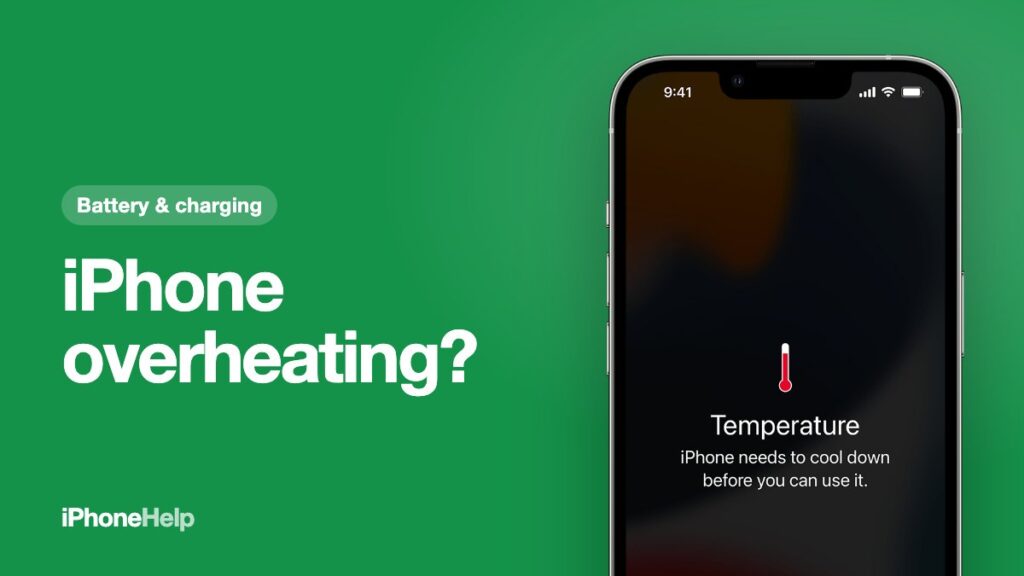
Too hot is when the phone starts protecting itself. You’ll notice some of these: charging slows or pauses, the screen dims, the camera flash stops working, games and video stutter, and signal drops as the radios back off. At the far end, the screen goes black with a temperature warning. That’s the point to stop and cool it down.
Here’s the Indian bit: Apple designs the iPhone for surroundings between 0 and 35°C. A May afternoon in Delhi, Nagpur or Chennai is well past that before your phone has done anything at all. A lot of the overheating complaints from April to June are simply the weather.
Seeing the temperature warning? Cool it down the right way
This screen means the phone has locked you out until it cools. Emergency calls may still go through. Don’t fight it: the quickest way back is to help it cool.
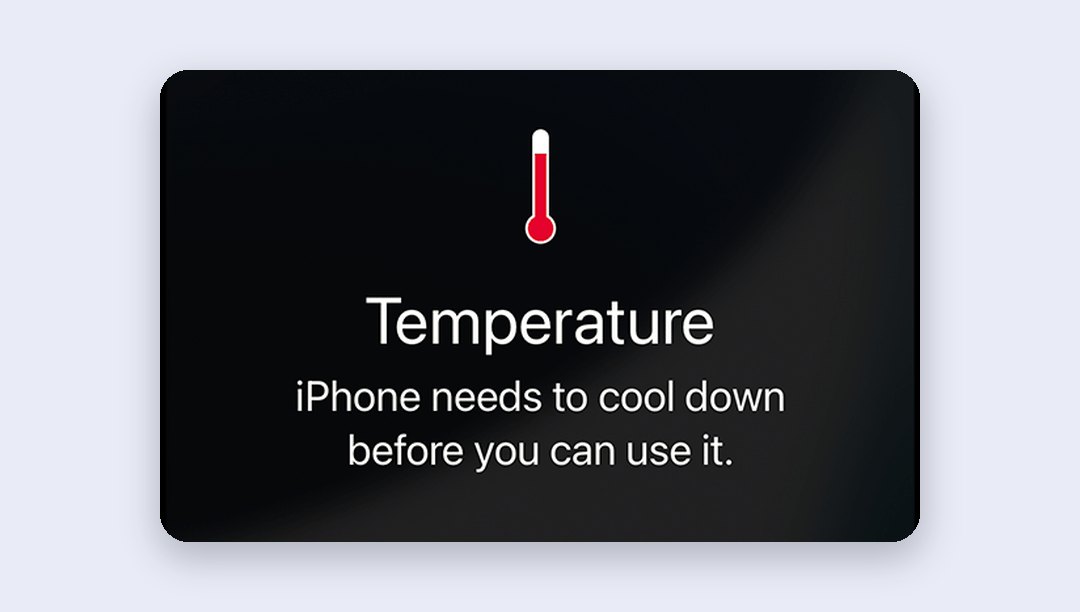
What works:
- Switch it off. A phone that’s off makes no heat of its own.
- Take it out of the case and out of the sun. Indoors, in the shade, near a fan is ideal.
- Unplug it if it’s charging.
- Wait 10 to 15 minutes, then switch it back on.
If you’re navigating when it happens, the screen goes dark but the spoken turn-by-turn directions carry on, and the screen lights up again for each turn. On a bike mount in the afternoon sun, pull over for a few minutes rather than push on. For the next ride, turn the brightness down, turn on Low Power Mode, and angle the mount out of direct sun. In a car, a mount on the AC vent beats one on the dashboard.
Still hot after 15 minutes switched off, or the warning keeps coming back on a normal day? Skip to the fault signs further down.
Warm after an update? Give it two days
After a major iOS update, or when you set up a new iPhone from a backup, your iPhone does a lot of work in the background for a day or two: re-indexing photos and messages, downloading apps, finishing the restore. It runs warm, and the battery drops faster. Apple calls this normal. If it gets too hot during a restore, it pauses with a Restore Paused message and carries on once it cools.
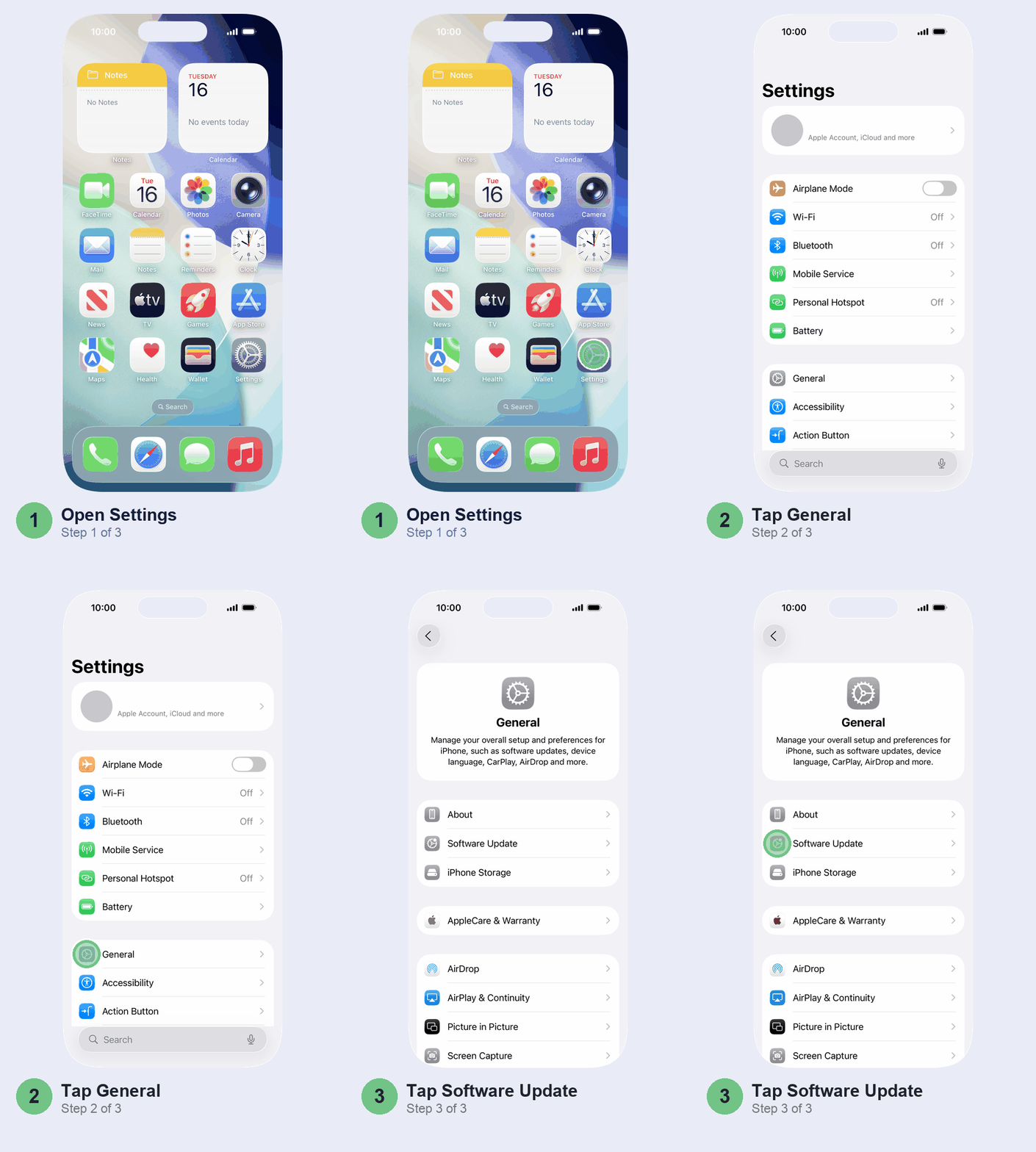
Skip the fixes for now. Keep it on the charger overnight on Wi-Fi so it can finish, and judge it after two days. Still warm on day three? Check Settings > General > Software Update, because a follow-up update may fix it, and look at the Battery screen again. Our iOS 27 battery drain guide goes through the post-update fixes in detail.
Hot while charging? Stop using it and take off the case
Charging makes heat, and using the phone hard at the same time makes more. Gaming, video calls or turning on Personal Hotspot while it’s plugged in is one of the commonest ways people end up with a hot iPhone. This is the fix that usually works: pick one, charge it or use it.
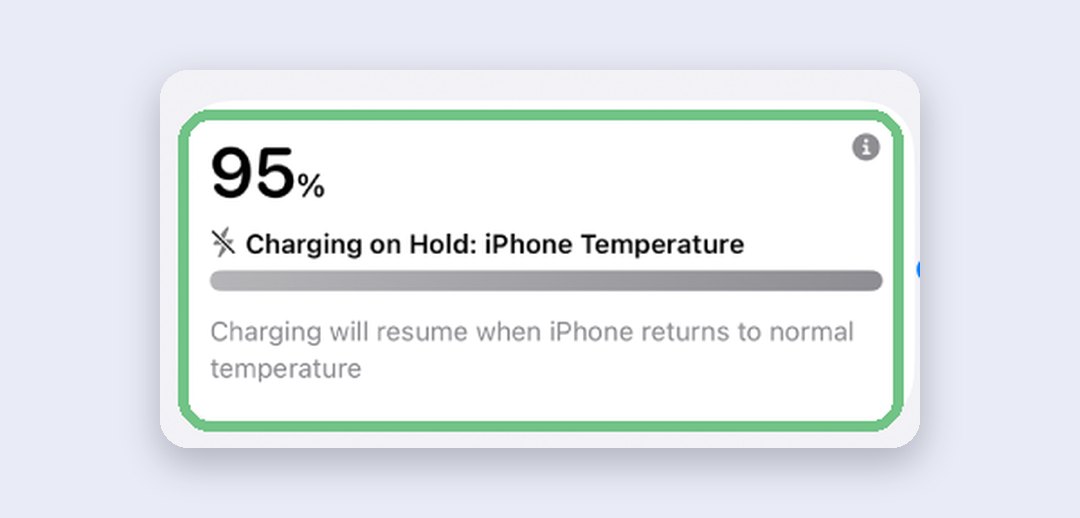
When the battery gets too warm, charging pauses on its own and shows Charging on Hold on the Lock Screen and on the Battery screen. It isn’t broken. Let it cool and charging picks up by itself. There’s no switch to override it, and you wouldn’t want one.
Three things that help:
- Take off a thick or rugged case while it charges. Apple itself suggests this when a phone heats up on the charger.
- Use a cable rather than a wireless pad when it’s hot. Wireless charging runs warmer.
- Charge somewhere cool. Not on the bed under a pillow, not on a sunny windowsill, not on the car dashboard.
A cheap charger from the market can run hot and charge badly. If you only get the heat with one charger, stop using that one. Our iPhone not charging guide covers chargers and cables in detail.
Hot for no obvious reason? Find the app behind it
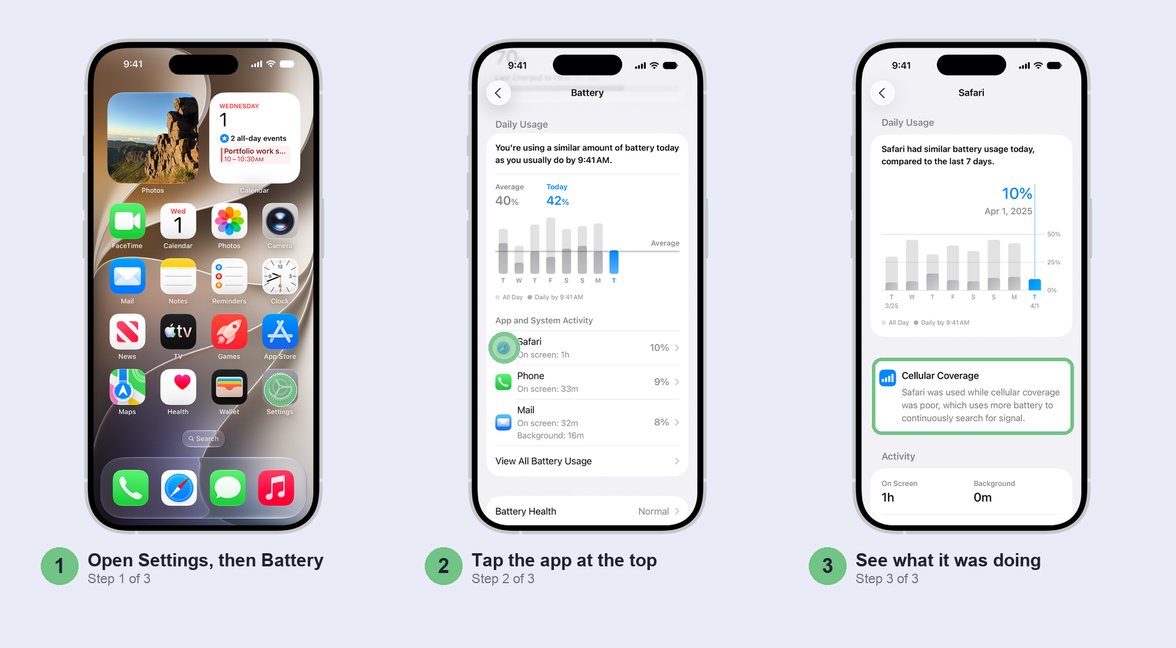
Warm when you’ve hardly used it? Start here. Something is working in the background, and the Battery screen keeps a record of it. Open Settings > Battery, look at the list under App and System Activity, and tap the app at the top.
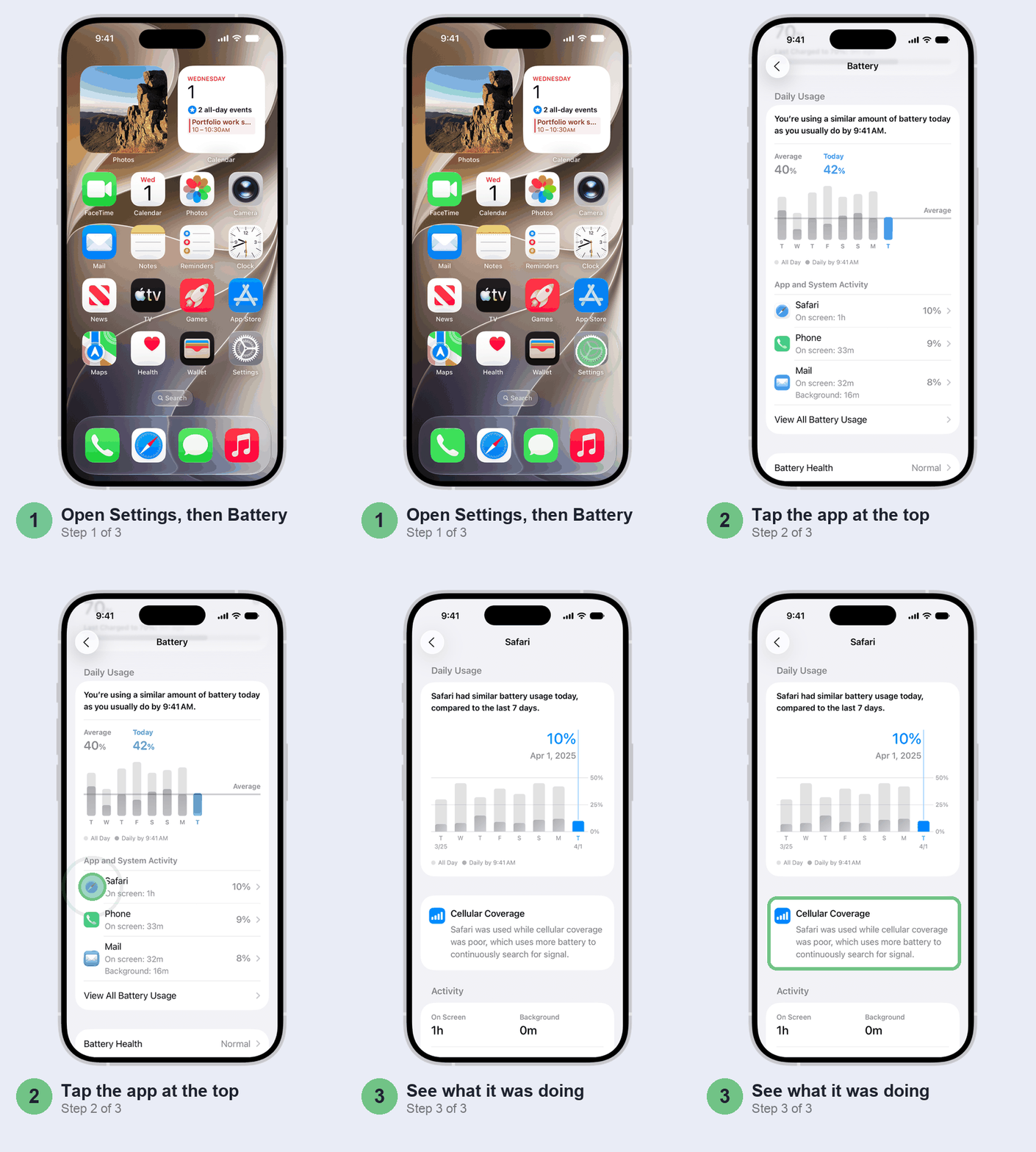
The app’s page tells you what it was doing. “Background” means it kept working after you left it: navigation, music, uploading photos, syncing. “Cellular coverage” (or Mobile coverage) means it was used while the signal was weak, which makes your iPhone work harder. If an app you barely opened is at the top, that’s your culprit. Update it from the App Store. If it stays at the top for days, delete it and reinstall it, but back up anything that lives only in that app first, such as WhatsApp chats.
The usual suspects are social apps with auto-playing video, a game left open, Google Photos or another backup app uploading your camera roll, and navigation that kept running after you arrived.
Turn off Background App Refresh for apps that don’t need it
Background App Refresh is how apps check for new stuff while they’re sitting closed. Most of them don’t need to, and each one you switch off means less hidden work for the processor. Worth five minutes if the Battery screen showed lots of background time.
Go to Settings > General > Background App Refresh and switch it off for anything that doesn’t need to be up to date the moment you open it: games, shopping apps, food delivery, news. Leave it on for messaging and anything you rely on for alerts.
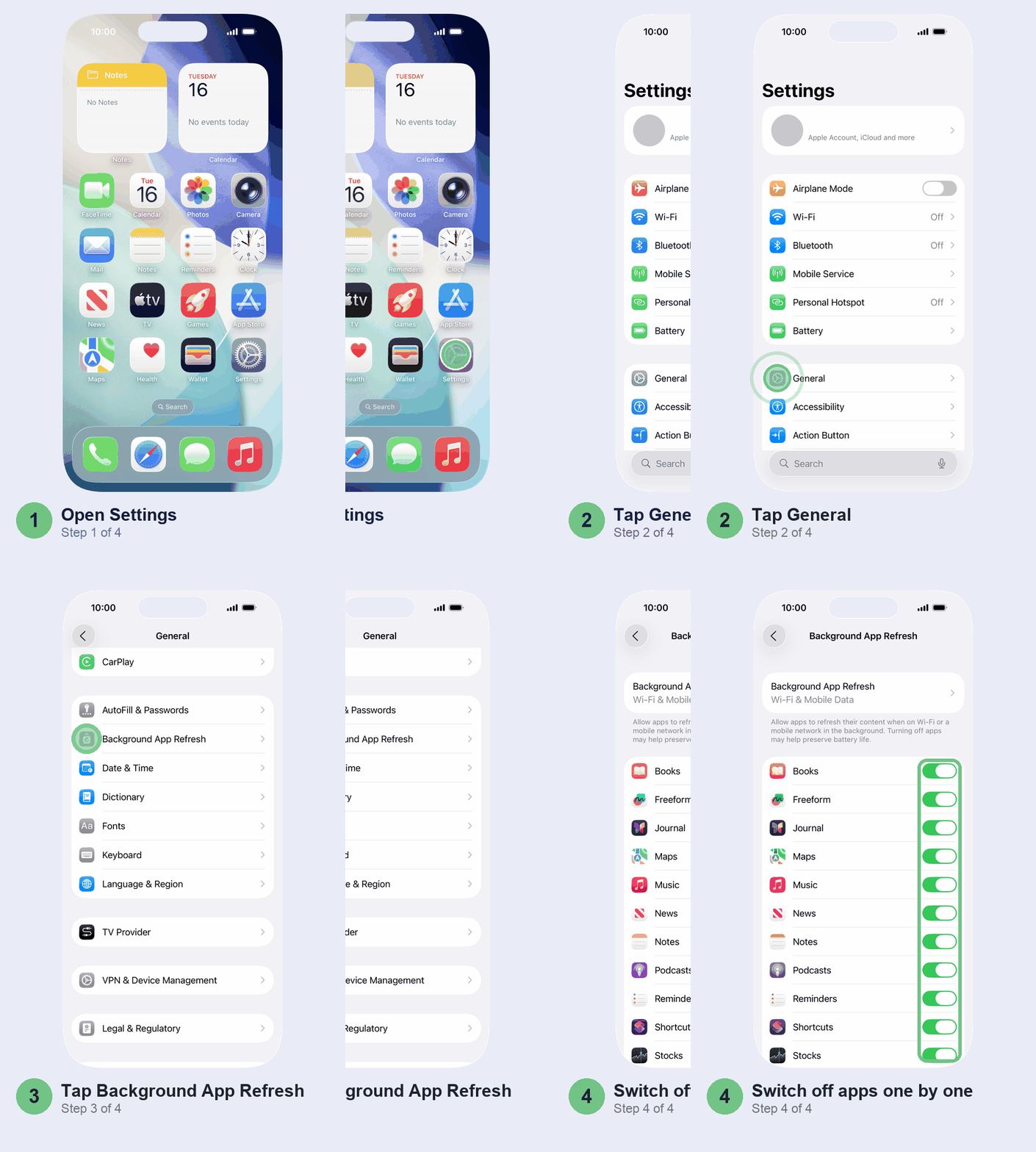
We wouldn’t turn the whole feature off, though. Doing it app by app gets you most of the benefit without stale apps.
Weak 5G signal? Switch to 4G for the day
When the signal is weak, your iPhone keeps searching for a better one, and that takes power and makes heat. Patchy 5G is the worst of it: indoors, in a basement office, or in a town where 5G comes and goes. You’ll also notice your battery dropping faster on those days.
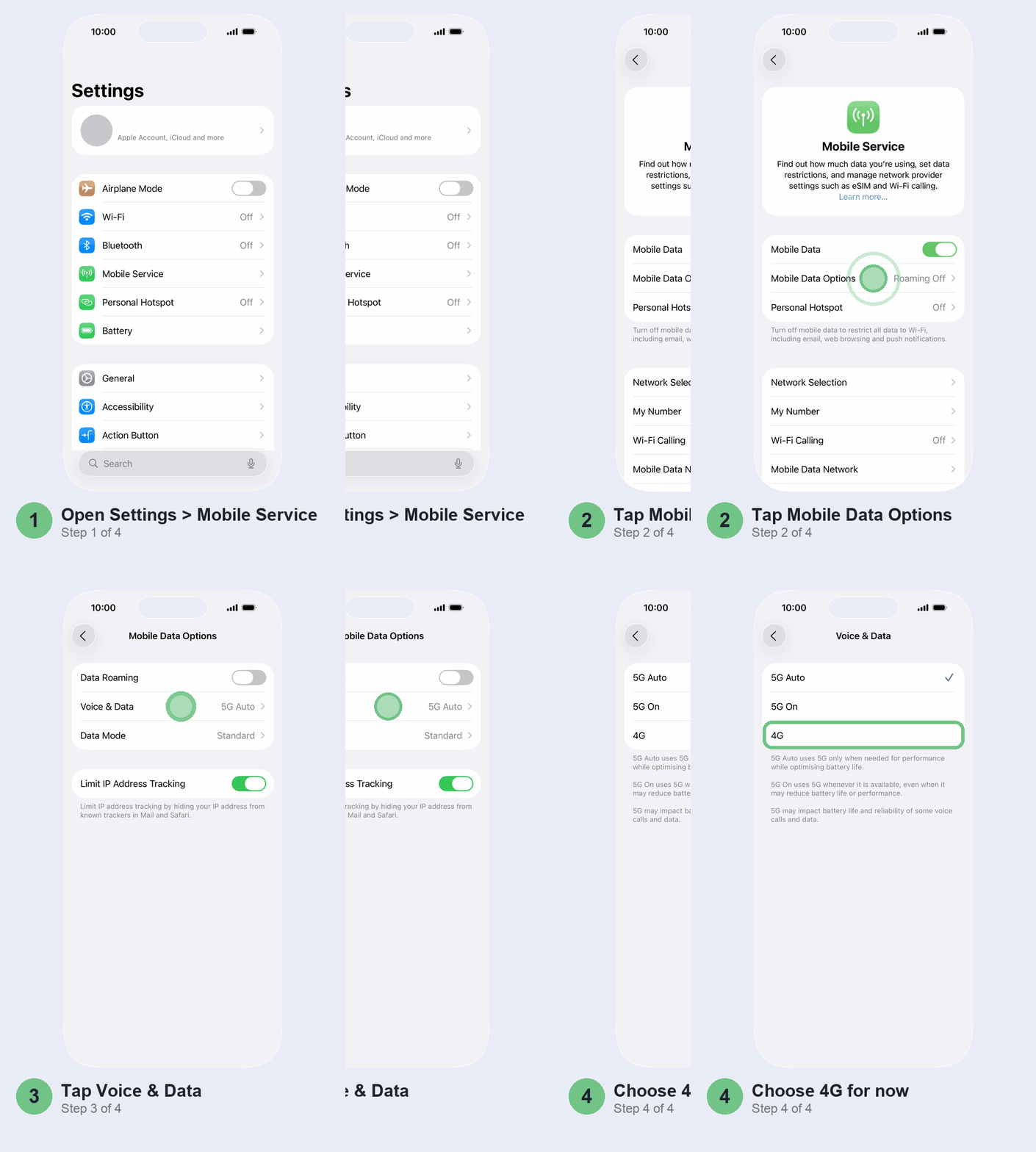
Only bother with this if the heat comes with a weak signal; with full bars, skip it. It applies to an iPhone 12 or later on 5G. With two SIMs, tap the line you use for data first. Go to Settings > Mobile Service > Mobile Data Options > Voice & Data and pick 4G (depending on your network, it may say LTE). Leave it on 4G while you’re somewhere with a poor signal, then switch back to 5G Auto, which only uses 5G when it helps.
Don’t bother
- The fridge or freezer. The sudden cold can leave moisture inside the phone. Shade and a fan are enough.
- Swiping away all your apps. Apps sitting in the app switcher are paused, not running, so clearing them doesn’t cool anything. Close only the one that’s frozen.
- “Phone cooler” apps. An app can’t cool hardware. Most of them just show ads.
- Clip-on cooling fans, unless you play heavy games for hours. For everyone else, fixing what’s making the heat is cheaper.
When it’s not you
Heat on its own rarely means a fault. These do:
- It’s hot while sitting idle in a cool room, not charging, with nothing at the top of the Battery list.
- It shuts down by itself with plenty of charge left, when it’s only warm.
- The screen lifts at an edge, or the back bulges. That’s a swollen battery. Stop charging it and get it looked at straight away.
- Settings > Battery > Battery Health (Battery Health & Charging on iPhone 14 and earlier) says Service, or that the battery’s health has significantly degraded.
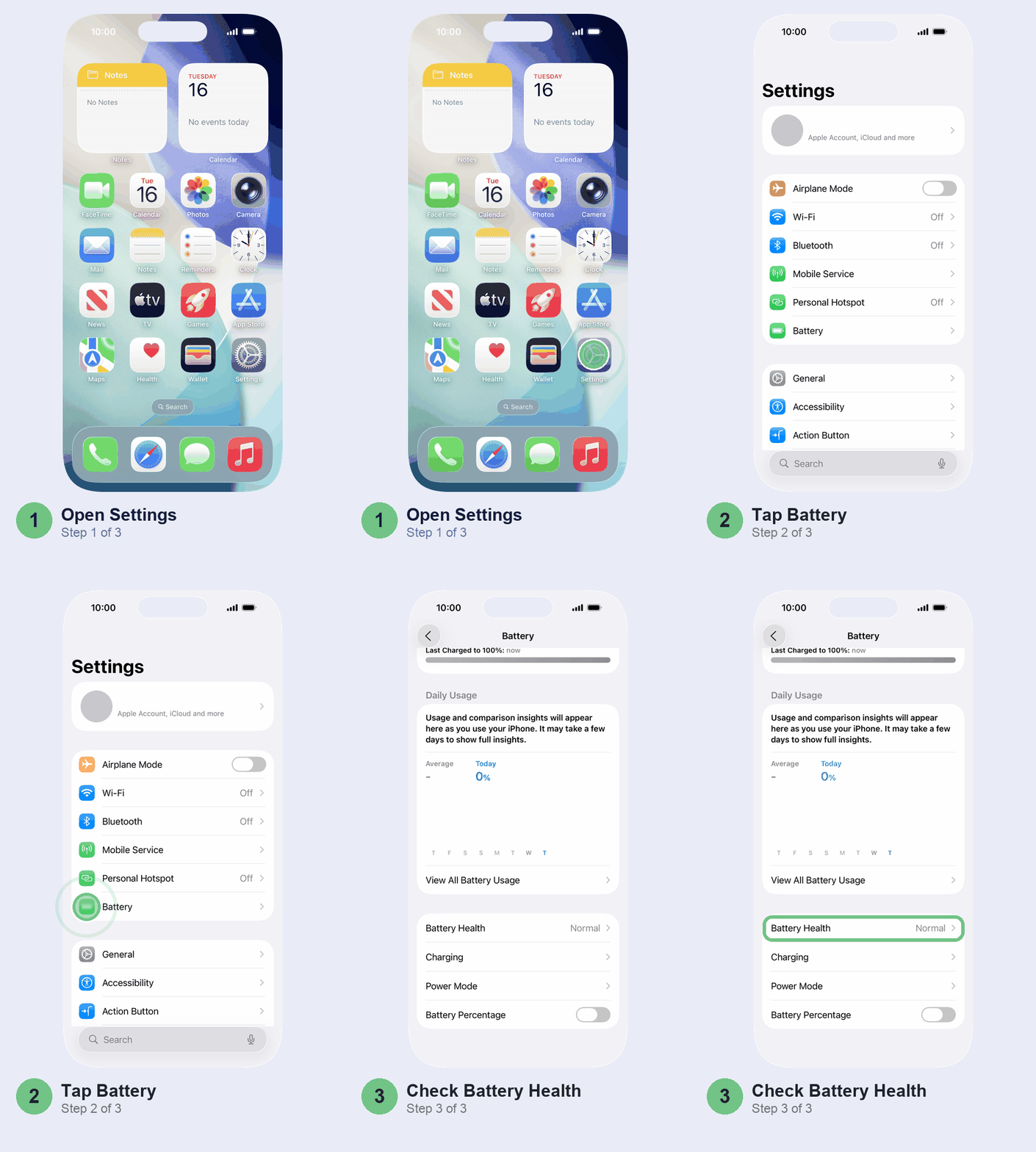
Any of those, get it checked. The Apple Support app books you in at an Apple Store or an Apple Authorised Service Provider near you, and saying “hot when idle” up front saves a round of basic questions. If it’s the battery, our guide to iPhone battery replacement prices in India has the current cost for each model.
Keep in mind that heat itself ages the battery. Apple says regular use above 35°C can permanently reduce the battery’s capacity, and charging in that heat is worse. One hot afternoon won’t do much. Every summer on the dashboard will.
Quick questions
Why is my iPhone getting hot?
Usually it’s charging while you use it, direct sun, a heavy app like a game or Maps, or a weak signal. A day or two after an update it’s also normal. If it’s hot while idle, check the Battery screen in Settings for the app behind it.
Is it normal for an iPhone to get hot while charging?
Warm, yes, especially on a wireless charger. Hot enough to see Charging on Hold means it’s too warm: unplug it, take the case off and stop using it until it cools.
How do I stop my iPhone from overheating?
Keep it out of the sun and off the dashboard, don’t game or use Hotspot while it’s charging, take off a thick case, and switch off Background App Refresh for apps that don’t need it.
Can overheating damage an iPhone?
Your iPhone protects itself by dimming, slowing and pausing charging, so one hot day won’t break it. Repeated heat above 35°C does wear the battery faster, so the damage builds up over summers.
Should I put my iPhone in the fridge to cool it?
No. Switch it off and leave it in the shade or near a fan for 10 to 15 minutes.
Which one was it for you: the charger, the sun or an app? Tell us your iPhone model and what fixed it in the comments, and we’ll add it to this guide.
Checked against Apple’s iOS 27 User Guide and Apple Support (India).
Last updated: November 2026