The new iPhone is arriving on Thursday, or the old one is going in for a battery, or Settings has had a red “iPhone Not Backed Up” badge on it since March. Either way you need a backup now, and every guide you open assumes you own a Mac or still tells you to install iTunes. Most of us in India have a Windows laptop. Here’s how to back up an iPhone on whatever computer you actually have, and the one setting to leave on so you never have to think about this again.
Back up an iPhone: the quick answer
Two backups, not one. Leave iCloud Backup on, because it runs by itself every night and it’s the copy that will exist when your phone falls in a bucket. Then, before anything risky (a repair, a trade-in, a big iOS update, a factory reset), plug the iPhone into your PC or Mac and take a full local backup with Encrypt local backup ticked. The computer copy holds everything, costs you nothing and doesn’t care that iCloud’s free 5 GB filled up two years ago. Take it on the day, not the week before.
On Windows, the app you want is Apple Devices from the Microsoft Store, not iTunes. On a Mac it’s the Finder. The first backup copies everything, so give it a lunch break over a cable or a night for iCloud. Later ones only copy what changed. Apple’s own comparison of the two backup types is worth a skim if you want the full list of what each one leaves out.
Turn on iCloud Backup and leave it on
Start here even if you plan to use the computer, because this is the backup that actually happens. Once it’s on, the iPhone backs itself up every night while it’s charging, locked and on Wi-Fi. You do nothing.
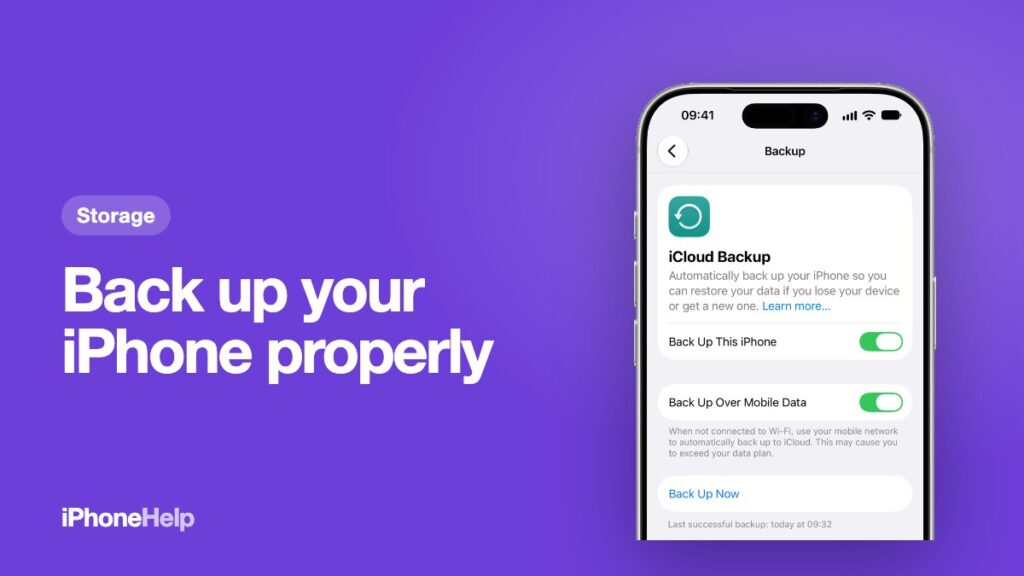
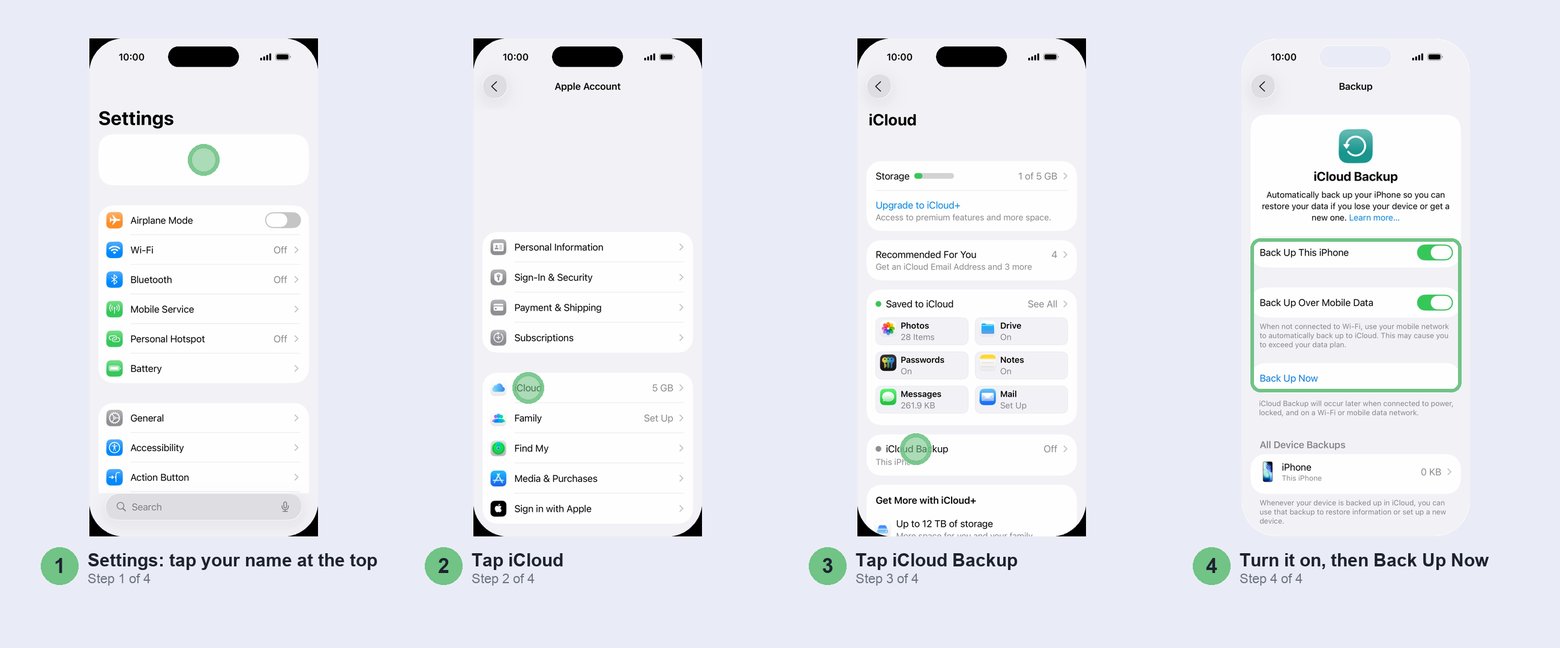
Go to Settings > [your name] > iCloud > iCloud Backup and turn on Back Up This iPhone. Then tap Back Up Now so you have a copy today rather than tomorrow morning. Stay on Wi-Fi until it finishes; the date and time of the last backup appear under the button when it’s done.
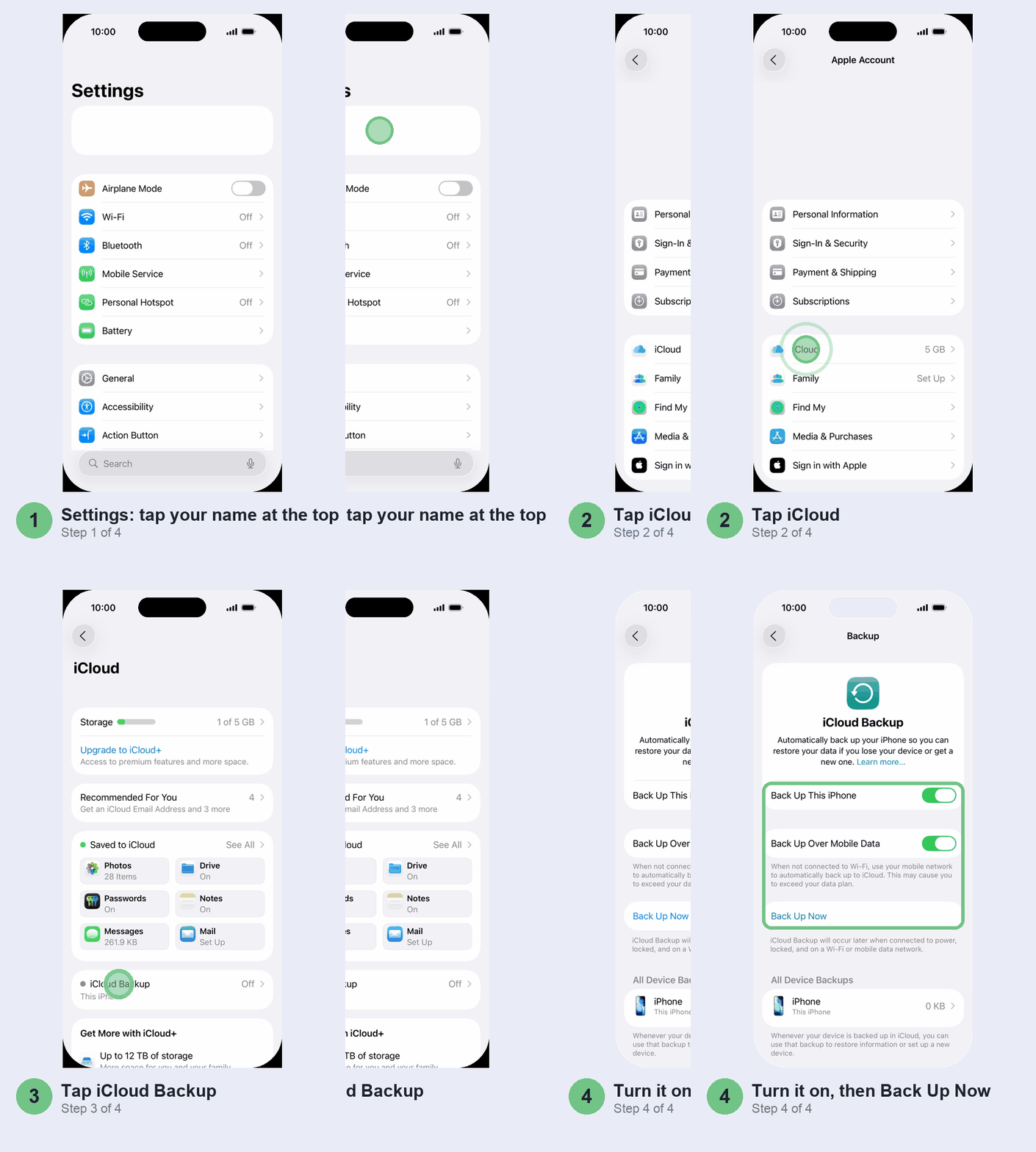
Two things on this screen are worth a look. Back Up Over Mobile Data shows up on 5G iPhones if your carrier allows it. If your home broadband is slow and you’re on a plan with unlimited 5G rather than a daily 2 GB bundle, turn it on and the nightly backup stops waiting for a Wi-Fi network that never gets a turn. Below the toggles, All Device Backups lists every device on your account, including the iPhone you sold in 2023. Delete the old ones; they’re eating the same 5 GB.
iCloud Backup keeps whatever doesn’t already sync on its own: settings, Home Screen layout, app data, your messages unless Messages in iCloud is on, your photos unless iCloud Photos is on, and your Apple Watch’s backup. Things that already live in iCloud don’t get backed up twice.
If your last backup is from last year, the nightly conditions are the reason: power, Wi-Fi and a locked screen, all at once. A phone that charges on the car dashboard and sits on mobile data all evening never meets them. Charge it overnight at home once a week, or turn on the mobile-data option.
Back up to a Windows PC with the Apple Devices app
If your PC runs Windows 10 22H2 or Windows 11, open the Microsoft Store, search for Apple Devices and install it. It’s Apple’s own replacement for iTunes on Windows and it doesn’t drag a music player along. iTunes still works, and if you already have it the steps are near the end of this guide, but don’t install it fresh in 2026.
You’ll need the charging cable, a free USB port and space on the Windows drive: the backup lands in your user folder on C:, and a full iPhone makes a backup of tens of gigabytes, so a nearly full C: drive is the first thing to clear.
- Connect the iPhone to the PC with its cable. Unlock the phone and tap Trust if it asks, then enter the passcode.
- Open Apple Devices. Your iPhone appears at the top of the sidebar; click it.
- Lower down the same sidebar, under Settings, click General.
- Under Backups, choose Back up all the data on your iPhone to this computer.
- Tick Encrypt local backup, set a password and put it in your password manager now. Forget it and this backup is useless.
- Click Back Up Now and leave the cable in until the “Last backup to this computer” line updates.
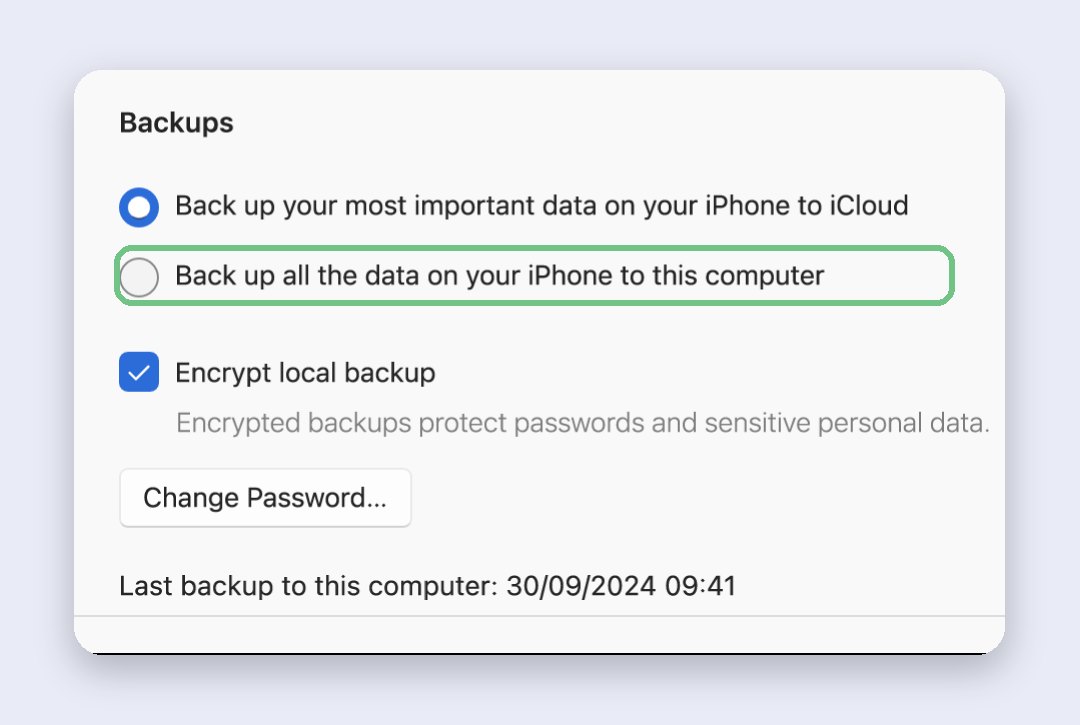
Keep the laptop plugged in and awake for the first backup. Forum threads blame Windows sleep and antivirus scans for PC backups that sit at the same spot for an hour; if yours stalls, pause the antivirus and start it again.
The backup lands in a folder you’ll never need unless something goes wrong: press Windows key + R and type `%USERPROFILE%\Apple\MobileSync\Backup`, then Enter. Older iTunes installs keep it in `%AppData%\Apple Computer\MobileSync\Backup` instead. Don’t rename or move anything in there; use Manage Backups in the General tab to delete or archive old ones.
Back up to a Mac with the Finder
Any Mac on macOS Catalina or later does this in the Finder, no app needed.
- Connect the iPhone with its cable. Click Allow on the Mac if it asks about the accessory, then tap Trust on the phone and type its passcode.
- Open a Finder window and click your iPhone under Locations in the sidebar.
- On the General tab, choose Back up all the data on your iPhone to this Mac.
- Tick Encrypt local backup, set a password and save it somewhere you’ll find it. Forget it and this backup is useless.
- Click Back Up Now. The “Last backup to this Mac” line updates when it’s done.
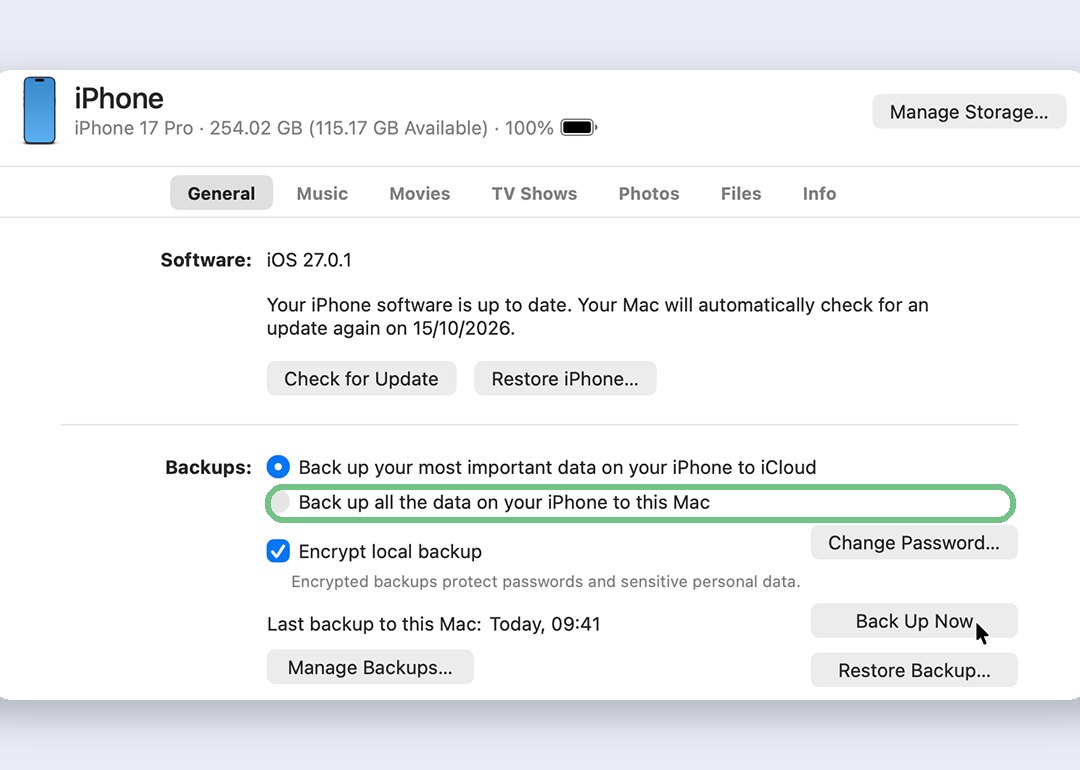
Mac backups live in your Library folder, and the Finder’s Manage Backups button is the right way to delete or archive them. A Mac on Mojave or older still uses iTunes; the steps are the same as the Windows iTunes ones below.
Tick Encrypt local backup. Yes, really
An unencrypted computer backup leaves out your saved passwords, Health and Activity data and anything else Apple considers sensitive. Tick the box and all of it comes along, which is the difference between a new iPhone that’s ready to use and one where you re-enter every password for a week. In the backups list, an encrypted one carries a lock icon.
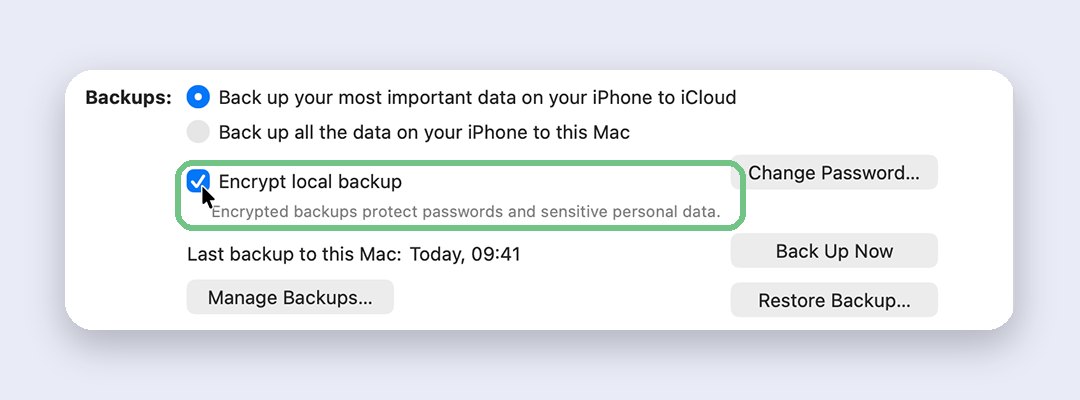
The catch: forget the password and that backup is gone for good. Apple can’t recover it for you; you can only set a new password and start fresh. Put it in your password manager or write it on paper in the drawer with the warranty card. “I’ll remember it” is how people lose a year of Health data.
iCloud says you’re out of space
This is where most people give up, because the free 5 GB is a joke for any iPhone with a camera. You have three honest options, in order.
Pay ₹75 a month. iCloud+ with 50 GB costs ₹75, 200 GB is ₹219 and 2 TB is ₹749 (prices checked on apple.com/in, November 2026), and one plan can be shared with five family members. For most people the 50 GB plan is the fix: it’s less than a plate of momos and the backup problem goes away permanently. We’d take 200 GB if you also want iCloud Photos for a big library.
Shrink the backup instead. On the iCloud Backup screen, tap your iPhone under All Device Backups. Next Backup Size tells you how big the next one will be, and the list of apps below it lets you turn off the ones you don’t care about. Turning an app off also deletes its old backup data from iCloud, which is the point. WhatsApp and video-heavy apps are the usual culprits. Our storage guide covers clearing the phone itself.
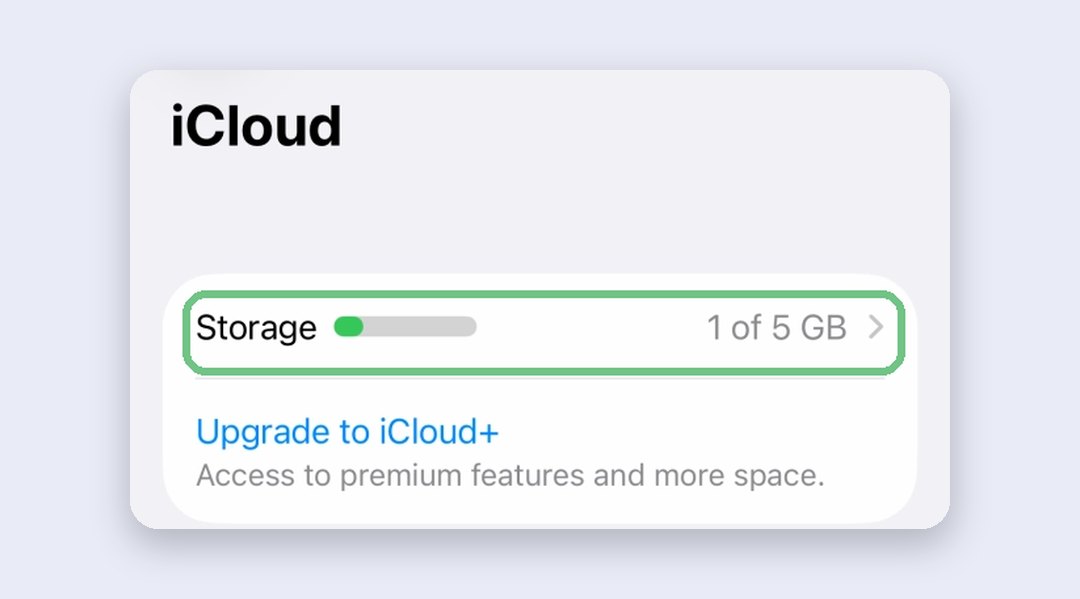
Back up to the computer and skip iCloud. Legitimate, free, and it’s what the Windows section above is for. The trade-off is that it only happens when you plug in, so you’ll need the discipline to do it before anything risky.
Skip the apps that offer to “back up your iPhone to Google Drive”. They copy photos and contacts, not your iPhone. Google Photos is a fine second home for pictures, but it won’t restore your apps, messages and settings onto a new phone.
WhatsApp backs up separately
This trips up a lot of people in India. WhatsApp keeps its own chat backup in iCloud, and that’s the one it restores from on a new phone. In WhatsApp’s own Settings tab, go to Chats > Chat Backup > Cloud backup, choose iCloud and pick daily. WhatsApp only restores from the last successful backup, so daily is the setting that matters. Newer versions offer WhatsApp’s own cloud storage instead of iCloud; it replaces the iCloud backup rather than adding to it. Either way, your iPhone’s iCloud Backup carries a second copy of WhatsApp’s data, which is part of why 5 GB goes so fast.
Moving to a new iPhone? WhatsApp can also move chats phone to phone. Coming from Android, our WhatsApp transfer guide has the steps.
Older PC: back up with iTunes
If Apple Devices won’t install (a Windows 10 build older than 22H2, usually), iTunes from the Microsoft Store still does the job.
- Connect the iPhone, tap Trust on the phone, and click the small iPhone button that appears at the top left in iTunes.
- Click Summary.
- Under Backups, select This Computer, tick Encrypt local backup and set a password you’ll keep.
- Click Back Up Now. Latest Backup shows the time when it finishes.
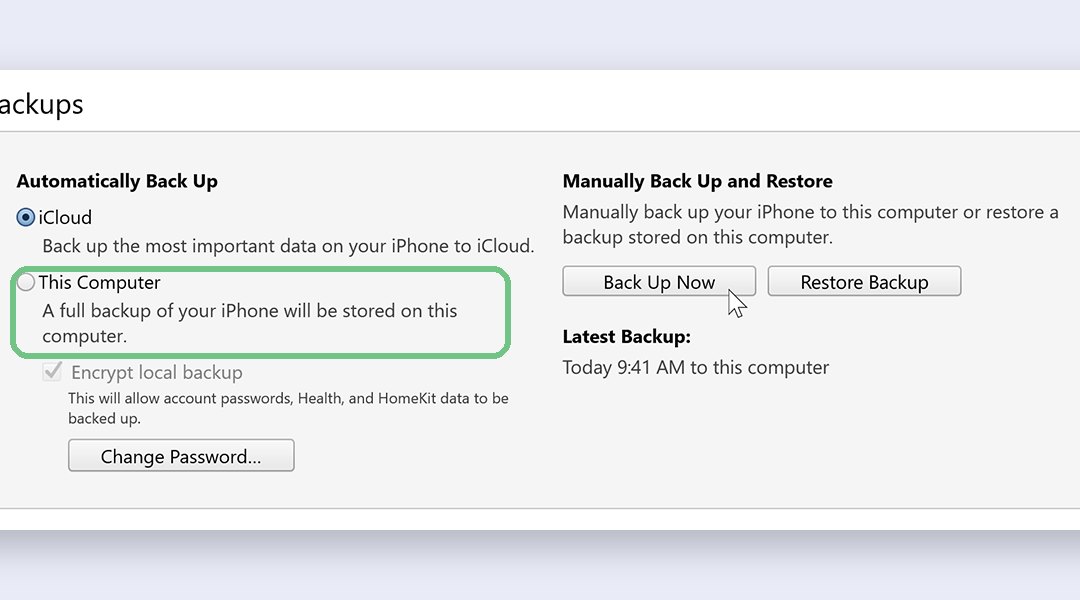
To see or delete iTunes backups, go to Edit > Preferences > Devices.
Before a repair, a trade-in or a new phone
Apple may erase the phone during any repair, which is why the service form makes you confirm you’ve backed up. A trade-in or exchange offer means the phone gets wiped, so the backup is the only copy. Do both backups that morning: Back Up Now to iCloud, and a full encrypted copy on the computer. If you’re off to get the battery replaced, that’s the routine.
If you’re selling the old phone, after the backup open Settings, tap General, then Transfer or Reset iPhone, then Erase All Content and Settings. Don’t just delete apps.
Where people get stuck
The iPhone doesn’t show up on the computer. Nine times out of ten it’s the cable or the port. Use the cable that charges the phone, plug it straight into the computer rather than a hub, and unlock the phone. Still nothing on Windows? Reinstall Apple Devices from the Store.
The iCloud backup never finishes. It uploads at your broadband’s upload speed, which on a lot of Indian fibre plans is a fraction of the download number, and a big first backup can take all night. Apple’s advice is a full day plugged in and on Wi-Fi. If it still hasn’t finished after that, back up to the computer and let iCloud catch up over the week, or turn on Back Up Over Mobile Data if your 5G plan can take it.
iCloud Backup is greyed out. A restore from a backup is still running on the phone. Let it finish.
FAQ
Can I back up my iPhone to a PC without iTunes?
Yes. Install Apple Devices from the Microsoft Store on Windows 10 22H2 or Windows 11 and follow the steps above; it backs up, restores and updates your iPhone without iTunes.
Does an iCloud backup include my photos?
Only if iCloud Photos is off. With iCloud Photos on, your photos already live in iCloud and the backup skips them. Either way they come back on a new phone, as long as you sign in with the same Apple Account.
How long does an iPhone backup take?
The first one copies everything: plan on a lunch break over a cable and a night for iCloud, where Apple says to allow up to 24 hours. After that, backups only copy what changed and take minutes.
Is 5 GB of iCloud enough?
For a backup without photos and WhatsApp media, sometimes. For a real iPhone, no. Pay ₹75 a month for 50 GB or keep your full backups on the computer.
Where is my iPhone backup stored on Windows?
In the MobileSync folder under your user profile; the Windows section above has the exact path. Leave the folder alone and use Manage Backups in the app.
Can I back up my iPhone to Google Drive?
Not the whole iPhone. Google Photos and Google Drive can copy photos, videos and files, but apps, messages and settings only come back from an iCloud or computer backup.
Prefer to watch? Apple’s own short video covers the iCloud route.
Which computer do you back up to, and did Apple Devices behave on your PC? Tell us in the comments, especially if a backup got stuck and what unstuck it.
Last updated: November 2026