Jio for data because the pack is cheap, Airtel because that’s the number everyone has had since college, and your bank still texts the Airtel one. Dual SIM on iPhone handles all of that, but only if you tell it which line does what. Leave it on the defaults and you get calls going out from the wrong number, data eating the wrong pack and a UPI app that won’t verify.
Here’s how to set each job up once, in the order that matters. Apple’s own Dual SIM with eSIM page lists every option; this guide tells you which to pick.
Dual SIM on iPhone: the quick answer
Give yourself five minutes in Settings > Mobile Service. First rename the two lines after their carriers, so every “which line?” menu makes sense at a glance. Then Mobile Data goes to the SIM with the bigger data pack, and Default Voice Line goes to the number people and your bank know. Turn on Wi-Fi Calling for both lines so the second number doesn’t go silent while you’re on a call. For UPI, the verification text has to leave from the number your bank has; check the line before you tap Send.
Before you start: what dual SIM needs
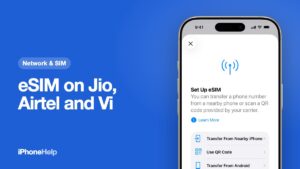
Any iPhone from the XR and XS onwards runs two lines. Indian models, including the iPhone 17, 17e and 18 Pro, take one nano-SIM plus an eSIM, and iPhone 13 and later can also run two eSIMs. The iPhone Air and iPhone Duo are the exceptions: no SIM tray at all, so both lines have to be eSIMs. If your second number is still on a physical card, our guide to setting up eSIM with Jio, Airtel and Vi covers the move.
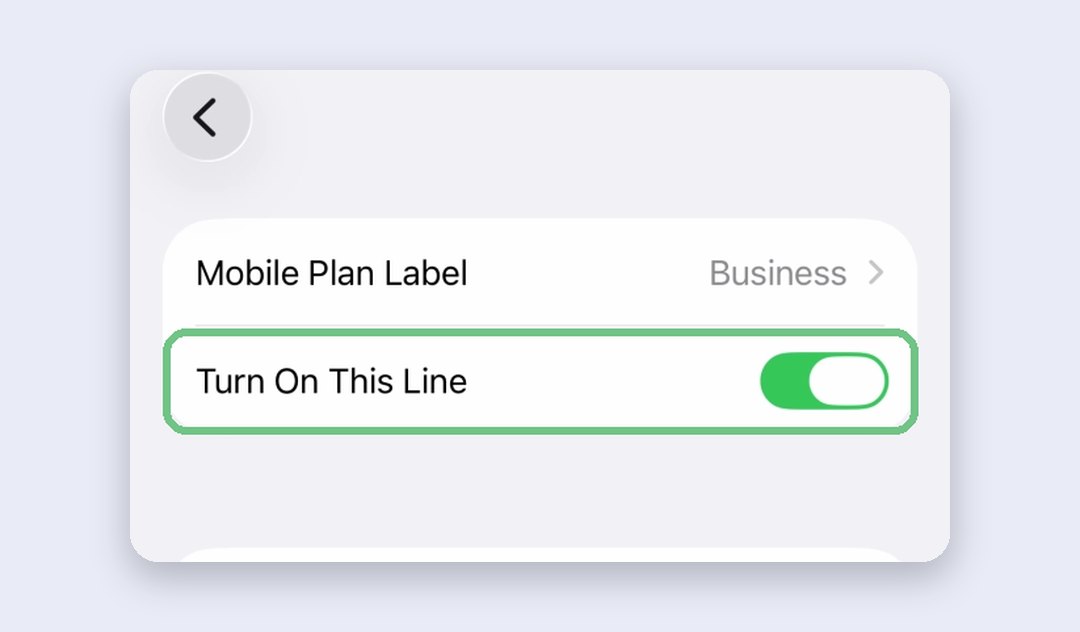
Both lines also have to be switched on. In Settings > Mobile Service, each number sits under SIMs with “On” or “Off” next to it. Tap one that’s off and turn on Turn On This Line.
One thing to know up front: an iPhone holds both lines on standby, but it uses one at a time. While you’re talking on one number, the other can’t take a normal call. That’s what the Wi-Fi Calling step below is for.
Rename your lines after their carriers
Do this first. It takes a minute and saves you misreading menus for years. Out of the box, the lines are called Primary and Secondary, and nobody remembers which is which. Name them Jio and Airtel, or Work and Personal, and those names show up everywhere you choose a line: the keypad, Messages and each contact.
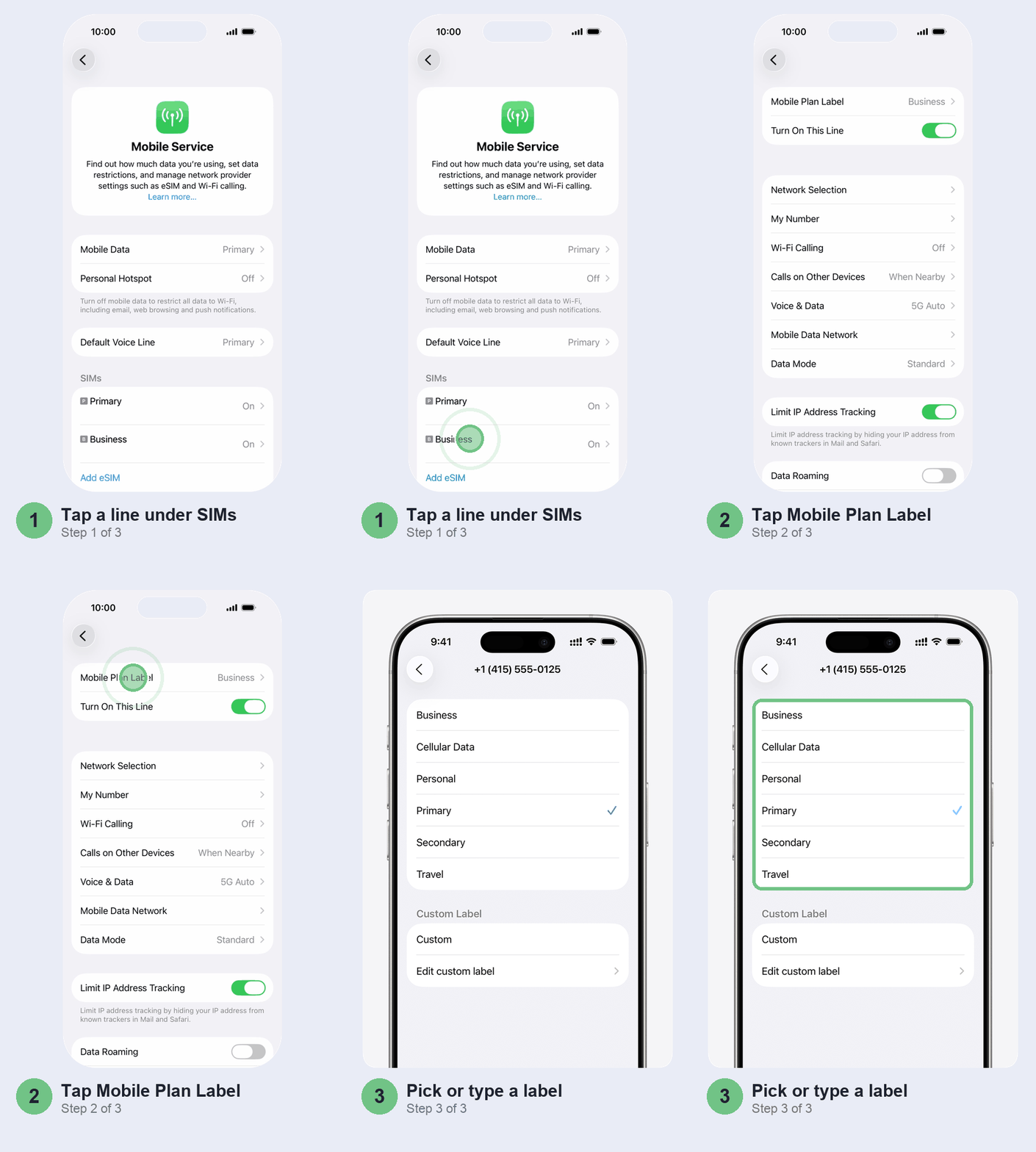
- In Settings > Mobile Service, tap a number under SIMs.
- Tap Mobile Plan Label.
- Pick a ready-made label, or tap Custom and type the carrier’s name.
Repeat for the other line. We’d use carrier names: they also tell you which pack you’re spending.
Choose which SIM uses mobile data
Only one line uses mobile data at a time, so give it to the SIM with the data pack you actually pay for. For most people that’s the number on the daily data plan, while the second number sits on a cheaper validity recharge.
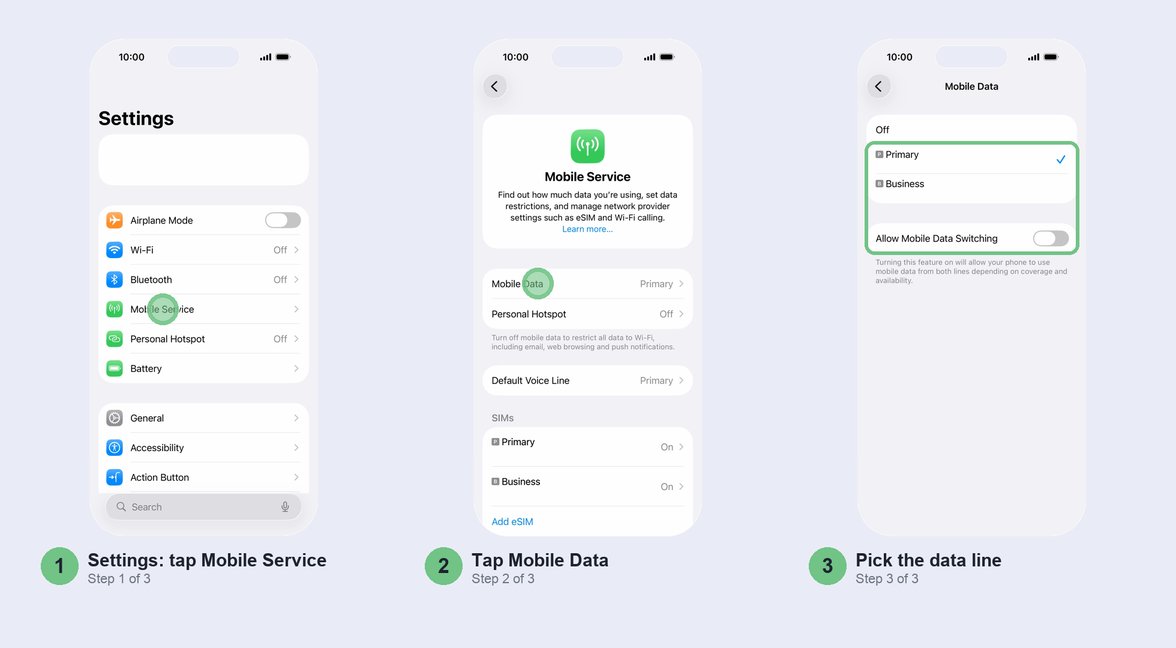
- Go to Settings > Mobile Service.
- Tap Mobile Data.
- Tap the line you want for data.
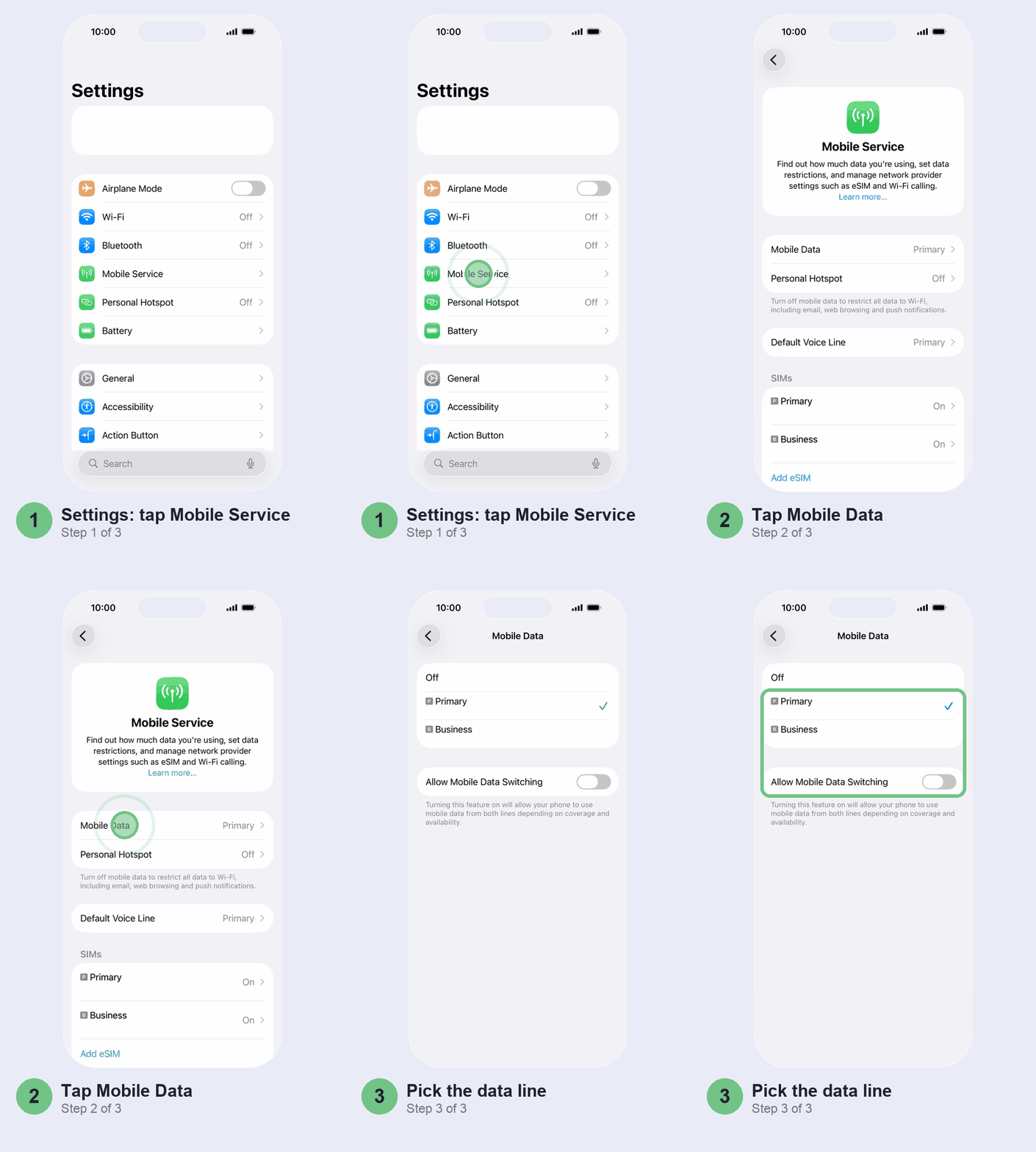
Below the two lines sits Allow Mobile Data Switching. With it on, the iPhone can borrow the other line’s data when coverage on your data SIM drops, and whichever line you’re calling on gets data for the length of the call.
We’d turn it on if both SIMs have a data pack. If the second line has none, leave it off: Apple warns that switching can add charges from your carrier, and on a line with no pack that’s money you don’t need to spend. The trade: while you’re talking on that second line away from Wi-Fi, calls to your data line go to voicemail instead of ringing through.
Personal Hotspot always shares the line you picked here. If hotspot is playing up, our Personal Hotspot fix guide starts with that.
Set the default line for calls
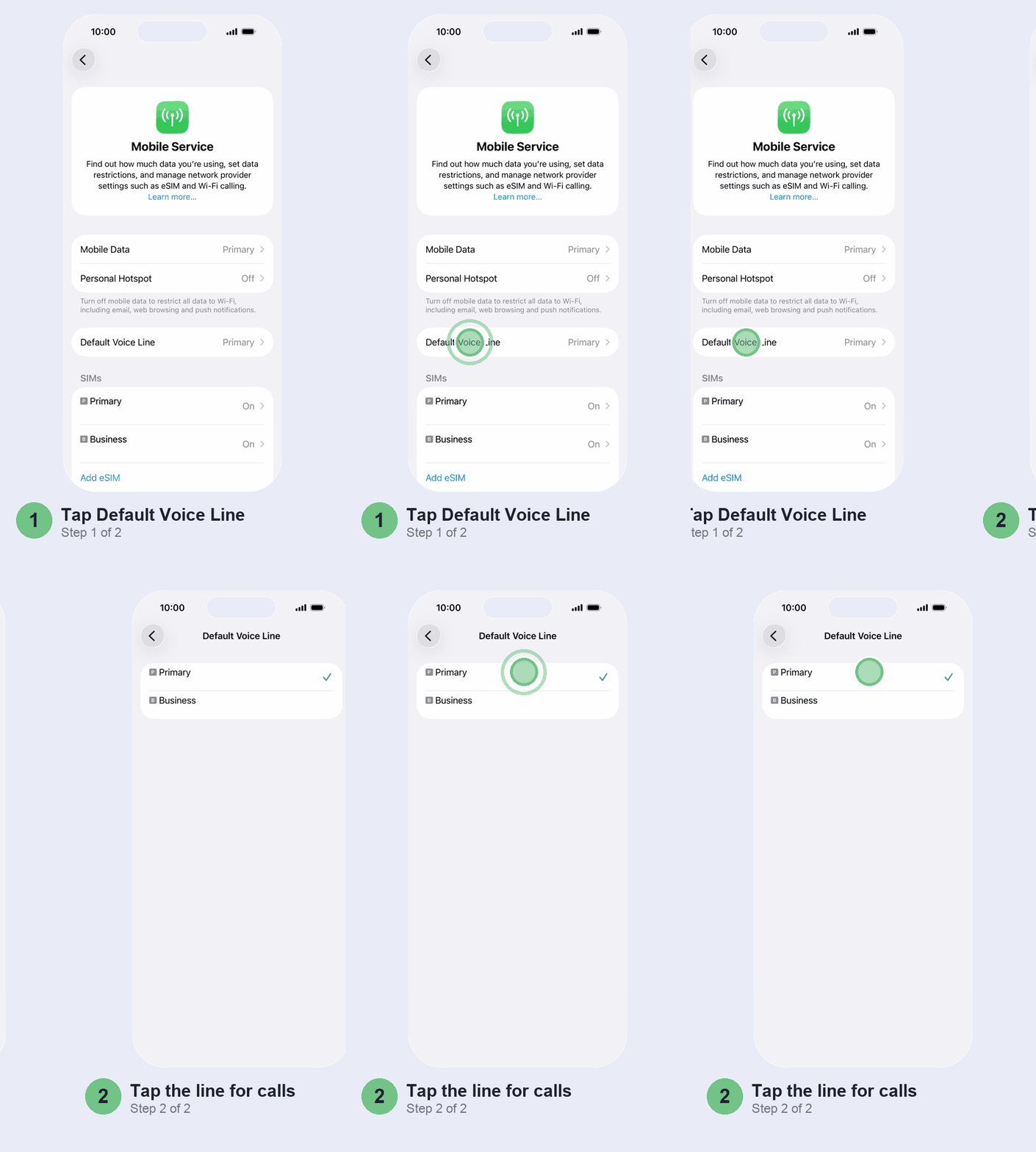
The default line is the one your iPhone uses for a number that isn’t saved in Contacts. Make it the number you’d want a stranger, a delivery agent or your bank’s helpline to see.
- Back in Settings > Mobile Service, tap Default Voice Line.
- Tap the line you want.
Pin a line to a contact
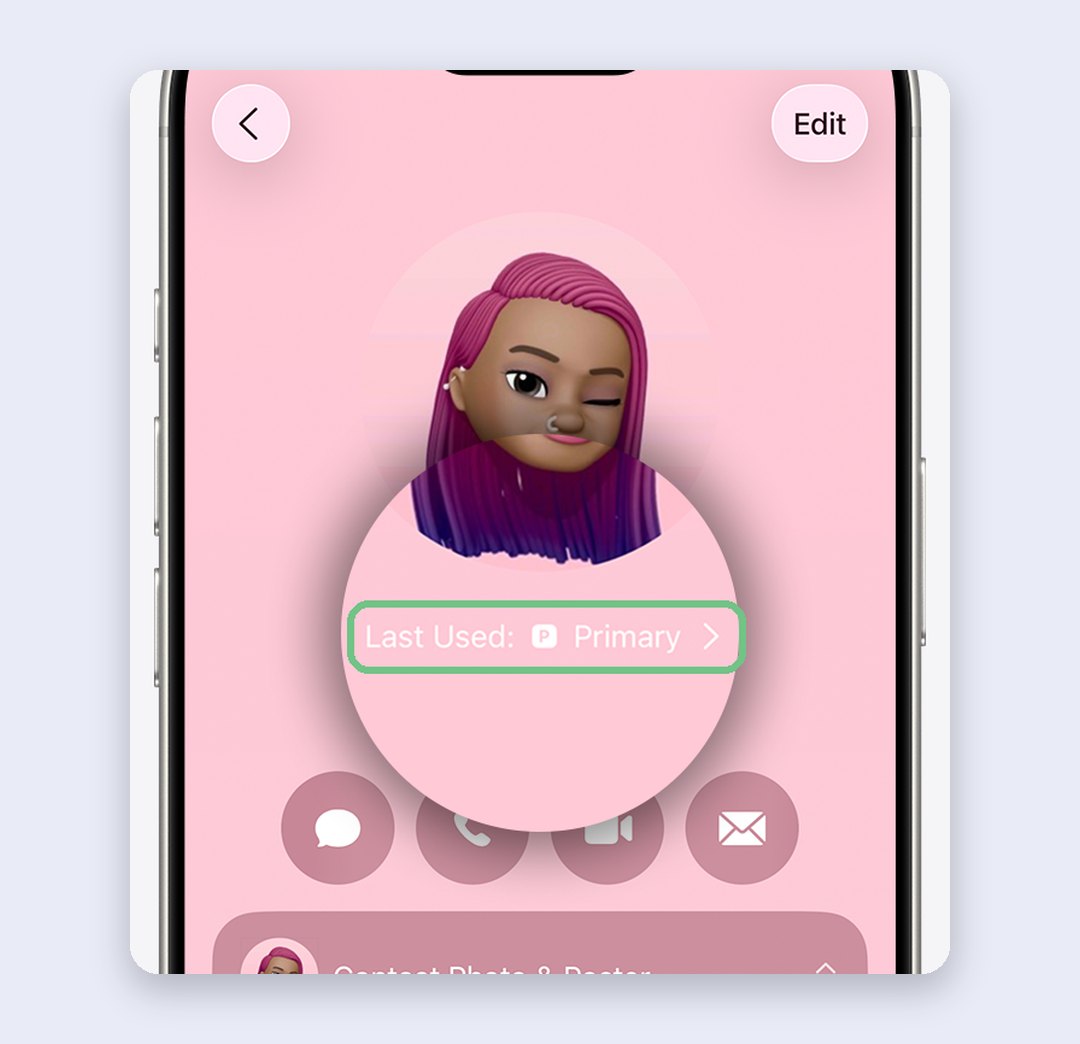
For people you’ve saved, the iPhone calls them from whichever line you used last time. That works until you ring your boss once from your personal number. To fix a contact to one line, open the contact, tap the line label under their name (it reads “default” or “Last Used”), and choose a line.
Switch line for just one call
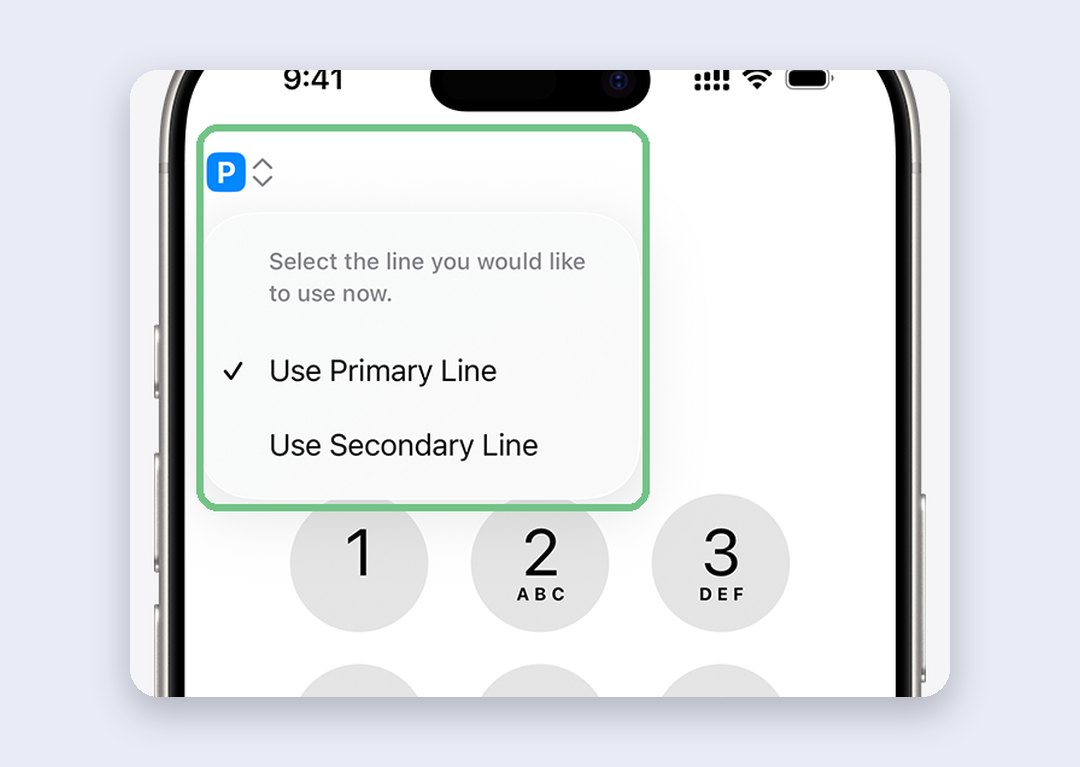
Calling from the keypad? Type the number, tap the line badge at the top of the screen and pick the other line before you tap the green button. From Favourites, tap the info button next to the name, tap the line shown and choose the other one.
Stop missing calls on the other line
This is the setting people skip, and it’s the one that quietly loses you calls. While you’re on a call on your Jio number, your Airtel number can’t ring on its own network. Without Wi-Fi Calling, that call goes to voicemail if your carrier offers it, and you don’t even get a missed-call alert. No voicemail on your plan? Then the caller simply can’t get through, and you never find out they tried.
Wi-Fi Calling fixes it. With it on for a line, that line can receive a call over Wi-Fi, or over the other line’s mobile data, while you’re busy on the first. Jio, Airtel and Vi all support Wi-Fi Calling on iPhone.
Away from Wi-Fi, that second call rides on the mobile data of the line you’re talking on, and Apple notes charges may apply. It works on its own when you’re talking on your data line. When you’re talking on the other line, it needs Allow Mobile Data Switching on.
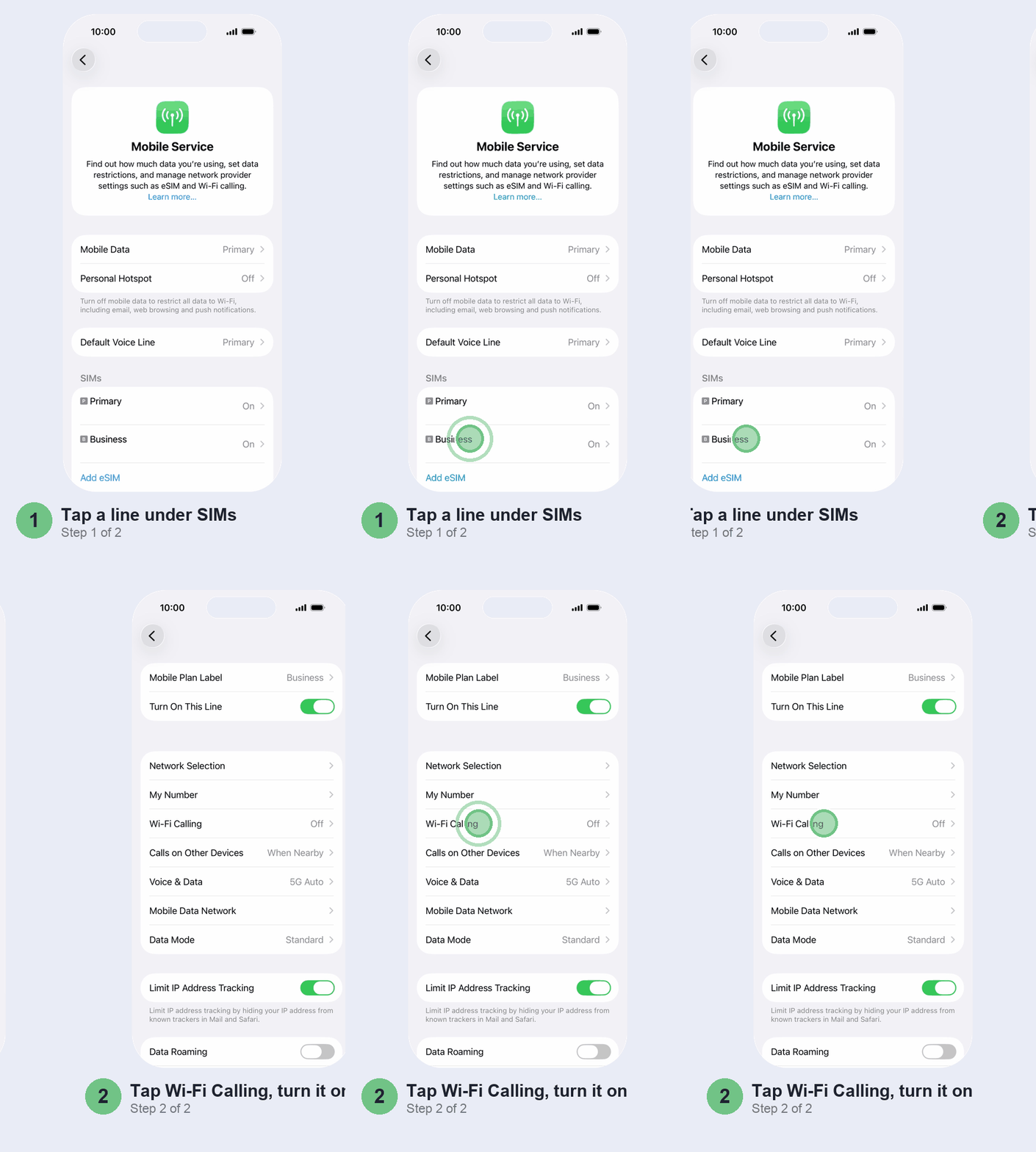
- In Settings > Mobile Service, tap a number under SIMs.
- Tap Wi-Fi Calling and turn it on.
- Go back and do the same for the other number.
Keep SMS and OTPs on the right number
Texts are simpler than calls. Both lines receive SMS whichever one carries your data, so a bank or delivery OTP reaches the number the bank or shop has on file. If codes stop arriving, it’s usually a switched-off line, a Messages filter or a fresh SIM swap; our guide to an iPhone not receiving OTP SMS works through them.
Sending is where people slip. A new message goes from your default line unless you change it: tap the line shown in the From field before you send. And a plain SMS thread stays on the line it started on. Messages does show a line picker at the top of a chat, but Apple’s iOS 27 guide is clear that an SMS conversation can’t move across. To text that person from your other number, delete the thread (you lose its history) and start a new message.
One cost to watch: a photo or other attachment sent as MMS from the line that isn’t your data line may cost extra.
Choose your number for iMessage and FaceTime
iMessage and FaceTime don’t follow your Default Voice Line. They have their own setting, and it decides which number your friends see when you message or FaceTime them.
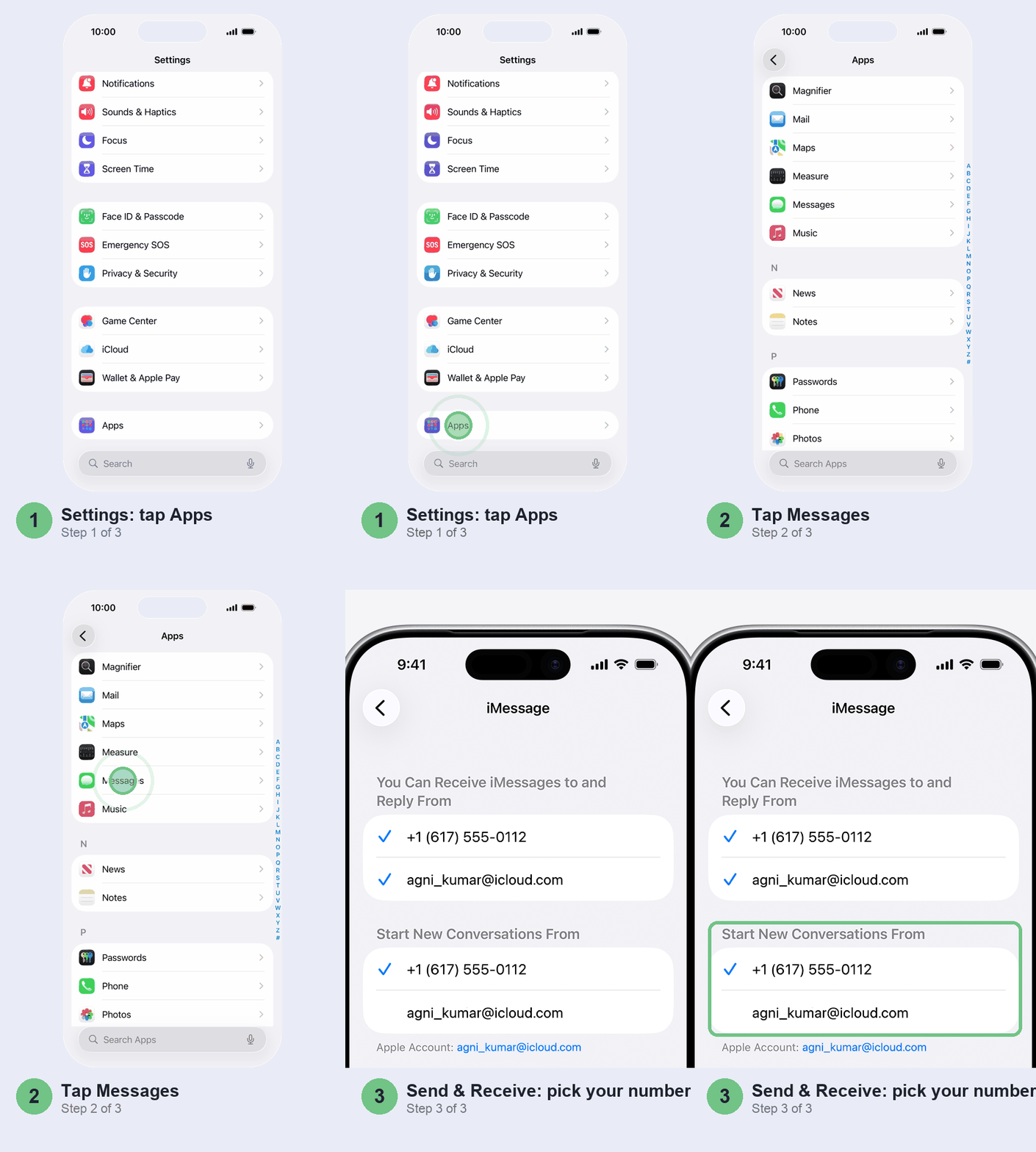
- Open Settings > Apps > Messages and check that iMessage is on.
- Tap Send & Receive.
- Under the receive section, tick both numbers if you want iMessages on either. Under Start New Conversations From, pick the number your friends have saved.
For FaceTime, go to Settings > Apps > FaceTime and tick the numbers under “You can be reached by FaceTime at”. If someone says your iMessages arrive from a number they don’t recognise, this is the setting to fix.
UPI and bank apps: which SIM to use
UPI is tied to a phone number, not to your data. GPay, PhonePe and Paytm verify you with a text that leaves from your iPhone, so whichever line sends it is the number the bank sees. While you set up a UPI app:
- Make the bank’s number your Default Voice Line, as above. You can switch it back once the app is set up.
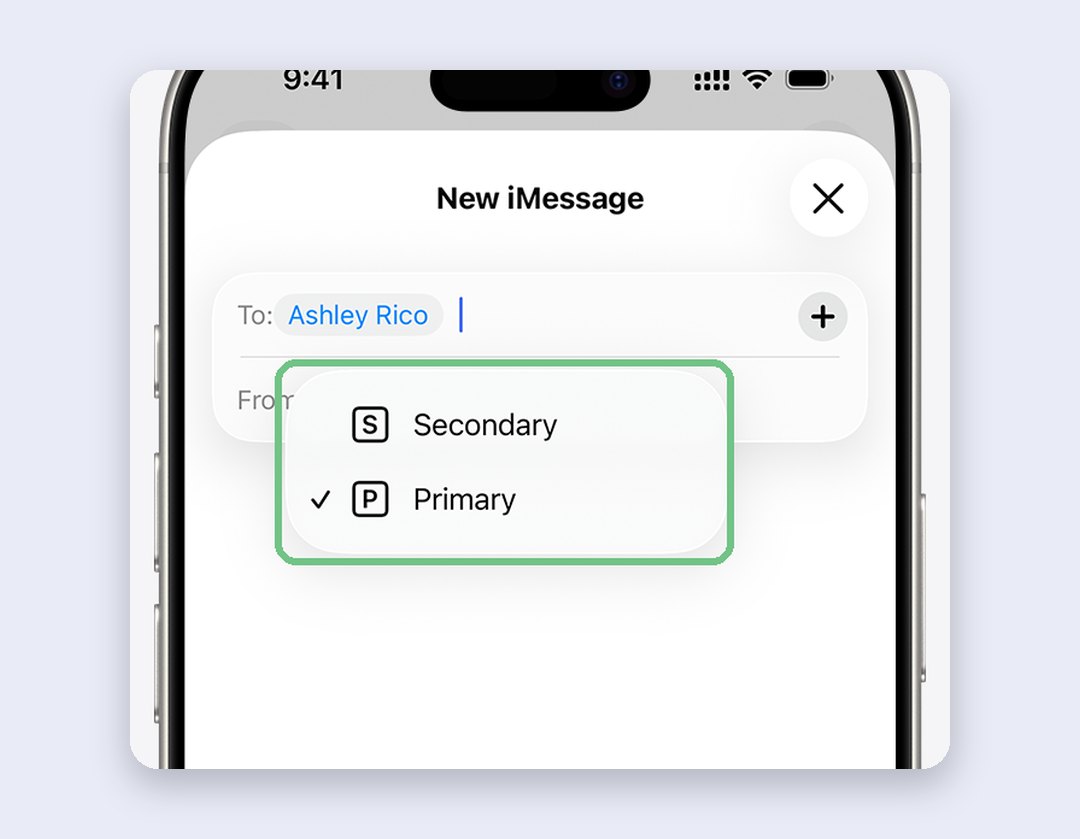
- When the text opens, tap the line in the From field and check it’s the bank’s number before you tap Send.
- Keep that line switched on afterwards. Your bank’s OTPs and debit alerts go to it, whichever SIM you use for data.
Your data can come from either SIM or from Wi-Fi once the app is set up. If verification keeps failing, our UPI app fix guide covers the 24-hour block after a SIM swap, the three-attempts limit and the rest.
The catch: keep both SIMs alive
A second SIM you keep only for bank OTPs is easy to forget about until it stops working. Under TRAI’s rules, a prepaid number with at least ₹20 balance can’t be cut off for 90 days without use. After that, ₹20 is deducted to keep it going for another 30 days. Carriers don’t all handle the end of that period the same way, so don’t count on it. A small validity recharge on the second line is cheaper than updating your number with every bank and app.
If the second number really is dead weight, port it or let it go deliberately, and change it at your bank first.
Don’t bother with these
- Taking out the second SIM to get UPI working. Pick the right line in the From field instead. Pull it and that number’s bank OTPs stop too.
- Dual SIM adapter cases. Those bulky cases and sleeves that add a second card slot are a relic of the pre-eSIM days. If your iPhone is an XR or newer, use eSIM for the second line.
- Turning off a line to get fewer spam calls. You’ll miss OTPs on it too. Our guide to blocking spam calls on iPhone in India has better tools.
Quick questions
Is the iPhone 16 or 17 dual SIM in India?
Yes. iPhone XR, XS and every model since run two lines. The iPhone 15, 16, 17, 17e and 18 Pro sold in India take a nano-SIM plus an eSIM, and from the iPhone 13 on they can run two eSIMs instead. The iPhone Air and iPhone Duo are eSIM-only.
Can I put two physical SIM cards in an iPhone?
Not in an Indian model. You get one nano-SIM tray and eSIM for the second line. Apple makes iPhones with two nano-SIM slots only for some markets, such as Hong Kong and Macao.
Can both SIMs use mobile data at the same time?
No. Allow Mobile Data Switching can hop between them, but only one carries data at a time.
Will I get calls on both numbers at once?
Both ring when you’re free; during a call, the other number needs Wi-Fi Calling to get through.
Can I use two different carriers?
Yes, Jio on one line and Airtel on the other is the usual Indian setup. The catch is an iPhone locked to one carrier, which is mostly a problem with phones bought on contract abroad: that carrier has to unlock it first.
Which SIM do you keep for UPI and bank OTPs, and did Wi-Fi Calling stop the missed calls on your second line? Tell us in the comments with your two carriers, and we’ll add what works to this guide.
Last updated: November 2026